MY CART
QuickBooks Desktop Pro Tutorial Training Course
QuickBooks Tutorial Includes: Video Lessons, Instruction Manual, Exam & Certificate of Completion.


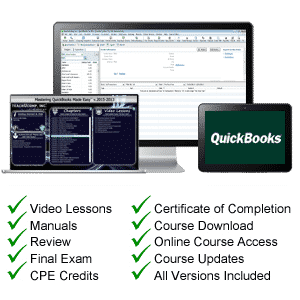
| Course Title: | Mastering QuickBooks Made Easy |
|---|---|
| Versions Covered: | Desktop Pro 2024 through 2014 |
| Hours of Content: | 8.25 |
| Video Lessons: | 194 |
| Manual: | 315 Pages |
| This Course: | $ |
| All Courses: | Every course. One price. | |
| Multi-User: | Group discounts |  |
Course Description
Learn the Ins and Outs of QuickBooks with this comprehensive QuickBooks tutorial from TeachUcomp, Inc. Mastering QuickBooks Desktop Pro Made Easy features 190 video lessons with over 8 hours of introductory through advanced instruction. Watch, listen and learn as your expert instructor guides you through each lesson step-by-step. During this media-rich learning experience, you will see each function performed just as if your instructor were there with you. Reinforce your learning with the text of our printable classroom instruction manual (315 pages), additional images and practice exercises. You will learn how to set up a QuickBooks company file, pay employees and vendors, create custom reports, reconcile your accounts, use estimating, time tracking and much more.
Whether you are completely new to QuickBooks or upgrading from an older version, this course will empower you with the knowledge and skills necessary to be a proficient user. We have incorporated years of classroom training experience and teaching techniques to develop an easy-to-use course that you can customize to meet your personal learning needs. Simply launch the easy-to-use interface, click to start a video lesson or open the manual and you’re on your way to mastering QuickBooks.
Course Syllabus & Sample Lessons
Select any of the video lessons marked to view them in a new window.
To view samples of the instruction manuals in PDF, click here: Sample QuickBooks Manual
CHAPTER 1- |
QuickBooks Tutorial: The QuickBooks Environment |
|
| Lesson 1.1- | The Home Page and Insights Tabs | |
| Lesson 1.2- | The Centers | |
| Lesson 1.3- | The Menu Bar and Keyboard Shortcuts | |
| Lesson 1.4- | The Open Window List | |
| Lesson 1.5- | The Icon Bar | |
| Lesson 1.6- | Customizing the Icon Bar | |
| Lesson 1.7- | The Chart of Accounts | |
| Lesson 1.8- | Accounting Methods | |
| Lesson 1.9- | Financial Reports | |
CHAPTER 2- |
QuickBooks Tutorial: Creating a QuickBooks Company File |
|
| Lesson 2.1- | Using Express Start | |
| Lesson 2.2- | Using the EasyStep Interview | |
| Lesson 2.3- | Returning to the Easy Step Interview | |
| Lesson 2.4- | Creating a Local Backup Copy | |
| Lesson 2.5- | Restoring a Company File from a Local Backup Copy | |
| Lesson 2.6- | Setting Up Users | |
| Lesson 2.7- | Single and Multiple User Modes | |
| Lesson 2.8- | Closing Company Files | |
| Lesson 2.9- | Opening a Company File | |
CHAPTER 3- |
QuickBooks Tutorial: Using Lists |
|
| Lesson 3.1- | Using Lists | |
| Lesson 3.2- | The Chart of Accounts | |
| Lesson 3.3- | The Customers & Jobs List | |
| Lesson 3.4- | The Employees List | |
| Lesson 3.5- | The Vendors List | |
| Lesson 3.6- | Using Custom Fields | |
| Lesson 3.7- | Sorting List | |
| Lesson 3.8- | Inactivating and Reactivating List Items | |
| Lesson 3.9- | Printing Lists | |
| Lesson 3.10- | Renaming & Merging List Items | |
| Lesson 3.11- | Adding Multiple List Entries from Excel | |
| Lesson 3.12- | Customer Groups | |
CHAPTER 4- |
QuickBooks Tutorial: Setting Up Sales Tax |
|
| Lesson 4.1- | The Sales Tax Process | |
| Lesson 4.2- | Creating Tax Agencies | |
| Lesson 4.3- | Creating Individual Sales Tax Items | |
| Lesson 4.4- | Creating a Sales Tax Group | |
| Lesson 4.5- | Setting Sales Tax Preferences | |
| Lesson 4.6- | Indicating Taxable & Non-taxable Customers and Items | |
CHAPTER 5- |
QuickBooks Tutorial: Setting Up Inventory Items |
|
| Lesson 5.1- | Setting Up Inventory | |
| Lesson 5.2- | Creating Inventory Items | |
| Lesson 5.3- | Creating a Purchase Order | |
| Lesson 5.4- | Receiving Items with a Bill | |
| Lesson 5.5- | Entering Item Receipts | |
| Lesson 5.6- | Matching Bills to Item Receipts | |
| Lesson 5.7- | Adjusting Inventory | |
CHAPTER 6- |
QuickBooks Tutorial: Setting Up Other Items |
|
| Lesson 6.1- | Service Items | |
| Lesson 6.2- | Non-Inventory Items | |
| Lesson 6.3- | Other Charges | |
| Lesson 6.4- | Subtotals | |
| Lesson 6.5- | Groups | |
| Lesson 6.6- | Discounts | |
| Lesson 6.7- | Payments | |
| Lesson 6.8- | Changing Item Prices | |
CHAPTER 7- |
QuickBooks Tutorial: Basic Sales |
|
| Lesson 7.1- | Selecting a Sales Form | |
| Lesson 7.2- | Creating an Invoice | |
| Lesson 7.3- | Creating Batch Invoices | |
| Lesson 7.4- | Creating a Sales Receipt | |
| Lesson 7.5- | Finding Transaction Forms | |
| Lesson 7.6- | Previewing Sales Forms | |
| Lesson 7.7- | Printing Sales Forms | |
CHAPTER 8- |
QuickBooks Tutorial: Using Price Levels |
|
| Lesson 8.1- | Using Price Levels | |
CHAPTER 9- |
QuickBooks 2017 Tutorial: Creating Billing Statements |
|
| Lesson 9.1- | Setting Finance Charge Defaults | |
| Lesson 9.2- | Entering Statement Charges | |
| Lesson 9.3- | Applying Finance Charges and Creating Statements | |
CHAPTER 10- |
QuickBooks Tutorial: Payment Processing |
|
| Lesson 10.1- | Recording Customer Payments | |
| Lesson 10.2- | Entering a Partial Payment | |
| Lesson 10.3- | Applying One Payment to Multiple Invoices | |
| Lesson 10.4- | Entering Overpayments | |
| Lesson 10.5- | Entering Down Payments or Prepayments | |
| Lesson 10.6- | Applying Customer Credits | |
| Lesson 10.7- | Making Deposits | |
| Lesson 10.8- | Handling Bounced Checks | |
| Lesson 10.9- | Automatically Transferring Credits Between Jobs | |
| Lesson 10.10- | Manually Transferring Credits Between Jobs | |
CHAPTER 11- |
QuickBooks Tutorial: Handling Refunds |
|
| Lesson 11.1- | Creating a Credit Memo and Refund Check | |
| Lesson 11.2- | Refunding Customer Payments | |
CHAPTER 12- |
QuickBooks Tutorial: Entering and Paying Bills |
|
| Lesson 12.1- | Setting Billing Preferences | |
| Lesson 12.2- | Entering Bills | |
| Lesson 12.3- | Paying Bills | |
| Lesson 12.4- | Early Bill Payment Discounts | |
| Lesson 12.5- | Entering a Vendor Credit | |
| Lesson 12.6- | Applying a Vendor Credit | |
| Lesson 12.7- | Upload and Review Bills | |
CHAPTER 13- |
QuickBooks Tutorial: Using Bank Accounts |
|
| Lesson 13.1- | Using Registers | |
| Lesson 13.2- | Writing Checks | |
| Lesson 13.3- | Writing a Check for Inventory Items | |
| Lesson 13.4- | Printing Checks | |
| Lesson 13.5- | Transferring Funds | |
| Lesson 13.6- | Reconciling Accounts | |
| Lesson 13.7- | Voiding Checks | |
| Lesson 13.8- | Adding Bank Feeds | |
| Lesson 13.9- | Reviewing Bank Feed Transactions | |
| Lesson 13.10- | Bank Feed Rules | |
| Lesson 13.11- | Disconnecting Bank Feed Accounts | |
CHAPTER 14- |
QuickBooks Tutorial: Paying Sales Tax |
|
| Lesson 14.1- | Sales Tax Reports | |
| Lesson 14.2- | Using the Sales Tax Payable Register | |
| Lesson 14.3- | Paying Your Tax Agencies | |
CHAPTER 15- |
QuickBooks Tutorial: Reporting |
|
| Lesson 15.1- | Graph and Report Preferences | |
| Lesson 15.2- | Using QuickReports | |
| Lesson 15.3- | Using QuickZoom | |
| Lesson 15.4- | Using Preset Reports | |
| Lesson 15.5- | Modifying a Report | |
| Lesson 15.6- | Rearranging and Resizing Report Columns | |
| Lesson 15.7- | Memorizing a Report | |
| Lesson 15.8- | Memorized Report Groups | |
| Lesson 15.9- | Printing Reports | |
| Lesson 15.10- | Batch Printing Forms | |
| Lesson 15.11- | Exporting Reports to Excel | |
| Lesson 15.12- | Saving Forms and Reports as PDF Files | |
| Lesson 15.13- | Comment on Report | |
| Lesson 15.14- | Process Multiple Reports | |
| Lesson 15.15- | Scheduled Reports | |
CHAPTER 16- |
QuickBooks Tutorial: Using Graphs |
|
| Lesson 16.1- | Using Graphs | |
| Lesson 16.1- | Company Snapshot | |
CHAPTER 17- |
QuickBooks Tutorial: Customizing Forms |
|
| Lesson 17.1- | Creating New Form Templates | |
| Lesson 17.2- | Performing Basic Customization | |
| Lesson 17.3- | Performing Additional Customization | |
| Lesson 17.4- | The Layout Designer | |
| Lesson 17.5- | Changing the Grid and Margins in the Layout Designer | |
| Lesson 17.6- | Selecting Objects in the Layout Designer | |
| Lesson 17.7- | Moving and Resizing Objects in the Layout Designer | |
| Lesson 17.8- | Formatting Objects in the Layout Designer | |
| Lesson 17.9- | Copying Objects and Formatting in the Layout Designer | |
| Lesson 17.10- | Adding and Removing Objects in the Layout Designer | |
| Lesson 17.11- | Aligning and Stacking Objects in the Layout Designer | |
| Lesson 17.12- | Resizing Columns in the Layout Designer | |
CHAPTER 18- |
QuickBooks Tutorial: Estimating |
|
| Lesson 18.1- | Creating a Job | |
| Lesson 18.2- | Creating an Estimate | |
| Lesson 18.3- | Duplicating Estimates | |
| Lesson 18.4- | Invoicing From Estimates | |
| Lesson 18.5- | Updating Job Statuses | |
| Lesson 18.6- | Inactivating Estimates | |
| Lesson 18.7- | Making Purchases for a Job | |
| Lesson 18.8- | Invoicing for Job Costs | |
| Lesson 18.9- | Using Job Reports | |
CHAPTER 19- |
QuickBooks Tutorial: Time Tracking |
|
| Lesson 19.1- | Tracking Time and Printing a Blank Timesheet | |
| Lesson 19.2- | Weekly Timesheets | |
| Lesson 19.3- | Time/Enter Single Activity | |
| Lesson 19.4- | Invoicing from Time Data | |
| Lesson 19.5- | Using Time Reports | |
| Lesson 19.6- | Tracking Vehicle Mileage | |
| Lesson 19.7- | Charging Customers for Mileage | |
CHAPTER 20- |
QuickBooks Tutorial: Payroll |
|
| Lesson 20.1- | The Payroll Process | |
| Lesson 20.2- | Creating Payroll Items | |
| Lesson 20.3- | Setting Employee Defaults | |
| Lesson 20.4- | Setting Up Employee Payroll Information | |
| Lesson 20.5- | Creating Payroll Schedules | |
| Lesson 20.6- | Creating Scheduled Paychecks | |
| Lesson 20.7- | Creating Unscheduled Paychecks | |
| Lesson 20.8- | Creating Termination Paychecks | |
| Lesson 20.9- | Voiding Paychecks | |
| Lesson 20.10- | Tracking Your Tax Liabilities | |
| Lesson 20.11- | Paying Your Payroll Tax Liabilities | |
| Lesson 20.12- | Adjusting Payroll Liabilities | |
| Lesson 20.13- | Entering Liability Refund Checks | |
| Lesson 20.14- | Process Payroll Forms | |
| Lesson 20.15- | Tracking Workers Compensation | |
CHAPTER 21- |
QuickBooks Tutorial: Using Credit Card Accounts |
|
| Lesson 21.1- | Creating Credit Card Accounts | |
| Lesson 21.2- | Entering Credit Card Charges | |
| Lesson 21.3- | Reconciling and Paying Credit Cards | |
CHAPTER 22- |
QuickBooks Tutorial: Assets and Liabilities |
|
| Lesson 22.1- | Assets and Liabilities | |
| Lesson 22.2- | Creating and Using an Other Current Asset Account | |
| Lesson 22.3- | Removing Value from Other Current Asset Accounts | |
| Lesson 22.4- | Creating Fixed Asset Accounts | |
| Lesson 22.5- | Creating Liability Accounts | |
| Lesson 22.6- | Setting the Original Cost of Fixed Assets | |
| Lesson 22.7- | Tracking Depreciation | |
| Lesson 22.8- | The Fixed Asset Item List | |
CHAPTER 23- |
QuickBooks Tutorial: Equity Accounts |
|
| Lesson 23.1- | Equity Accounts | |
| Lesson 23.2- | Recording an Owner’s Draw | |
| Lesson 23.3- | Recording a Capital Investment | |
CHAPTER 24- |
QuickBooks Tutorial: Writing Letters With QuickBooks |
|
| Lesson 24.1- | Using the Letters and Envelopes Wizard | |
| Lesson 24.2- | Editing Letter Templates | |
CHAPTER 25- |
QuickBooks Tutorial: Company Management |
|
| Lesson 25.1- | Viewing Your Company Information | |
| Lesson 25.2- | Setting Up Budgets | |
| Lesson 25.3- | Using the To Do List | |
| Lesson 25.4- | Using Reminders and Setting Preferences | |
| Lesson 25.5- | Making General Journal Entries | |
| Lesson 25.6- | Using Payment Reminders | |
| Lesson 25.7- | Receipt Management | |
CHAPTER 26- |
QuickBooks Tutorial: Using QuickBooks Tools |
|
| Lesson 26.1- | Company File Cleanup | |
| Lesson 26.2- | Exporting and Importing List Data Using IIF Files | |
| Lesson 26.3- | Advanced Importing of Excel Data | |
| Lesson 26.4- | Updating QuickBooks | |
| Lesson 26.5- | Using the Calculator | |
| Lesson 26.6- | Using the Portable Company Files | |
| Lesson 26.7- | Using the Calendar | |
| Lesson 26.8- | The Income Tracker | |
| Lesson 26.9- | The Bill Tracker | |
| Lesson 26.10- | The Lead Center | |
| Lesson 26.11- | Moving QuickBooks Desktop Using the Migrator Tool | |
CHAPTER 27- |
QuickBooks Tutorial: Using the Accountant’s Review |
|
| Lesson 27.1- | Creating an Accountant’s Copy | |
| Lesson 27.2- | Transferring an Accountant’s Copy | |
| Lesson 27.3- | Importing Accountant’s Changes | |
| Lesson 27.4- | Removing Restrictions | |
CHAPTER 28- |
QuickBooks Tutorial: Using the Help Menu |
|
| Lesson 28.1- | Using Help |
QuickBooks Tutorial: Course Overview
Intuit‘s QuickBooks is the most popular small business accounting software on the market today. During this 8.25 hour QuickBooks video training course, our expert instructor will show you how to set up a QuickBooks company file, pay employees and vendors, create custom reports, reconcile your accounts, use estimating, time tracking and much more. This QuickBooks training course covers the same material as our two-day classroom training and was designed to provide a solid foundation in QuickBooks.
Course includes video lessons, printable instruction manuals, a practice exam with evaluative feedback (find out why your answers are right or wrong), your final exam submission, and a course certificate of completion.
At TeachUcomp, Inc., you choose how you want your QuickBooks training delivered.
Online subscriptions offer the most flexibility and value. With online training, you can access your courses anytime and anywhere you have an internet connection (including all new releases and updates). Your subscription grants you instant access to ALL of our courses for one low price. There are no contracts and you can cancel at any time. You may choose between a monthly or annual plan.
Courses are also available individually via digital download and online for a one-time charge.