
 MY CART
Create a Commission or Bonus Paycheck in QuickBooks Online
Create a Commission or Bonus Paycheck in QuickBooks Online: Video
This video lesson, titled “How to Create Commission Only or Bonus Only Paychecks in QuickBooks Online,” shows you how to create a commission or bonus paycheck in QuickBooks Online if you subscribe to a QuickBooks Online Payroll service. This video lesson is from our complete QuickBooks Online tutorial titled “Mastering QuickBooks Online Made Easy.”
Overview:
To create “Bonus only” or “Commission only” paychecks in QuickBooks Online if you subscribe to a QuickBooks Online Payroll service and have added the “Bonus” and/or “Commission” pay types for employees, click the “Employees” link under the “Payroll” app in the “All apps” bar to open the “Employees” page. Then click the drop-down arrow on the “Run payroll” button in the upper-right corner of the page. Then select either the “Bonus only” or “Commission only” command from the drop-down menu, as needed.
If you select the “Bonus only” command, then the “Run Payroll: Bonus Only” window opens. If you select the “Commission only” command, then the “Run payroll: Commission only” screen appears, instead. In this screen, you set the bonus and or commission pay settings.
For bonus pay only, to enter the employee’s “take-home pay,” or the amount left after removing any withholdings, select the “As net pay” option. Alternatively, to enter the total pay for the bonus, or the amount before removing any withholdings, select the “As gross pay” option, instead.
For all pay types, including commission pay, to use supplemental tax rates or add the pay period, check the “Use supplemental tax rates” and/or the “Add pay period” checkbox, respectively. After choosing the pay settings, click the “Continue” button in the lower-right corner of the window.
How to Select Whom to Pay and Review Paycheck Details
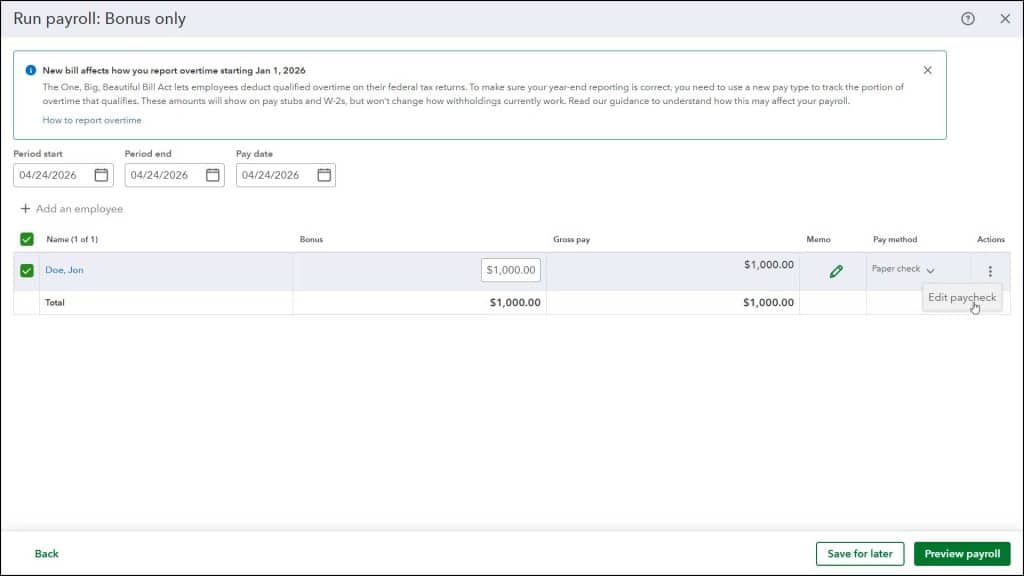
In the next screen, enter the pay date by selecting it from the “Pay date” calendar selector. If you enabled pay periods in the previous screen, then you can also set the “Period start” and “Period end” dates here, too. Then check the checkbox to the left of the name of the employee or employees to pay in this bonus or commission payroll run within the employees table below. Alternatively, uncheck the checkbox for the employees to not pay. To check or uncheck all checkboxes, click the checkbox at the top of the column of checkboxes in this table to select or unselect them all, respectively.
For the selected employees, enter the amount of the bonus or commission for each employee into the “Bonus” or “Commission” column, as needed. You can enter an optional “Memo” for the pay into the “Memo” column.
Optionally, to review the paycheck details for an employee, click the triple-dot icon at the right end of their row under the “Actions” column and then select the “Edit paycheck” command to make any adjustments needed in the paycheck details window that opens. This window lets you check the paycheck details, including any taxes applied if you chose to use supplemental tax rates. To save any changes and return to the “Run Payroll” window, click the “Save” button in the lower-right corner. Alternatively, to close this window and return to the “Run payroll” window without saving any changes, click the “Close” button in the lower-left corner of the window.
Previewing the Payroll
To continue, click the “Preview payroll” button in the lower-right corner of the “Run Payroll” window. If needed, to select the account from which to draw the payroll funds, select a choice from the “Chart of account” drop-down at the top of the window. Make sure to thoroughly check your work! If desired, to preview the payroll details report for the payroll, click the “Preview payroll details” button in the toolbar at the bottom of the window to open the payroll details report in a new window, which you can close after reviewing it.
If needed, to save your changes up to this point and close the “Run payroll” window to return and finish submitting payroll later, click the drop-down arrow on the button in the lower-right corner of the window and select the “Save for later” command. Alternatively, to close the “Run Payroll” window without saving any changes, click the “X” button in the upper-right corner of the window.
How to Submit the Payroll and View Payroll Reports
To finish and submit the payroll after ensuring all the information is correct, click the “Submit payroll” button. The paycheck information then appears onscreen. To print pay stubs, click the “Print pay stubs” button to show a PDF preview of the pay stubs in a separate browser tab, where you can print them and then close the tab, when finished. If needed, to record check numbers if printing paper checks, type them into the “Check Number” field for the associated paycheck.
To view your payroll reports as individual worksheets within an exported Excel workbook, click the “Download payroll reports” button in the toolbar at the bottom of the “Run Payroll” window to open a “Payroll reports” window that lists the available payroll reports. Check the checkboxes to the left of the names of the reports to export and then click the “Export to Excel” button to download them to your computer as worksheets in an Excel workbook and return to the “Run Payroll” window. To close the “Run payroll” window, click the “Close” button in the lower-right corner of the toolbar in the “Run Payroll” window.



