MY CART
Adobe Photoshop Elements Tutorial Course 

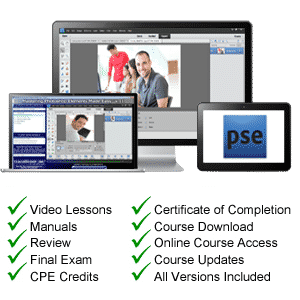
| Course Title: | Mastering Photoshop Elements Made Easy |
|---|---|
| Versions Covered: | 2023, 2022, 2021, 2020, 2019, 2018 and 15 through 9 |
| Hours of Content: | 8 |
| Video Lessons: | 196 |
| Manual: | 280 pages |
| This Course: | $ |
| All Courses: | Every course. One price. | |
| Multi-User: | Group discounts |  |
Course Description
Learn Adobe Photoshop Elements with this comprehensive course from TeachUcomp, Inc. Mastering Photoshop Elements Made Easy features 196 video lessons and over 8 hours of introductory through advanced instruction. Watch, listen and learn as your expert instructor guides you through each lesson step-by-step. During this media-rich learning experience, you will see each function performed just as if your instructor were there with you. Reinforce your learning with the text of our printable classroom instruction manual (280 pages), additional images and practice exercises. You will learn how to use all of the various tools, advanced layer techniques, manipulating images and much more.
Whether you are completely new to Photoshop Elements or upgrading from an older version, this course will empower you with the knowledge and skills necessary to be a proficient user. We have incorporated years of classroom training experience and teaching techniques to develop an easy-to-use course that you can customize to meet your personal learning needs. Simply launch the easy-to-use interface, click to start a video lesson or open the manual and you are on your way to mastering Elements.
Course Syllabus & Sample Lessons
Select any of the video lessons marked to view them in a new window.
To view a sample of the instruction manuals in PDF, click here: Photoshop Elements Manual
| CHAPTER 1- | Getting Acquainted with Photoshop Elements | |
| Lesson 1.1- | Introduction to Photoshop Elements | |
| Lesson 1.2- | The Home Screen | |
| CHAPTER 2- | Importing Photos Into the Organizer | |
| Lesson 2.1- | The Organizer Environment | |
| Lesson 2.2- | JPEG and Camera Raw | |
| Lesson 2.3- | Importing Photos from Files and Folders | |
| Lesson 2.4- | Importing Photos from Cameras or Card Readers | |
| Lesson 2.5- | Importing Photos from a Scanner | |
| Lesson 2.6- | Importing Photos in Bulk | |
| Lesson 2.7- | Setting Watch Folders (Windows Only) | |
| CHAPTER 3- | Using the Organizer | |
| Lesson 3.1- | Grid, Single Photo, and Full Screen Views | |
| Lesson 3.2- | Creating and Using Albums | |
| Lesson 3.3- | Photo Sharing | |
| Lesson 3.4- | Managing Albums | |
| Lesson 3.5- | The Taskbar | |
| Lesson 3.6- | Creating a New Catalog | |
| Lesson 3.7- | Renaming Images | |
| Lesson 3.8- | Creating Keyword Tags | |
| Lesson 3.9- | Creating New Tag Categories | |
| Lesson 3.10- | Assigning and Managing Tags and Ratings | |
| Lesson 3.11- | Stacking and Unstacking | |
| Lesson 3.12- | Assigning Digital Notes | |
| Lesson 3.13- | Sorting Images | |
| Lesson 3.14- | Searching and Finding Your Images | |
| Lesson 3.15- | Date View and Timeline View | |
| Lesson 3.16- | Back Up and Restore a Catalog | |
| Lesson 3.17- | Managing Files in the Organizer | |
| Lesson 3.18- | Elements Web Features in the Organizer | |
| CHAPTER 4- | Camera Raw | |
| Lesson 4.1- | About Processing Camera Raw Files and Installing Camera Raw | |
| Lesson 4.2- | Opening a Camera Raw Image from the Organizer | |
| Lesson 4.3- | Opening a Camera Raw Image from the Editor | |
| Lesson 4.4- | The Camera Raw Dialog Box in the Editor | |
| Lesson 4.5- | Edit Tools in Camera Raw | |
| Lesson 4.6- | Crop and Rotate Tools in Camera Raw | |
| Lesson 4.7- | Red Eye Removal in Camera Raw | |
| Lesson 4.8- | Camera Raw Preferences | |
| Lesson 4.9- | Process Versions | |
| Lesson 4.10- | Camera Raw Profiles | |
| Lesson 4.11- | Adjusting the White Balance | |
| Lesson 4.12- | Making Basic Tonal Adjustments | |
| Lesson 4.13- | Making Image Detail Adjustments | |
| Lesson 4.14- | Resetting Camera Raw Settings | |
| Lesson 4.15- | Using the Filmstrip | |
| Lesson 4.16- | Opening Processed Camera Raw Files in the Editor | |
| Lesson 4.17- | Saving a Camera Raw File as a DNG File | |
| CHAPTER 5- | Edit Modes | |
| Lesson 5.1- | The Different Edit Modes | |
| Lesson 5.2- | The Expert Edit Mode Environment | |
| Lesson 5.3- | The Panel Bin and Taskbar | |
| Lesson 5.4- | The Photo Bin | |
| Lesson 5.5- | The Undo Command and Undo History Panel | |
| Lesson 5.6- | Opening Images | |
| Lesson 5.7- | Image Magnification | |
| Lesson 5.8- | Viewing Document Information | |
| Lesson 5.9- | Moving the Image | |
| Lesson 5.10- | Setting Preferences | |
| Lesson 5.11- | Quick Edit Mode | |
| Lesson 5.12- | Guided Edit Mode | |
| CHAPTER 6- | Basic Image Manipulation | |
| Lesson 6.1- | Bitmap Images | |
| Lesson 6.2- | Vector Images | |
| Lesson 6.3- | Image Size and Resolution Settings | |
| Lesson 6.4- | Creating New Images | |
| Lesson 6.5- | Placing Files | |
| Lesson 6.6- | Displaying Drawing Guides | |
| CHAPTER 7- | Color Basics | |
| Lesson 7.1- | Color Modes and Models | |
| Lesson 7.2- | Color Mode Conversion | |
| Lesson 7.3- | Color Management | |
| Lesson 7.4- | Foreground and Background Colors | |
| Lesson 7.5- | Using the Color Picker | |
| Lesson 7.6- | Selecting Colors with the Color Picker Tool | |
| Lesson 7.7- | Selecting Colors with the Swatches Panel | |
| CHAPTER 8- | Painting Tools | |
| Lesson 8.1- | Painting Tools | |
| Lesson 8.2- | The Brush Tool | |
| Lesson 8.3- | Blending Modes | |
| Lesson 8.4- | The Impressionist Brush | |
| Lesson 8.5- | The Pencil Tool | |
| Lesson 8.6- | The Color Replacement Tool | |
| Lesson 8.7- | The Eraser Tool | |
| Lesson 8.8- | The Magic Eraser Tool | |
| Lesson 8.9- | The Background Eraser Tool | |
| Lesson 8.10- | The Smart Brush Tools | |
| CHAPTER 9- | Brush Settings | |
| Lesson 9.1- | Using the Brush Preset Picker | |
| Lesson 9.2- | Loading New Brush Sets | |
| Lesson 9.3- | Creating Custom Brush Presets | |
| Lesson 9.4- | Creating Brush Tips from Selections | |
| Lesson 9.5- | Setting Shape Dynamics | |
| Lesson 9.6- | Resetting Brush and Tool Settings | |
| CHAPTER 10- | Making Selections | |
| Lesson 10.1- | Selection Basics | |
| Lesson 10.2- | Making Pixel Selections | |
| Lesson 10.3- | The Marquee Tools | |
| Lesson 10.4- | The Lasso Tool | |
| Lesson 10.5- | The Polygonal Lasso Tool | |
| Lesson 10.6- | The Magnetic Lasso Tool | |
| Lesson 10.7- | The Magic Wand Tool | |
| Lesson 10.8- | The Auto Selection Tool | |
| Lesson 10.9- | The Selection Brush Tool | |
| Lesson 10.10- | The Refine Selection Brush Tool | |
| Lesson 10.11- | The Quick Selection Tool | |
| Lesson 10.12- | Modifying Pixel Selections | |
| Lesson 10.13- | Refining Selection Edges | |
| Lesson 10.14- | Transforming Selections | |
| Lesson 10.15- | Copying and Pasting Pixel Selections | |
| Lesson 10.16- | Saving and Loading Selections | |
| CHAPTER 11- | Filling and Stroking | |
| Lesson 11.1- | Applying Fills | |
| Lesson 11.2- | Using the Paint Bucket Tool | |
| Lesson 11.3- | Using the Gradient Tool | |
| Lesson 11.4- | Using the Gradient Editor | |
| Lesson 11.5- | Using Patterns | |
| Lesson 11.6- | Stroking | |
| CHAPTER 12- | Layers | |
| Lesson 12.1- | About Layers and the Layers Panel | |
| Lesson 12.2- | Layer Types | |
| Lesson 12.3- | Creating New Layers | |
| Lesson 12.4- | Converting a Background Layer | |
| Lesson 12.5- | Selecting Layers | |
| Lesson 12.6- | Hiding and Showing Layers | |
| Lesson 12.7- | Duplicating Layers | |
| Lesson 12.8- | Stacking Layers and Ordering Layers | |
| Lesson 12.9- | Linking Layers | |
| Lesson 12.10- | Grouping Layers | |
| Lesson 12.11- | Color-Coding Layers | |
| Lesson 12.12- | Moving Layer Content with the Move Tool | |
| Lesson 12.13- | Locking Pixels in Layers | |
| Lesson 12.14- | Renaming Layers and Deleting Layers | |
| Lesson 12.15- | Merging Layers and Flattening Layers | |
| Lesson 12.16- | Layer Styles | |
| Lesson 12.17- | Adjustment Layers and Fill Layers | |
| Lesson 12.18- | Creating Clipping Groups | |
| Lesson 12.19- | Layer Masks | |
| CHAPTER 13- | Text | |
| Lesson 13.1- | Text Basics | |
| Lesson 13.2- | Creating Point Text | |
| Lesson 13.3- | Creating Paragraph Text | |
| Lesson 13.4- | Selecting Text | |
| Lesson 13.5- | Manipulating and Moving Text Boxes | |
| Lesson 13.6- | Creating a Type Mask | |
| Lesson 13.7- | Warping Text | |
| Lesson 13.8- | Applying Layer Styles to Text Layers | |
| Lesson 13.9- | Simplifying Text | |
| Lesson 13.10- | The Text on Selection, Shape and Custom Path Tools | |
| CHAPTER 14- | Drawing | |
| Lesson 14.1- | Raster vs. Vector | |
| Lesson 14.2- | Shape Layers and Shape Options | |
| Lesson 14.3- | Using the Shape Tools | |
| Lesson 14.4- | The Cookie Cutter Tool | |
| CHAPTER 15- | Manipulating Images | |
| Lesson 15.1- | Changing the Canvas Size | |
| Lesson 15.2- | Rotating and Flipping Images | |
| Lesson 15.3- | Cropping Images | |
| Lesson 15.4- | The Free Transform Command | |
| Lesson 15.5- | The Smudge Tool | |
| Lesson 15.6- | Blurring and Sharpening Images | |
| Lesson 15.7- | Using the Dodge Tool and the Burn Tool | |
| Lesson 15.8- | The Sponge Tool | |
| Lesson 15.9- | Filters and The Filter Gallery | |
| Lesson 15.10- | The Liquify Command | |
| Lesson 15.11- | Applying Effects | |
| Lesson 15.12- | The Clone Stamp Tool | |
| Lesson 15.13- | The Recompose Tool | |
| Lesson 15.14- | Photomerge | |
| Lesson 15.15- | The Pattern Stamp Tool | |
| Lesson 15.16- | The Healing Brush Tool | |
| Lesson 15.17- | The Spot Healing Brush Tool | |
| Lesson 15.18- | The Straighten Tool | |
| Lesson 15.19- | The Content-Aware Move Tool | |
| Lesson 15.20- | Correcting Camera Distortions | |
| CHAPTER 16- | Enhancing Photos | |
| Lesson 16.1- | Auto Fixes | |
| Lesson 16.2- | The Red Eye Removal Tool | |
| Lesson 16.3- | Adjusting Shadows/Highlights | |
| Lesson 16.4- | Adjusting Brightness/Contrast | |
| Lesson 16.5- | Using Levels | |
| Lesson 16.6- | Removing Color Casts | |
| Lesson 16.7- | Hue/Saturation | |
| Lesson 16.8- | Removing Color | |
| Lesson 16.9- | Replacing Color | |
| Lesson 16.10- | Color Curves | |
| Lesson 16.11- | Adjusting Skin Tone | |
| Lesson 16.12- | Defringing Layers | |
| Lesson 16.13- | Adjust Smart Fix | |
| Lesson 16.14- | Convert to Black and White | |
| Lesson 16.15- | Colorize Photo | |
| Lesson 16.16- | Haze Removal | |
| Lesson 16.17- | Adjust Sharpness | |
| Lesson 16.18- | Smooth Skin | |
| Lesson 16.19- | Open Closed Eyes | |
| Lesson 16.20- | Adjust Facial Features | |
| Lesson 16.21- | Shake Reduction | |
| Lesson 16.22- | Unsharp Mask | |
| Lesson 16.23- | Repairing Photos | |
| Lesson 16.24- | Moving Photos | |
| Lesson 16.25- | Moving Overlays | |
| Lesson 16.26- | Moving Elements | |
| CHAPTER 17- | Saving Images | |
| Lesson 17.1- | Saving Images | |
| Lesson 17.2- | The Save for Web Dialog Box | |
| CHAPTER 18- | Printing, Sharing & Creating | |
| Lesson 18.1- | Printing Images | |
| Lesson 18.2- | Creation Wizards | |
| Lesson 18.3- | Creating a Slide Show | |
| Lesson 18.4- | Editing a Slide Show | |
| Lesson 18.5- | Sharing Your Creations | |
| CHAPTER 19- | Help | |
| Lesson 19.1- | Photoshop Elements Help | |
| Lesson 19.2- | System Info | |
| Lesson 19.3- | Online Updates |
Adobe Photoshop Elements Training Course Overview
Photoshop Elements is Adobe‘s popular image editing program. Elements contains most of the features of the professional version (Adobe Photoshop) but with fewer and simpler options. Elements allows you to create, edit, organize and share images. During this 8 hour Photoshop Elements video training course, our expert instructor will show you all about the Organizer, layers, text, image manipulation and much more. This Photoshop Elements tutorial covers the same material as our two-day classroom training and was designed to provide a solid foundation in Photoshop Elements.
Course includes video lessons, a printable instruction manual, a practice exam with evaluative feedback (find out why your answers are right or wrong), your final exam submission, and a course certificate of completion.
At TeachUcomp, Inc., you choose how you want your Photoshop Elements training delivered.
Online subscriptions offer the most flexibility and value. With online training, you can access your courses anytime and anywhere you have an internet connection (including all new releases and updates). Your subscription grants you instant access to ALL of our courses for one low price. There are no contracts and you can cancel at any time. You may choose between a monthly or annual plan.
Courses are also available individually via digital download and online for a one-time charge.