
 MY CART
How to Sign in to Windows 11 with a Microsoft Account: Video Lesson
This video lesson, titled “How to Sign in to Windows 11 with a Microsoft Account: A Windows 11 Training Tutorial,” shows why a user may want to sign in to Windows 11 with a Microsoft Account. This video lesson is from our complete Windows tutorial, titled “Mastering Windows Online Made Easy.”
Overview:
Why Sign into Windows 11 Using a Microsoft Account?
Windows 11 strongly encourages you to use a Microsoft account when signing in during the initial setup of your device, rather than using a local user account. Many features within Windows 11, such as OneDrive and Microsoft Store apps, are designed to work best when you are signed in with a Microsoft account.
What Options Do I Have for Using a Microsoft Account During Device Setup?
When adding a Microsoft account during device setup, you can sign in using an existing account or create a new one. You may use an existing email address, such as an Outlook.com account or another email provider. Alternatively, you can create a new Microsoft-provided email address if needed. You can also choose to use a phone number instead of an email address. In all cases, the email address or phone number you use becomes your Microsoft account username. When the account is added to the device, it can be configured as either a Standard account or an Administrator account on the local PC.
What Are the Benefits of Using a Microsoft Account in Windows 11?
After you sign in to Windows 11 with a Microsoft account, your device connects to Microsoft cloud-based services. This connection enables several features that enhance the overall experience. For example, you can more easily sign in to Microsoft apps and related services without repeatedly entering your credentials. You can also store, access, and share files using OneDrive, which allows you to work with your files across multiple devices.
In addition, your personalization settings can be synchronized across supported Windows devices when you sign in using the same Microsoft account. This can include items such as themes, passwords, and other preferences. You can also download apps from the Microsoft Store and use them on other compatible Windows devices that you sign in to with the same account.
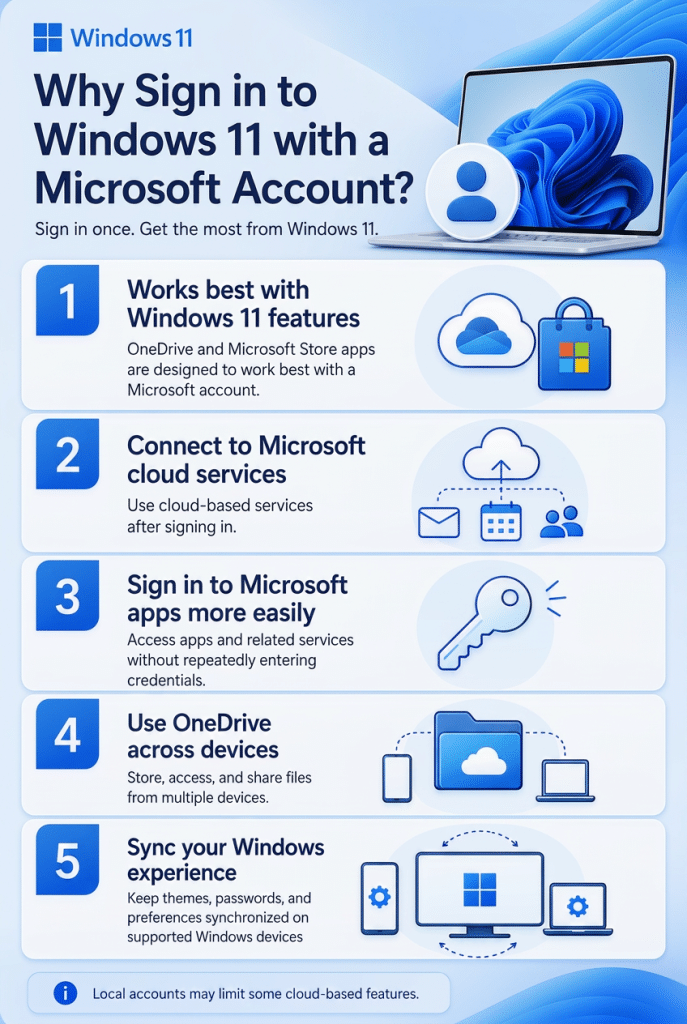
While using a Microsoft account is recommended, some versions or configurations of Windows 11 may still allow you to use a local account. However, certain cloud-based features may not be available in that case.
