MY CART
How to Use a Mouse in Windows 11: Video Lesson
This video lesson, titled “How to Use the Mouse in Windows 11 to Click, Right-Click, Double-Click & Drag: A Training Tutorial,” shows how to use a mouse to perform basic actions in Windows 11. This video lesson is from our complete Windows tutorial, titled “Mastering Windows Online Made Easy.”
Overview:
How Do you Use a Mouse in Windows 11?
One way to navigate through the Windows environment is by using a mouse. A mouse is a device that you control with your hand. You move it across a flat surface, which lets you control the mouse pointer on your screen. The pointer usually appears as an arrow icon that you use to select files, folders, and other items. There are many variations of the mouse, but they are all designed to perform the same basic functions.
When you move your mouse on your desk, the pointer on your screen moves in the same direction. The mouse pointer can also change its shape, depending on where it appears on the screen and the type of task you are performing.
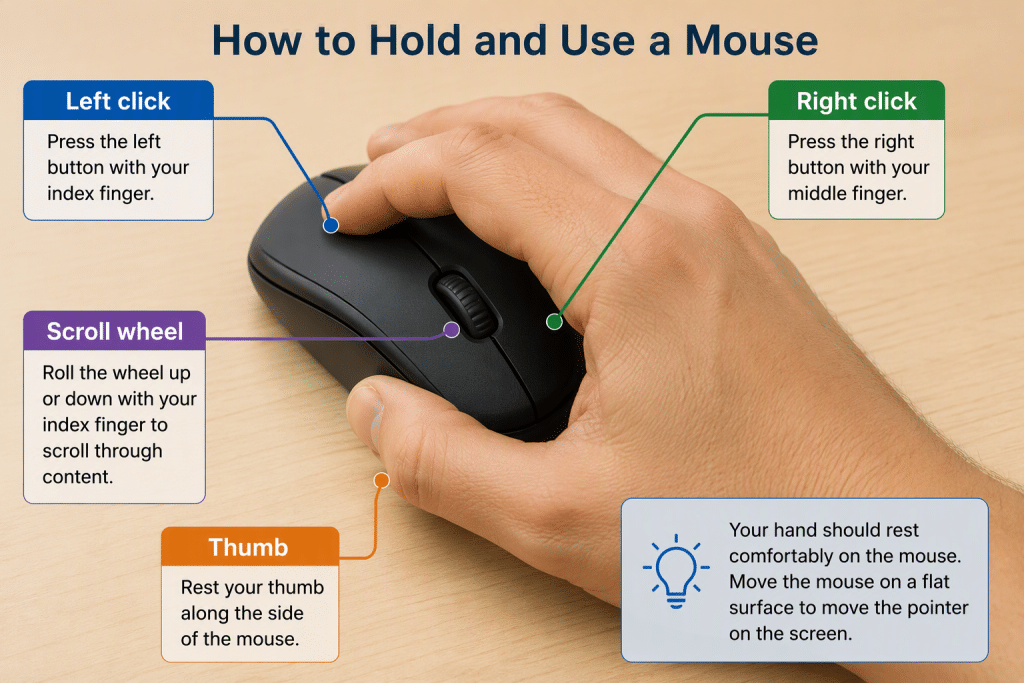
To control the mouse, place your hand on it with your thumb resting along one side and your index and middle fingers resting comfortably over the two buttons on top of the mouse. These fingers are used to press the buttons, which are called clicks. Most mice also include a scroll wheel between the two buttons that you can roll up or down to scroll through content within a window.
What Are the Basic Actions You Perform with a Mouse in Windows 11?
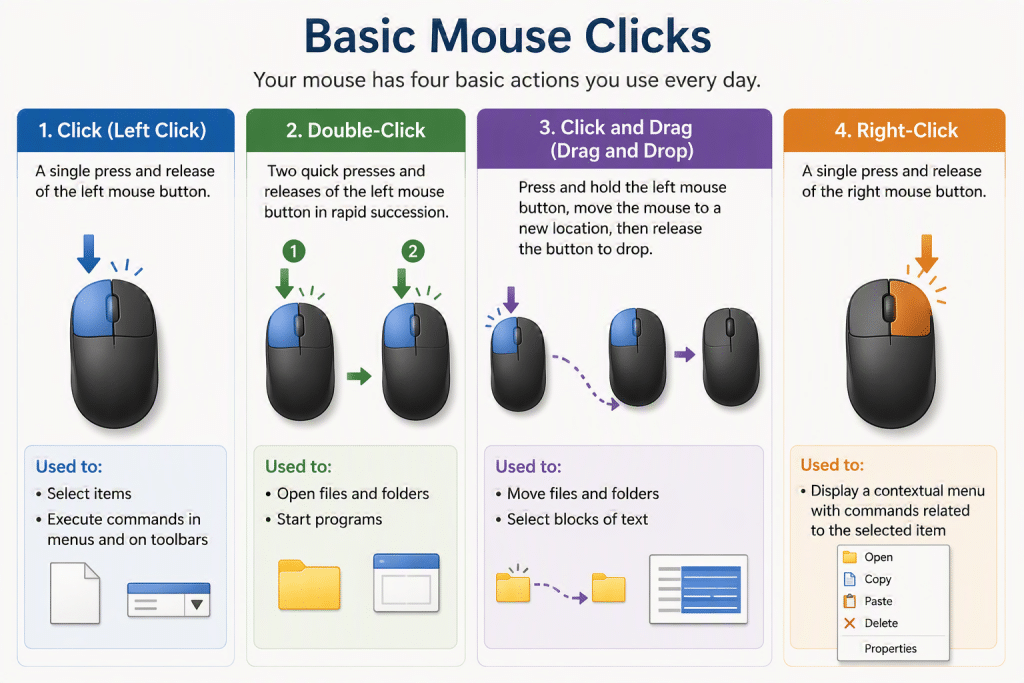
Your mouse has four basic actions. They are click, double-click, right-click, and click and drag, which is also called drag and drop. A left click, which is commonly referred to simply as a click, is a single press and release of the left mouse button. You use it to select items and to execute commands in menus and on toolbars.
A double-click is a single action that consists of two quick presses and releases of the left mouse button in rapid succession. You use it to open files and folders and to start programs from locations such as the desktop or within File Explorer.
A click and drag, also called drag and drop or simply drag, is an action in which you press and hold down the left mouse button and then move the mouse to a different location while continuing to hold the button. You then release the button to drop the selected item in a new location. You use this technique to move files and folders and to select blocks of text.
A right-click is a single press and release of the right mouse button. You use it to display a contextual menu that shows commands related to the item you selected.