MY CART
How to Use Touch Gestures in Windows 11: Video Lesson
This video lesson, titled “How to Use Touch Gestures in Windows 11 Explained for Beginners: A Windows 11 Training Tutorial,” shows how to use touch gestures in Windows 11. This video lesson is from our complete Windows tutorial, titled “Mastering Windows Online Made Easy.”
Overview:
What Are Touch Gestures in Windows 11?
In Windows 11, many of the actions you can perform with a mouse can also be performed using gestures on a touch screen or a touchpad for devices that support these features. This lesson explains the touch gestures available in Windows 11 and how they correspond to traditional mouse actions. Keep in mind that the exact behavior of touch gestures can vary slightly depending on the device or manufacturer.
How to Select an Item Using a Touch Gesture in Windows 11:
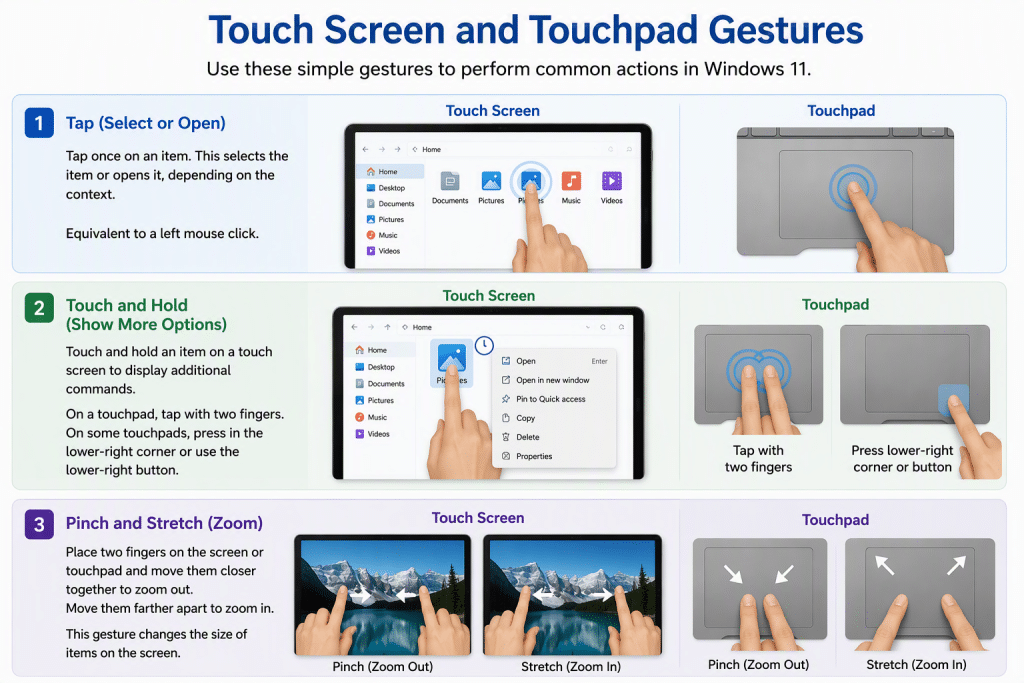
To select an item using a touch screen or touchpad, tap once on the item. This action selects the item or opens it, depending on the context. This gesture corresponds to a left mouse click.
How to Show Additional Commands for a Selected Item Using a Touch Gesture in Windows 11:
To display additional commands for a selected object, similar to using a right-click with a mouse, you can touch and hold the item when using a touch screen. When using a touchpad, you can tap with two fingers. Alternatively, on some touchpads, you can press in the lower-right corner or use the lower-right button to perform the same action.
How to Zoom In or Zoom Out Using Touch Gestures in Windows 11:
To zoom in or out to change the size of items displayed on the screen, place two fingers on the touch screen or touchpad and move them either closer together or farther apart. Moving your fingers closer together reduces the size of the display, while moving them farther apart increases it. This action is commonly called pinch and stretch.