MY CART
The Windows 11 Desktop: Video Lesson
This video lesson, titled “Windows 11 Desktop Tour: Understanding the Desktop and Taskbar – A Windows 11 Training Tutorial,” shows you an overview of the desktop in Windows 11. This video lesson is from our complete Windows tutorial, titled “Mastering Windows Online Made Easy.”
Overview:
What Is the Desktop in Windows 11?
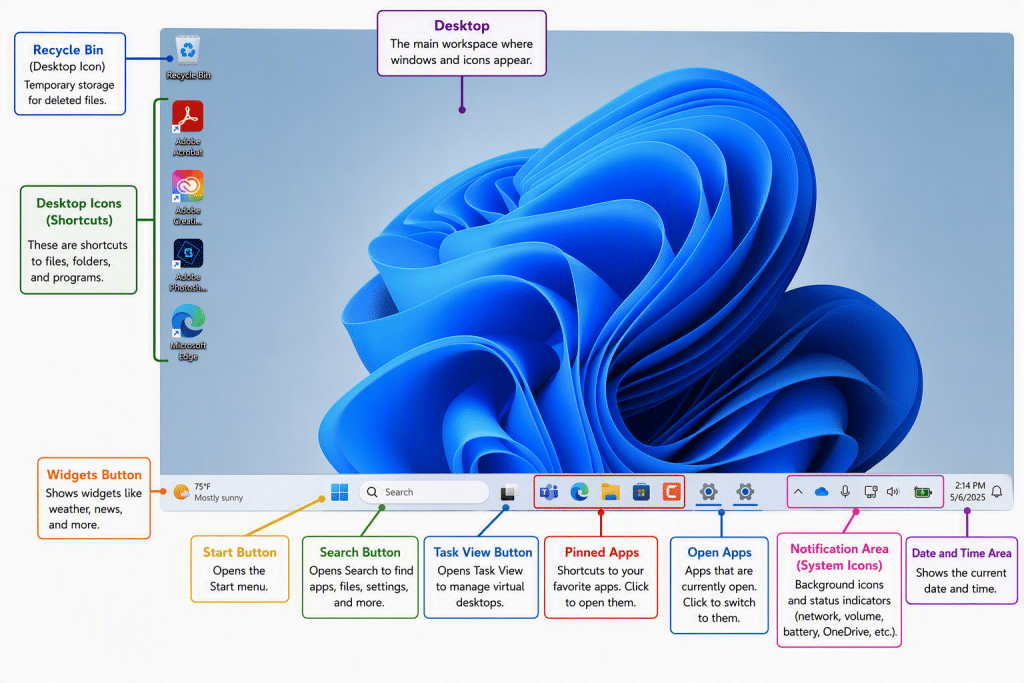
In Windows 11, the desktop appears by default and serves as the main workspace for your device. All other windows open within the desktop. For example, if you open the Settings app from the Start menu, the application window appears within the desktop environment. Within the desktop, you can place shortcuts to your favorite files, folders, and programs. These shortcuts appear as icons on the desktop. You can customize the icons that appear on the desktop, as well as the desktop background and theme, for each user account on the device.
The Recycle Bin on the Desktop:
One commonly shown icon on the desktop is the Recycle Bin. This is where Windows temporarily stores files that you delete from your computer’s main drive until you decide to permanently remove them. However, if you delete files from removable media or network locations, those files are not sent to the Recycle Bin and are instead permanently deleted. For this reason, when working with files stored on external drives or network locations, you should be careful when deleting items.
The Taskbar on the Desktop:
At the bottom of the desktop is a thin bar known as the taskbar. The taskbar contains buttons that let you perform common tasks and access programs. You can customize many of the taskbar settings and choose which buttons appear, as discussed in later lessons. By default, the Start button appears in the center of the taskbar.
To the right of the Start button is the Search button. Also in this area are buttons such as Task View, as well as icons for applications like Microsoft Edge, File Explorer, and Microsoft Store. The exact icons that appear can vary depending on your device and configuration. At the far-left end of the taskbar is the Widgets button, which typically shows information such as weather updates.
To the right of these buttons, you will see icons for any applications that are currently open, as well as any applications that you have pinned to the taskbar. At the far-right end of the taskbar is an area that shows background system icons and status indicators. These commonly include network connectivity, volume, battery status for portable devices, the current date and time, and notifications. Some icons, such as OneDrive status, may also appear here depending on which apps are installed and running.