MY CART
Video Lesson:
This video lesson, titled “The Start Button Context Menu in Windows 11,” shows you how to access and use the Start button’s context menu in Windows 11. For more tips on how to use Windows 11, please check out our complete Windows tutorial, titled “Mastering Windows Made Easy.”
What is the Start Button Context Menu?
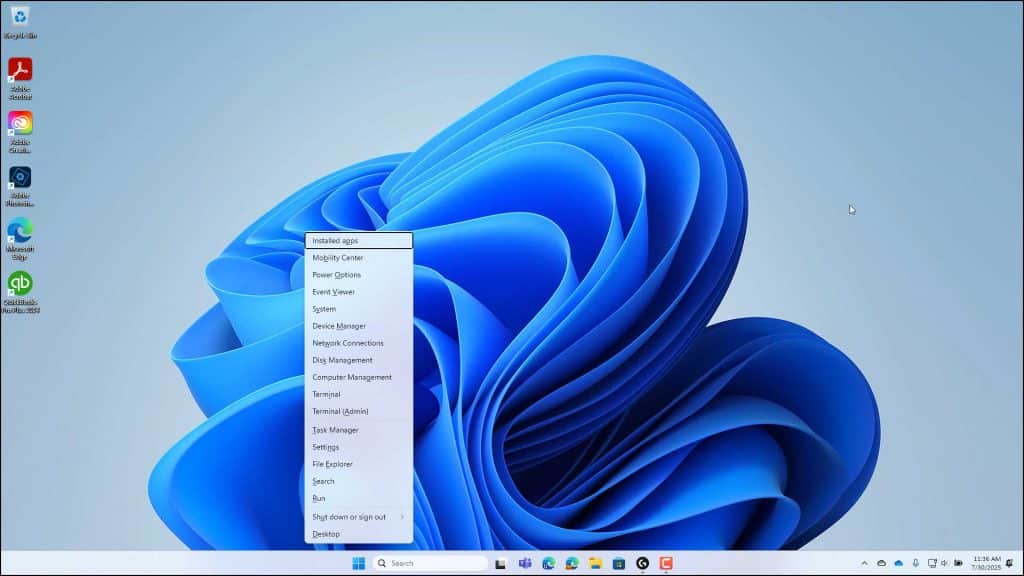
Most Windows users know they can click the Start button in the taskbar of Windows 11 to access the Start menu, which contains pinned apps, recent documents, and commands to sign out from their account or shut down or restart their PC. However, what some Windows users may not know is that there is also a Start button contextual menu in Windows 11. The Start button’s context menu in Windows 11 contains many useful commands for quick access to system tools, Windows settings, and shut down and sign out options in Windows 11.
How to Access the Start Button Context Menu in Windows 11:
To access the Start button context menu in Windows 11, right-click the Start button in the Windows 11 taskbar. Then click to select the desired command from the pop-up menu that appears, or hover over the “Shut down or sign out” command and then select a choice from the side menu that appears. For example, to access the “System” settings window in Windows 11, you can right-click the Start button and then click the “System” command.
Alternatively, to access the Start button context menu in Windows 11 by using a keyboard shortcut, press the “Windows” key plus the “X” key on your keyboard. Note that when you do this, the commands that then appear in the Start button context menu all show an underlined letter. To execute one of these commands, simply press the key for the underlined letter on your keyboard. So, to access the “System” settings in Windows 11 this way, you would press the “Windows” key plus the “X” key on your keyboard and then press the “y” key.