MY CART
How to Find a Transaction in QuickBooks Online
How to Find Transactions in QuickBooks Online: Video
This video lesson, titled “How to Find Transactions in QuickBooks Online,” shows how to find a transaction in QuickBooks Online. This video lesson is from our complete QuickBooks Online tutorial, titled “Mastering QuickBooks Online Made Easy.”
Overview:
To quickly find a recent, saved transaction form in QuickBooks Online Plus, click into the “Navigate or search for transactions, contacts, reports, and more” field in the QuickBooks Online toolbar. This field has a magnifying glass icon at its left end. After clicking into the field, a drop-down menu appears.
How to Find a Recent Transaction:
The most recent transactions appear in the “Recent transactions” section within this drop-down menu. If you see the transaction you are looking for in the list that appears in this section, click it to open the transaction.
How to Search for a Transaction:
To instead search for a transaction, enter the search term into the field at the top of the drop-down menu. The searching begins as you type the term or terms. After you stop typing, matching results appear below, grouped by categories, in the drop-down menu. To open a matching result, click it within the “Transactions” group in this drop-down.
How to Perform an Advanced Transactions Search:
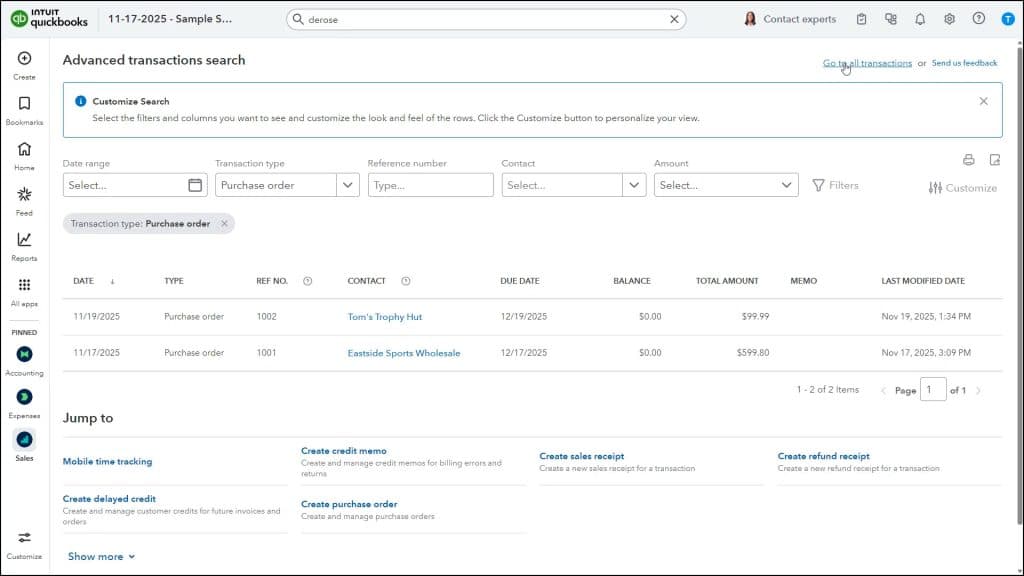
Alternatively, to open the advanced transactions search page, instead, click the “Advanced transactions search” link at the bottom of the drop-down menu. In the advanced transactions search page, use the filtering fields at the top of the page to select the criteria by which to filter the list of matching transactions that appear in the list below the filtering fields.
To show additional filters, click the “Filters” button to the right of the filter fields, make your selections from the filters in the drop-down menu that appears, and then click the “Apply” button. To clear all filters, if applied, click the “Clear All” button in the drop-down menu or click the “Go to all transactions” link in the upper-right corner of the advanced transactions search page.
To open a transaction in the list of matching transactions in a new window, click it, but avoid clicking its “Contact” hyperlink unless you want to view the transaction’s contact record. To return to the advanced transactions search page if you open a transaction window, close the window.