
 MY CART
How to Run Sales Tax Reports in QuickBooks Online
How to Run Sales Tax Reports in QuickBooks Online: Video
This video lesson, titled “How to Run Sales Tax Reports in QuickBooks Online,” shows you how to run sales tax reports in QuickBooks Online. This video lesson is from our complete QuickBooks Online tutorial, titled “Mastering QuickBooks Online Made Easy.”
Overview:
Open the Sales Tax Returns Page to View Sales Tax Return Information:
The “Sales tax returns” page in QuickBooks Online Plus lets you run sales tax reports and view sales tax return information. To open the “Sales tax returns” page, click the “Sales tax returns” link under the “Sales Tax” app in the “All apps” bar. If you are using the automatic sales tax feature in QuickBooks, then the “Sales tax returns” page shows the sales tax returns for the selected sales tax return statuses, tax periods, and taxing agencies.
To show sales tax return information for a selected sales tax return status, a selected tax period, or a selected tax agency, select the desired status from the “Status” drop-down, the desired period from the “Tax period” drop-down, and/or the desired agency from the “Agency” drop-down.
Information about the sales tax returns for the selected statuses, periods, and agencies then appears in a list at the bottom of the page. You can click the “View summary” link at the right end of any sales tax return to open a window that shows its related sales tax return information with instructions on how to record the sales tax return, if needed.
How to Run the Sales Tax Liability Report for a Sales Tax Return Period:
To view the “Sales Tax Liability” report for the sales tax return’s period from this window, click the “View tax liability report” link at the bottom of this window. This report shows the total amount of sales tax collected for the period selected. However, note that running this report from the sales tax return window closes the sales tax return window. So, you will need to return to the “Sales tax returns” page again to view your returns.
How to Run the Sales Tax Liability Report, Taxable Customer Report, or Nontaxable Transaction Review Report from the Sales Tax Returns Page:
Alternatively, to view sales tax reports from the “Sales tax returns” page, click the “Reports” drop-down button in the “Sales tax returns” page and select the name of the sales tax report to run in the drop-down menu. You can select either the “Sales tax liability report,” which shows the sales tax liabilities, “Taxable customer report,” which shows all taxable customers, or “Nontaxable transaction review,” which lists nontaxable transaction lines.
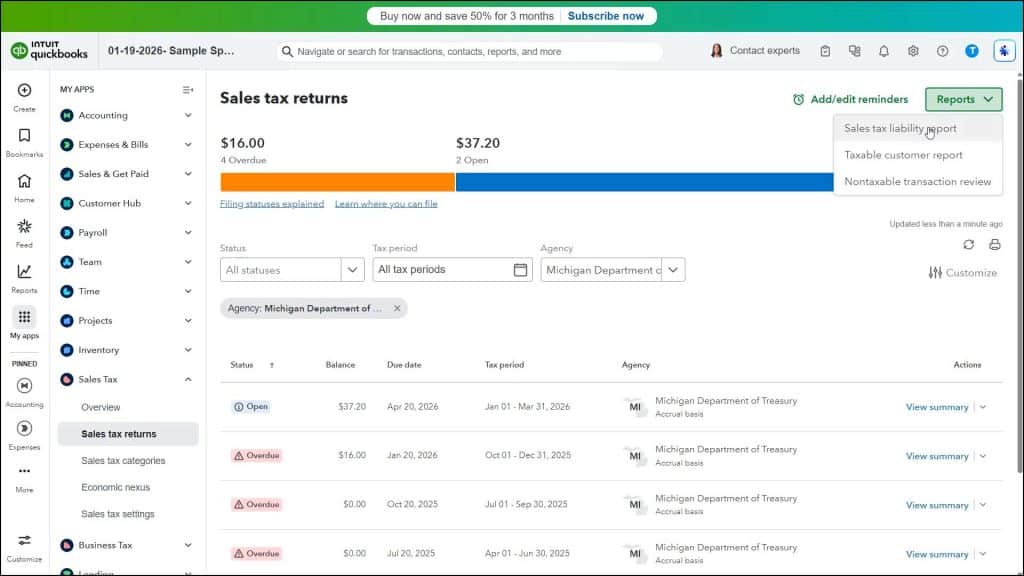
Note that running the “Sales tax liability report” or “Nontaxable transaction report” this way shows year-to-date data, by default, instead of data for a selected sales tax period. To change the date range of the sales tax report to show the data for the desired period, use the “Report period” drop-down in the upper-left corner of the report. To return to the “Sales tax returns” page after running any sales tax report, click the “Return to Sales tax returns” link in the report’s upper-left corner.
How to Run the Sales Tax Liability Report, Taxable Sales Detail Report, or Taxable Sales Summary Report from the Standard Reports Page:
Additionally, QuickBooks Online provides a “Taxable Sales Detail” report that details the sales of taxable products and services to customers and a “Taxable Sales Summary” report that shows total sales of taxable products and services. These reports are contained in the standard “Sales Tax” report category, which also contains the “Sales Tax Liability Report,” giving you yet another way to run that report, too.
To run any of these three sales tax reports, click the “Standard reports” link in the “Reports & analytics” bar. Then scroll down through the list of report categories at the right side of this page until you find the “Sales tax” report category. You can click the arrow next to the “Sales tax” report category label to expand and collapse this section, if needed.
To run one of the three sales tax reports in this section, click its name within this section to open it and then change its report settings, as needed. To return to the standard reports list, click the “Back to standard reports” link in the upper-left corner of the report’s page.



