
 MY CART
Print, Edit, Delete, or Void a Paycheck in QuickBooks Online
How to Print, Edit, Delete, or Void a Paycheck in QuickBooks Online: Video
This video lesson, titled “How to Print, Edit, Delete, or Void Paychecks in QuickBooks Online,” shows you how to print, edit, delete, or void a paycheck in QuickBooks Online if you subscribe to a QuickBooks Online Payroll service. This video lesson is from our complete QuickBooks Online tutorial titled “Mastering QuickBooks Online Made Easy.”
Overview:
You may need to print, edit, delete, or void an employee’s paycheck. You can only edit a paycheck if it is the most recent paycheck, and it also hasn’t yet been paid to the employee. For paper checks, that means the pay date has not yet passed. For direct deposits, it means the check has not been transmitted yet. If you cannot edit a check, you may be able to delete or void the check, instead.
How to Open the Paycheck List:
To print, edit, delete, or void a paycheck, if possible, click the “Employees” link under the “Payroll” app in the “All apps” bar to open the “Employees” page. Then click the “Paycheck list” link in the upper-right corner of the page to open the “Paycheck list” page.
To filter the list of paychecks in the “Paycheck list” page, if desired, click the “Filter” drop-down button and then use the “Employee,” “Date range,” and/or “From” and “To” drop-downs to select filtering choices and then click the “Apply” button.
How to Open a Paycheck in the Paycheck Window and Print It:
To print, edit, delete, or void a paycheck, click into the desired paycheck’s row to open its “Paycheck” window. To print the paycheck, then click the “Print” button in its lower-right corner.
How to Edit, Delete, or Void a Paycheck in the Paycheck Window:
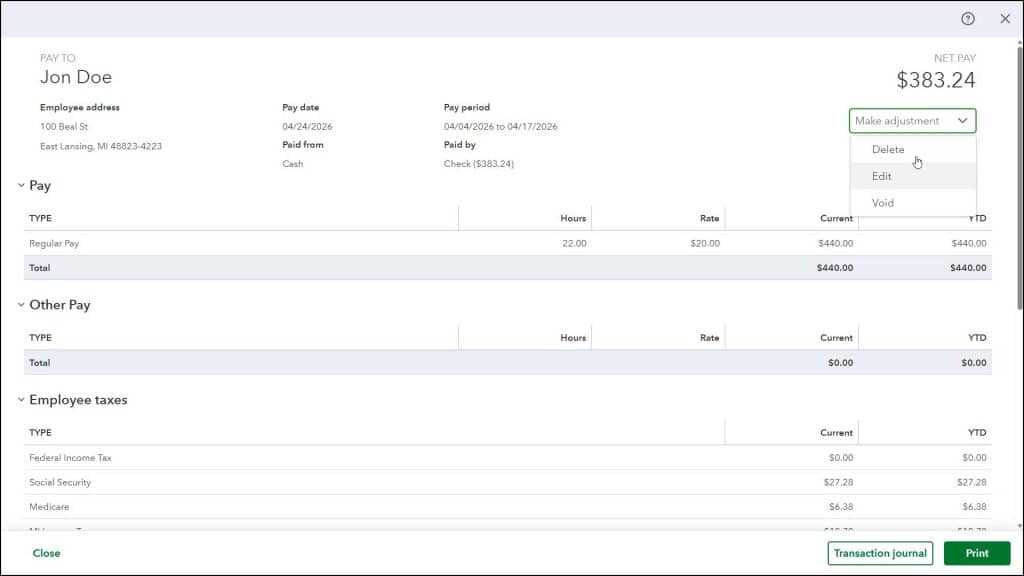
Alternatively, to edit, delete, or void the paycheck, click the “Make adjustment” drop-down in the upper-right corner of the “Paycheck” window and select the “Edit,” “Delete,” or “Void” command, as needed.
How to Edit a Paycheck:
If you select the “Edit” command, click the “Edit” button in the confirmation window that opens to show the paycheck’s editable fields. If you change the value in any editable field, press the “Tab” key on your keyboard to leave the field and automatically adjust other fields that interact with that amount. To save your changes and close the “Paycheck” window, click the “Save” button in its lower-right corner. Alternatively, to close the window without saving any changes, click the “Close” button in its lower-left corner.
How to Delete or Void a Paycheck:
Alternatively, if you select the “Delete or “Void” command, then follow any prompts in the windows that appear to finish and delete or void the paycheck and close the window.
How to Batch Print Paychecks or Pay Stubs in the Paycheck List or Reverse a Direct Deposit:
To batch print pay stubs or paychecks or reverse direct deposits in the “Paycheck list” page, check the checkboxes to the left of the paychecks in the list to select them. The available actions for the selected paychecks then appear as buttons above the list of paychecks. Click the desired button to apply it to the selected checks.
If you can’t see the “Print paychecks” button above the list of selected paychecks and you print paper paychecks, ensure you set up paycheck printing in QuickBooks Online by clicking the “Set up paycheck printing” link towards the upper-right corner of the list page and then changing the “Print preferences” to allow both pay stub and paycheck printing.



