
 MY CART
How to Create and Use an Other Current Assets Account in QuickBooks Online
How to Create and Use an Other Current Assets Account in QuickBooks Online: Video
This video lesson, titled “How to Create and Use an Other Current Assets Account in QuickBooks Online,” shows you how to create and use an Other Current Assets account in QuickBooks Online. This video lesson is from our complete QuickBooks Online tutorial, titled “Mastering QuickBooks Online Made Easy.”
Overview:
The “Other Current Assets” account type tracks assets your company expects to use up or convert into cash in the next year. Other current assets might include short-term notes receivable or prepaid expenses. Your inventory account is an example of an other current asset.
An Example of Accounting for Prepaid Expenses Using an Other Current Assets Account in a Company Which Uses the Accrual Accounting Method:
Let’s take a “Prepaid rent” other current assets account as an example. Assume you signed an agreement to lease a new office space for $1,000 per month. Also assume you must prepay 6 months’ worth of rent before you can move into the new office space.
If using the accrual accounting method, you must attribute expense to the period it is incurred, not when you actually pay it. So, you would NOT want to simply write a check for the next 6 months’ worth of rent and attribute the entire amount to the “Building & property rent” account for the month in which you wrote the check, as that will not accurately reflect when the rent expense is actually incurred. Instead, you use the other current assets account of “Prepaid rent” to help show the rent expense as it is actually incurred.
Check to See if the Account Exists and Create It if It Does Not Exist:
To check if a “Prepaid rent” account exists, click the “Settings” button and then click the “Chart of accounts” link to open the “Chart of accounts” page. Prepaid rent is a specific type of prepaid expense, and most company files include a “Prepaid expenses” other current assets account. So, assume you want to create the “Prepaid rent” account as a subaccount of the “Prepaid expenses” account.
To do this, click the “New account” button in the upper-right corner of the “Chart of accounts” page to open the “New account” pane. Type “Prepaid rent” into the “Account name” field. If needed, type an account number into the “Account number” field. Select the “Other Current Assets” choice from the “Account type” drop-down. Then select “Prepaid expenses” from the “Detail type” drop-down.
To make this account a subaccount of the “Prepaid expenses” account, check the “Make this a subaccount” checkbox and then select the “Prepaid expenses” account from the “Parent account” drop-down. Alternatively, if you wanted to create this as a primary account, you would just skip this step. To save the new account, click the “Save” button in the lower-right corner of the “New account” pane.
Write the Check for the Prepaid Expense and Account for the Prepaid Expense:
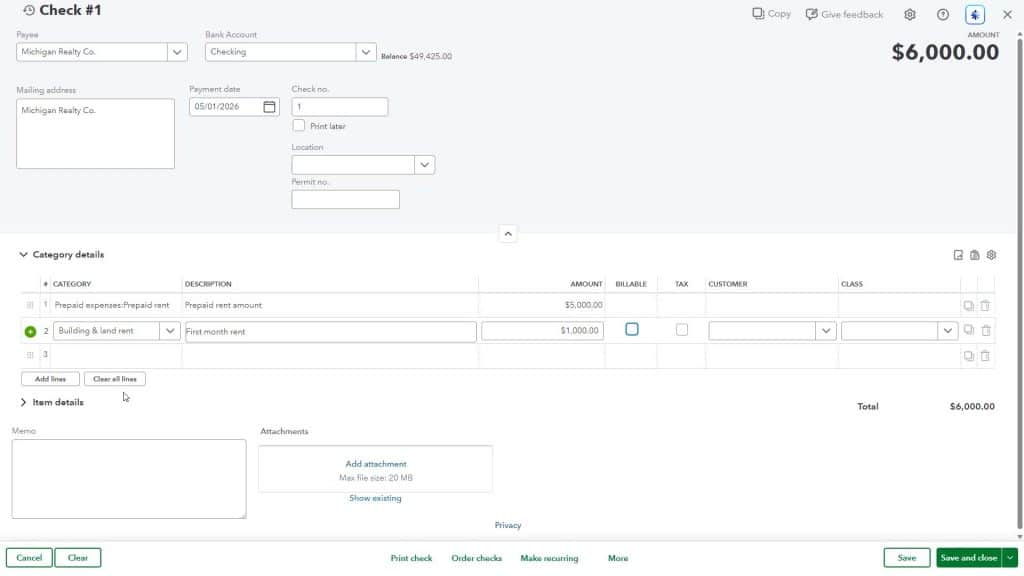
To then write the check to the landlord for the $6,000 rent prepayment, hover over the “+ Create” button in the Navigation Bar and then click the “Check” link under the “Vendors” heading in the menu to open the “Check” window. Select the name of the landlord from the “Payee” drop-down. Then fill-in the rest of the payment information, as needed. Select the “Prepaid rent” account from the first row’s “Category” column drop-down in the “Category details” section. In the “Amount” column, enter $5,000.
For the next row, select the “Building & property rent” expense account from the “Category” drop-down and enter $1,000 as its amount. This shows the first monthly payment to your “Building & property rent” expense account and shows the amount prepaid for the next five months’ rent. You can print the check by clicking the “Print check” link. Then click or select the “Save and Close” choice from the drop-down button in the lower-right corner of the window to save it and close the window.
How to Later Account for Using Up the Prepaid Expense in the Correct Period:
The next month, you can create a monthly, recurring journal entry for the next five months, crediting $1,000 from the “Prepaid rent” other current assets account and debiting the “Building & property rent” expense account in the period it is actually incurred. This decreases the “Prepaid rent” account each month until the prepayment is used up. The “Building & property rent” expense account then properly shows when the rent expense is incurred.
The journal entries then record the rent expense for the next five months, instead of writing a check each month. The next lesson shows how to record a journal entry to remove value from an other current assets account, using this “Prepaid rent” example.



