
 MY CART
How to Record a Capital Investment in QuickBooks Online
How to Record a Capital Investment in QuickBooks Online: Video
This video lesson, titled “How to Record a Capital Investment in QuickBooks Online,” shows you how to record an owner’s investment in their company in QuickBooks Online. This video lesson is from our complete QuickBooks Online tutorial, titled “Mastering QuickBooks Online Made Easy.”
Overview:
As an owner of a sole proprietorship or partnership, a capital investment is personal money you or a business partner invests into the business. You use an equity account to track capital investments. QuickBooks Online creates a default “Owner investments” equity account for new sole proprietorship companies that you can use for this purpose, if needed.
How to Record a Capital Investment Using the Bank Deposit Window:
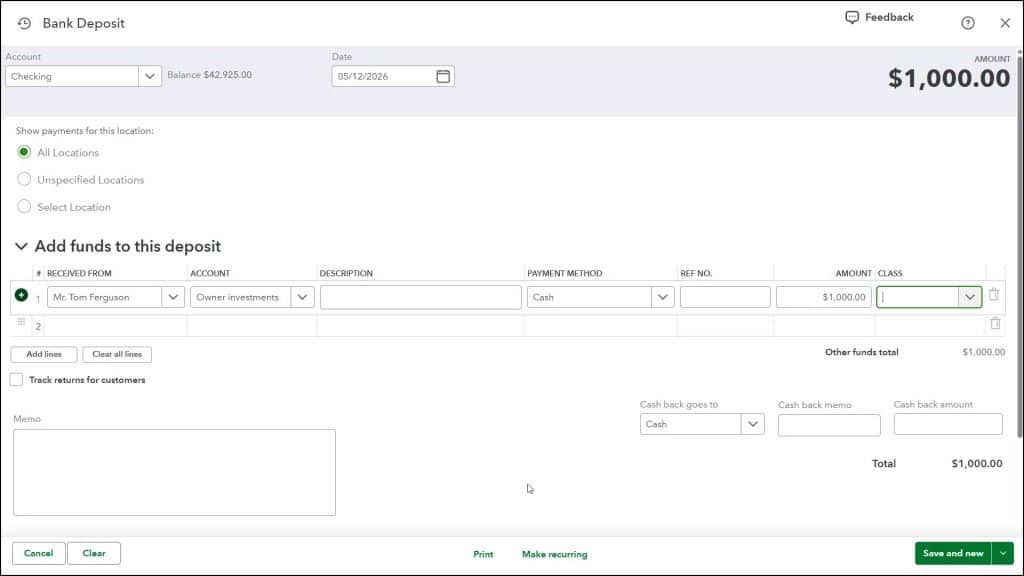
To record a capital investment, hover over the “+ Create” button in the Navigation Bar and then click the “Bank deposit” link under the “Other” heading in the menu to open the “Bank Deposit” window. Select the account into which to deposit the money from the “Account” drop-down. Then select the deposit’s date from the “Date” calendar selector field.
Select the Owner’s Name from the “Received From” Field in the Deposit:
In the first blank row in the “Add funds to this deposit” section, select the name of the owner or partner from whom the funds were received from the “Received From” drop-down. If the owner or partner isn’t setup as a “Vendor,” click the “+ Add new” choice in the drop-down menu to add the name of the owner to the vendors list.
Select the “Owner Investments” Equity Account and Enter the Deposit Details:
Then select the name of the equity account used to track capital investments from the adjacent “Account” column, like the “Owner investments” equity account, for example. You can enter a description of the investment into the “Description” field. Then select the payment method the investor used from the “Payment Method” drop-down. If there is a transaction number, like a check number, to record for the investment, you can enter it into the “Ref No.” field. Finally, enter the investment amount into the “Amount” column.
Print and/or Save the Deposit:
To save the deposit and print a deposit slip and summary or summary only, click the “Print” button and then select either “Print deposit slip and summary” or “Print deposit summary only,” as desired. Note that the deposit is not saved until you select either one of the commands.
Alternatively, to save the deposit and then create a new deposit or close the window, either click the drop-down button at the right end of the toolbar to perform the current choice shown or click its drop-down arrow to select the alternate choice from the pop-up menu. Selecting “Save and new” saves the current deposit and opens a new deposit window. Selecting “Save and close” saves the deposit and closes the window.



