
 MY CART
How to Use the Reminders List in QuickBooks Online
How to Use the Reminders List in QuickBooks Online: Video
This video lesson, titled “How to Use the Reminders List in QuickBooks Online,” shows you how to use the Reminders list in QuickBooks Online to manage upcoming recurring transactions. This video lesson is from our complete QuickBooks Online tutorial, titled “Mastering QuickBooks Online Made Easy.”
Overview:
After creating recurring transactions, QuickBooks Online Plus reminds you when they are due by showing weekly reminders in a “Reminders List,” starting the Monday after they are created and each Monday after that. To view your “Reminders List” and create transactions from them, click the “Settings” button in the QuickBooks Online toolbar and then click the “Recurring transactions” link under the “Lists” heading to open the “Recurring Transactions” page. Then click the “Reminder List” button in the upper-right corner of the “Recurring Transactions” page to open the “Reminders List” page.
The “Reminders List” page shows all upcoming recurring transactions. To create transactions in your “Reminders List,” check the checkbox to the left of the transaction or transactions to create. Then click the “Batch Actions” drop-down above the list and select the “Create” command to create the selected transactions. Alternatively, to skip creating the selected transactions within the “Reminders List” once, choose the “Skip” command, instead. Doing this skips a single instance of the selected recurring transactions but doesn’t interfere with future recurrences.
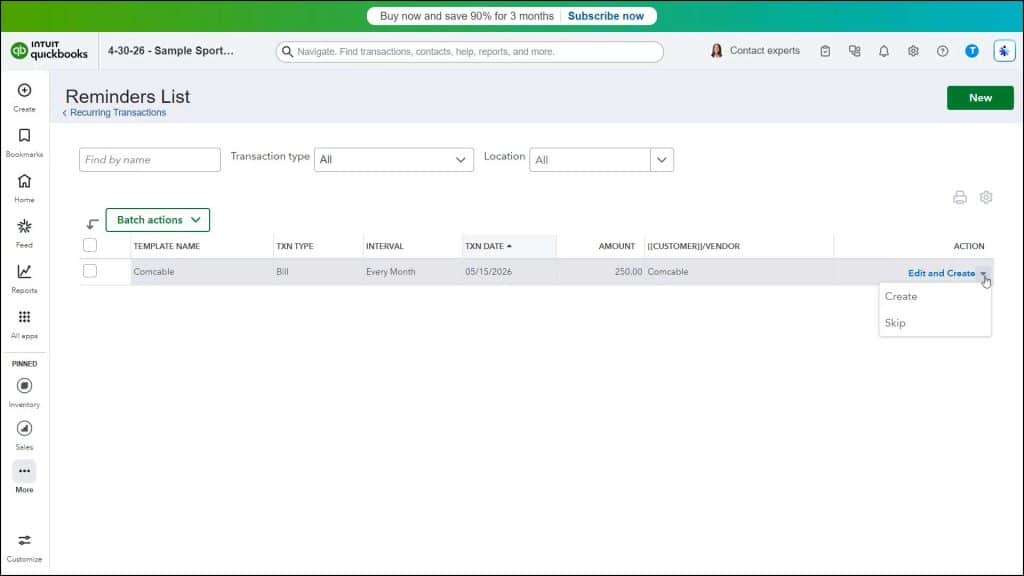
Alternatively, to create or skip a single transaction, click the drop-down arrow under the transaction’s “Action” column and then select either the “Create” or “Skip” command, as desired. Alternatively, to edit a single transaction before creating it, click the “Edit and Create” link under its “Action” column to open the transaction form so you can then edit its content and then save it to create it.



