MY CART
How to Scroll a Window in Windows 11: Video Lesson
This video lesson, titled “How to Use Windows 11 Apps and App Windows: A Windows 11 Training Tutorial,” shows you how to scroll a window in Windows 11. This video lesson is from our complete Windows tutorial, titled “Mastering Windows Online Made Easy.”
Overview:
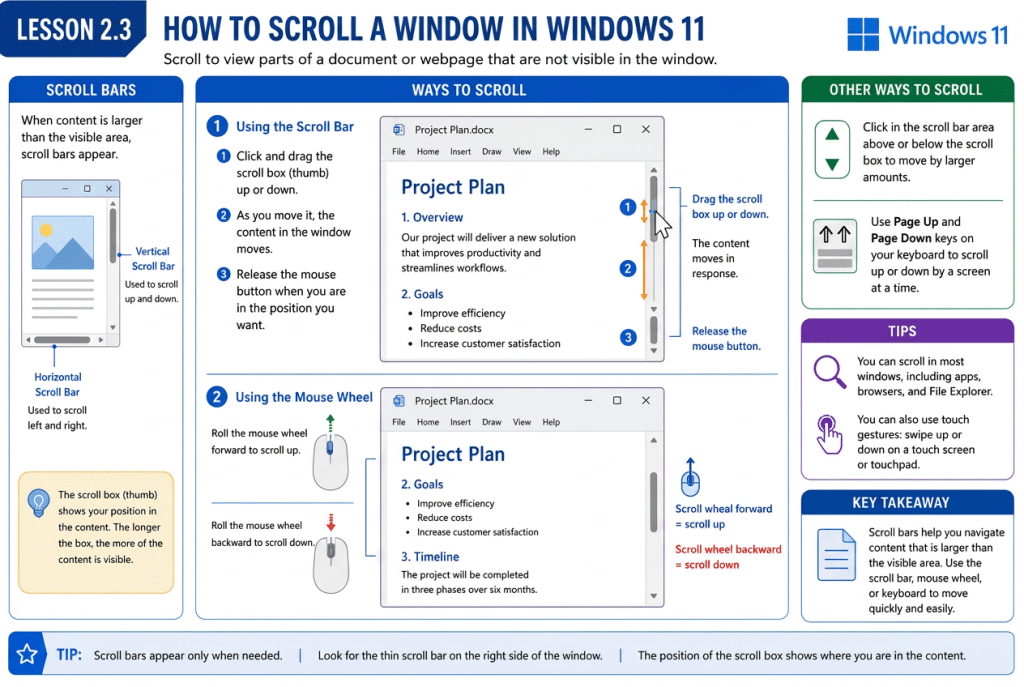
In windows that display longer documents or web pages, you can scroll to view content that does not fit within the visible area. When all content cannot be shown at once, a scroll bar appears along the right side of the window for vertical scrolling. In some cases, a scroll bar may also appear along the bottom of the window for horizontal scrolling.
To scroll through the content in a window, click and drag the scroll box within the scroll bar. As you move the scroll box, the content in the window moves accordingly. The position of the scroll box within the scroll bar indicates your current location within the content.
You can also scroll more quickly by using the scroll wheel on a mouse. Roll the scroll wheel forward or backward to scroll up or down through the content. In some apps, you can also click within the scroll bar area above or below the scroll box to move through the content by larger amounts.