MY CART
How to Use Multiple Desktops in Windows 11: Video Lesson
This video lesson, titled “How to Use Multiple Desktops in Windows 11: A Windows 11 Training Tutorial,” shows you how to use multiple desktops in Windows 11. This video lesson is from our complete Windows tutorial, titled “Mastering Windows Online Made Easy.”
Overview:
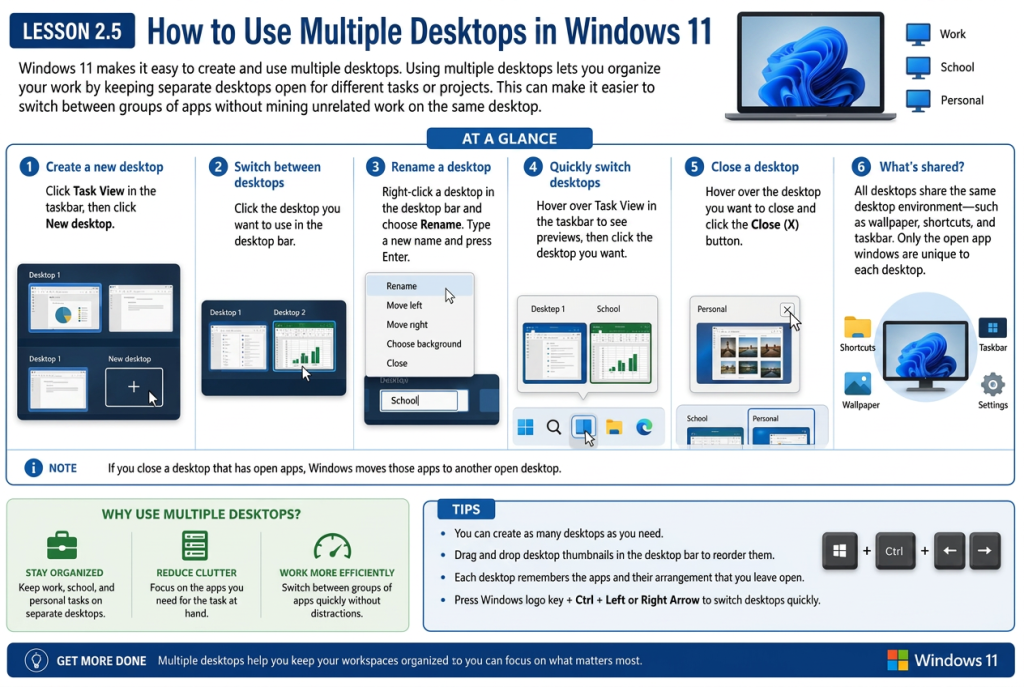
Windows 11 makes it easy to create and use multiple desktops. Using multiple desktops lets you organize your work by keeping separate desktops open for different tasks or projects. This can make it easier to switch between groups of apps without mixing unrelated work on the same desktop.
How to Create a New Desktop Using the Task View Button:
To create a new desktop, click the Task View button in the taskbar. The Task View interface appears, showing thumbnails of the open windows on the current desktop. Below this is a desktop bar that displays your existing desktops and a “New desktop” button. Click the “New desktop” button to create a new desktop. New desktops are named sequentially, such as Desktop 1, Desktop 2, and so on.
How to Select a Desktop and Open and Arrange Apps on a Desktop:
To select a desktop, click the desired desktop in the desktop bar. You can then open and arrange different app windows on each desktop as needed.
How to Rename a Desktop:
To rename a desktop, right-click the desktop in the desktop bar and select the “Rename” command. Then type a new name and press the Enter key to apply it.
What is Unique to a Task View Desktop and What is Shared?
Each desktop shares the same underlying desktop environment. This means changes such as adding shortcuts or changing the background appear on all desktops, even though the open app windows remain unique to each one.
How to Switch between Desktops:
To quickly switch between desktops, position the mouse pointer over the Task View button in the taskbar. A preview of your desktops appears, and you can click the desktop to which you want to switch.
How to Close a Desktop:
To close a desktop, click the Task View button in the taskbar to open the desktop bar. Then position the mouse pointer over the desktop you want to close and click the “Close” button that appears in the upper-right corner of its thumbnail. Any open apps on that desktop are moved to another open desktop.