
TeachUcomp, Inc.

 MY CART
  • HOME
  • PRODUCTS
    • Books
      • QuickBooks Online
    • Manuals
      • Adobe
        • Acrobat
        • Lightroom Classic
        • Photoshop
        • Photoshop Elements
      • Crystal Reports
      • For Lawyers
        • Excel for Lawyers
        • Outlook for Lawyers
        • QuickBooks for Lawyers
        • Word for Lawyers
      • HTML
      • JavaScript
      • Microsoft Office
        • Access
        • Excel
        • OneNote
        • Outlook
        • Outlook on the Web
        • PowerPoint
        • Publisher
        • Word
      • Microsoft Project
      • Microsoft Teams
      • QuickBooks Online
      • QuickBooks Pro
      • Sage
        • Peachtree
        • Sage 50
      • SQL
      • Windows
    • Reference Guides
      • Adobe
        • Acrobat
        • Lightroom Classic
        • Photoshop
        • Photoshop Elements 2026
        • Photoshop Elements 2025
        • Photoshop Elements 2024
        • Photoshop Elements 2023
        • Photoshop Elements 2022
        • Photoshop Elements 2021
        • Photoshop Elements 2020
        • Photoshop Elements 2019
        • Photoshop Elements 2018
        • Photoshop Elements 15
      • Chrome OS
        • Chrome OS Keyboard Shortcuts
      • FreshBooks
      • Google
        • Google Classroom for Teachers
        • Google Docs
        • Google Drive
        • Google Forms
        • Google Sheets
        • Google Slides
      • macOS
        • macOS Keyboard Shortcuts
        • macOS Tahoe
      • Microsoft Office
        • Excel Formulas and Functions
        • Excel Keyboard Shortcuts (macOS)
        • Excel Keyboard Shortcuts (PC/Windows)
        • Excel Tables PivotTables and Charts
        • Microsoft 365
          • Access for Microsoft 365
          • Excel for Microsoft 365
          • Microsoft Office 365
          • Outlook for Microsoft 365 Classic Edition
          • Outlook for Microsoft 365 (New Outlook)
          • PowerPoint for Microsoft 365
          • Publisher for Microsoft 365
          • Word for Microsoft 365
        • Microsoft Office 2021
          • Access 2021
          • Excel 2021
          • Microsoft Office 2021
          • OneNote for Windows 10
          • Outlook 2021
          • PowerPoint 2021
          • Publisher 2021
          • Word 2021
        • Microsoft Office 2019
          • Access 2019
          • Excel 2019
          • Microsoft Office 2019
          • Outlook 2019
          • PowerPoint 2019
          • Publisher 2019
          • Word 2019
        • Microsoft Office 2016
          • Access 2016
          • Excel 2016
          • Microsoft Office 2016
          • OneNote 2016
          • Outlook 2016
          • PowerPoint 2016
          • Publisher 2016
          • Word 2016
        • Microsoft Office 2013
          • Excel 2013
          • Microsoft Office 2013
          • OneNote 2013
          • Outlook 2013
          • PowerPoint 2013
          • Word 2013
        • Microsoft Office for iPad
          • Microsoft Office for iPad
        • Word Keyboard Shortcuts (macOS)
        • Word Keyboard Shortcuts (PC/Windows)
      • Microsoft Teams
      • QuickBooks Online
      • QuickBooks Pro
        • QuickBooks Pro 2024
        • QuickBooks Pro 2023
        • QuickBooks Pro 2022
        • QuickBooks Pro 2021
        • QuickBooks Pro 2020
        • QuickBooks Pro 2019
        • QuickBooks Pro 2018
        • QuickBooks Pro 2017
        • QuickBooks Pro 2016
        • QuickBooks Pro 2015
        • QuickBooks Pro 2014
      • Sage 50 Accounting
      • SQL
      • Windows
        • Windows 11
        • Windows 11 and 10 Keyboard Shortcuts
        • Windows 10
    • Video Courses
      • All-Access Subscriptions
      • Course List
        • Accounting
        • Adobe
          • Acrobat
          • Lightroom Classic
          • Photoshop
          • Photoshop Elements
        • Crystal Reports
        • Employment Skills
          • Interview Skills
          • Resume Skills
        • For Lawyers
          • Excel for Lawyers
          • Outlook for Lawyers
          • QuickBooks for Lawyers
          • Word for Lawyers
        • HTML
        • JavaScript
        • Microsoft Office
          • Access
          • Excel
          • Microsoft Office Suite
          • OneNote
          • Outlook
          • Outlook on the Web
          • PowerPoint
          • Publisher
          • Word
        • Microsoft Project
        • Microsoft Teams
        • QuickBooks Online
        • QuickBooks Pro
        • Sage
          • Peachtree
          • Sage 50
        • SQL
        • Windows
      • My Courses
      • Video Course Options
    • Shortcut Stickers
      • Chrome OS
      • macOS
      • Microsoft Office
        • Word and Excel (Mac)
        • Word and Excel (PC/Windows)
      • QuickBooks Desktop
        • QuickBooks Desktop (PC/Windows) 2024
        • QuickBooks Desktop (PC/Windows) 2023
        • QuickBooks Desktop (PC/Windows) 2022-2015
      • QuickBooks Online
      • Windows
  • SHOP BY TOPIC
  • FOR TEAMS
  • SUPPORT
    • Company
      • About Us
      • Blog
      • Our History
      • Our Philosophy
        • Customer Service
        • Mission
      • Policies
      • Testimonials
    • Contact Us
    • FAQ
    • Help
    • Lost Password
    • Register a Product
  • LOGIN
    • Manage My Account
    • Member Login
    • My Courses
Shop Now

How to Use Widgets in Windows 11

by Joseph Brownell / Monday, September 14 2026 / Published in Latest, Microsoft, Windows 11

How to Use Widgets in Windows 11: Video Lesson

    This video lesson, titled “How to Use Widgets in Windows 11 to See News, Weather, and More: A Windows 11 Training Tutorial,” shows you how to use widgets in Windows 11. This video lesson is from our complete Windows tutorial, titled “Mastering Windows Online Made Easy.”

Overview:

Windows 11 provides widgets that display quick summaries of information from apps and online services. Widgets can show information such as weather forecasts, sports scores, news headlines, stock market activity, traffic updates, and other personalized content. Using widgets lets you quickly view important information without opening multiple apps.

The Widgets Button in the Windows Taskbar:

            The “Widgets” button appears at the left end of the Windows taskbar. By default, this button shows the current weather. However, this button cycles through the other active widget data in your Widgets board, like sports scores or financial information, to show your widget information directly in the taskbar, even when the Widgets pane is closed. So, its appearance does change.

How to Open the Widgets Pane:

            To open the Widgets pane, click the “Widgets” button in the taskbar. However, depending on your “Widgets” settings, note that you may also be able to open the Widgets pane by hovering your mouse pointer over the button. The Widgets pane opens at the left side of the screen and provides access to your widgets, personalized feed content, and your “Widgets” pane’s settings. To close the Widgets pane, click the “Widgets” button in the Windows taskbar again or click outside the Widgets pane.

How to Navigate the Widgets Pane in Windows 11:

            The Widgets pane contains a navigation bar at its left side. The top of the navigation bar contains buttons which provide access to different sections of data, which Microsoft calls “boards” or “dashboards.” These are the “Widgets” and “Discover” boards, by default. The selected section is highlighted in the navigation bar, and its content appears to the right. At the bottom of the navigation bar is the “Settings” button, which you can click to access the settings for the entire Widgets pane.

How to Use Widgets in Windows 11:

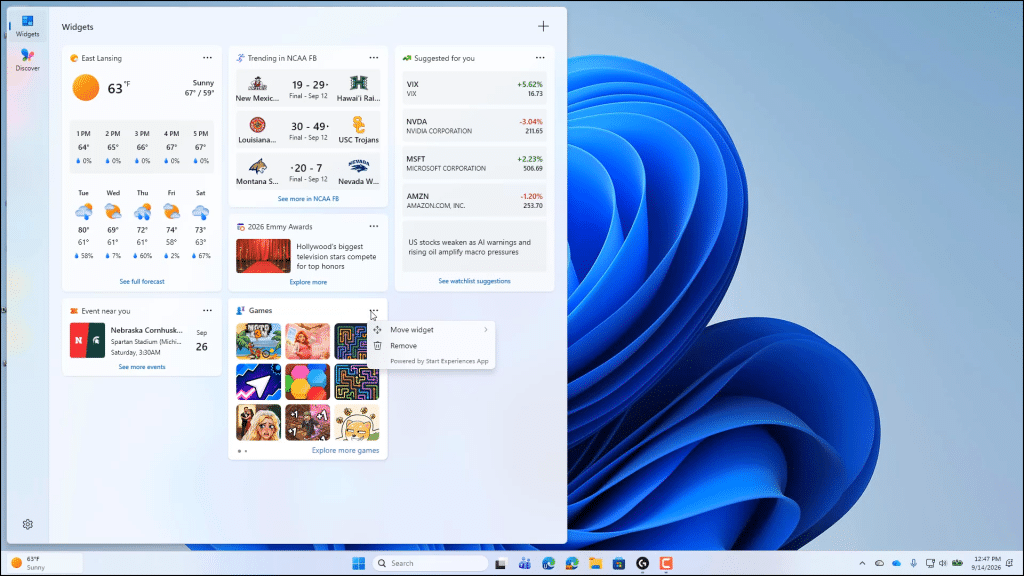
            Click the “Widgets” button in the navigation bar to view your widget board to the right. This board shows the widgets currently installed on your computer. Common widgets include Weather, Sports, Stocks, and local events. Each widget shows its current information, and you can often click them to view more details.
A picture showing how to use widgets in Windows 11.

            To add a new widget to the “Widgets” board, click the “Add widgets” button, which looks like a plus sign (+) in the upper-right corner of the board. Then select the desired widget to add in the “Add widget” pane that opens and click its “+ Add widget” button.

            To change settings for an individual widget in your “Widgets” board, click the “More options” button in the widget’s upper-right corner. This button appears as three dots. Depending on the widget, you may then be able to select a command to customize its content, change its size, adjust its displayed information, or remove the widget from the dashboard.

How to Use the Discover Feed in the Widgets Pane:

            To view personalized content from the Microsoft Start feed, click the “Discover” button in the Widgets pane’s navigation bar. The “Discover” dashboard shows news stories, sports updates, entertainment articles, and other online content based on your interests. You can browse the available content, select articles to read, and use feedback options to help personalize future recommendations.

            To update the feed, click the “Refresh stories” button at the top of the “Discover” board. A “New look” toggle switch may also appear here. If enabled, this setting shows the updated feed look. If desired, you can turn this setting off to return to the previous look.

How to Change the Settings for the Widgets Pane:

            To change the settings for the “Widgets” pane, click the “Settings” button in the Widgets pane’s navigation bar to show the settings to the right. Depending on your version of Windows, the available settings may change over time.

            To enable or disable the “Discover” board, click to turn the “Discover” setting toggle switch on or off. To browse for more dashboard feeds, like the “Discover” feed, to add to the “Widgets” pane, click the “Browse dashboards” button to open that section of the Microsoft Store, where you can add dashboards as they become available.

            You can click the “Notifications” setting to show toggle switch options that control the notifications generated by your widgets and dashboards. These toggle switches let you choose whether notification badges appear on the taskbar and navigation bar. You can also enable or disable notifications for your dashboards, like the “Discover” (Microsoft Start) feed. To return to the main settings, click the “Settings” breadcrumb link at the top of the “Notifications” settings.

            Back in the main “Settings” page, the “Open on hover” setting determines whether the Widgets pane opens automatically when you hover your mouse pointer over the “Widgets” button in the taskbar. Turn this setting on to open the Widgets pane by hovering over the taskbar button or turn it off to require clicking the button instead.

How to Remove the Widgets Button from the Windows Taskbar:

            To remove the “Widgets” button from the Windows taskbar, right-click an empty area of the Windows taskbar and then click the “Taskbar settings” command in the pop-up contextual menu that appears. In the “Settings” app window that then opens, find the “Widgets” setting in the “Taskbar items” section and click its toggle switch to turn it off. If you want to see the Widgets pane again in the future, simply toggle the switch back on. You can close the “Settings” app window when you are finished.

Tagged under: add widgets Windows 11, beginner Windows 11, customize widgets Windows 11, desktop productivity, discover new widgets, how to use widgets, manage widgets, Microsoft widgets, microsoft windows course, news feed Windows 11, personalized feed Windows 11, teachucomp, weather widget Windows 11, widget notifications, widget settings Windows 11, Widgets pane Windows 11, Widgets Windows 11, windows 11 features, windows 11 training, windows 11 tutorial, Windows 11 widgets, Windows dashboard, Windows taskbar widgets, Windows widgets tutorial

About Joseph Brownell

Joseph Brownell is founder and Vice President of TeachUcomp, Inc. He is the author of dozens of titles across the TeachUcomp, Inc. product line.
Team Training. Solutions for all team sizes.


Windows 11 Quick Reference Guide. Buy Now.
 

Categories

  • GET SOCIAL

© 2001-2026 Copyright TeachUcomp, Inc. All rights reserved.

TOP
25% Off Everything 2 Days 17 Hours 48 Minutes 13 Seconds      Coupon Code: SAVE25
Shop Now