 MY CART
How to Open a File in File Explorer in Windows 11: Video Lesson
This video lesson, titled “How to Open a File Using File Explorer in Windows 11: A Windows 11 Training Tutorial,” shows you different ways to open files in File Explorer in Windows 11. This video lesson is from our complete Windows tutorial, titled “Mastering Windows Made Easy.”
Overview:
How to Double-click to Open a File in File Explorer:
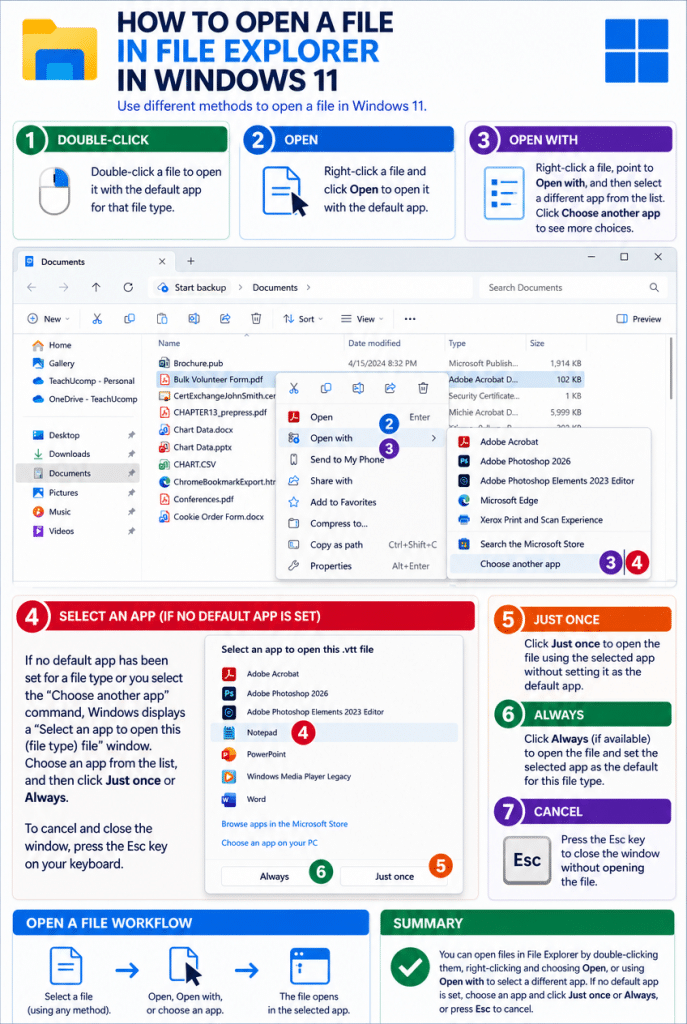
To open a file in the main pane of the File Explorer window in Windows 11, double-click the file. When you double-click a file, Windows opens it using the default app associated with that file type. The file then appears in the selected app in a separate window.
How to Right-click to Open a File in File Explorer:
You can also open a file by right-clicking it to display a menu of commands. In this menu, click the “Open” command to open the file using the default app. This method performs the same action as double-clicking the file and can be useful when working with additional file commands.
How to Select an App to Use to Open a File if No Default App Is Set to Open the File:
If no default app has been set for a file type, Windows displays a “Select an app to open this (file type) file” app selection window, where (file type) is the type of file you are attempting to open, instead of directly opening the file. This window shows a list of apps that can be used to open the selected file. You can then choose the app you want to use to open the file.
How to Use an App to Open the File Once:
To open the file, click the app you want to use from the list. Then click the “Just once” button to open the file using that app. This option opens the file without setting a default app for that file type.
Alternatively, How to Set a Default App to Open the File Type:
If you want to set a default app for the file type, click the app you want to use and then click the “Always” button, if it is available. Windows then opens the file using the selected app and sets that app as the default for opening files of that type in the future.
Alternatively, How to Cancel Opening the File Using an App:
If you decide not to open the file, press the “Esc” key on your keyboard to cancel the action and close the app selection window. This leaves the file unopened and returns you to the File Explorer window.
How to Open a File in File Explorer Using an App Other Than the Default App:
Alternatively, if you want to open a file using a different app than the default, you can use the “Open with” command. To do this, right-click the file and then point to the “Open with” command to display a list of available apps. Then click the app you want to use to open the file, or click the “Choose another app” command to open the “Select an app to open this (file type) file” app selection window so you can select from more app choices.