
 MY CART
Accountant View and Business View in QuickBooks Online – Instructions
Accountant View and Business View in QuickBooks Online: Video
This video lesson, titled “Learn about the Accountant View and Business View in QuickBooks Online,” shows how to switch between Accountant View and Business View in QuickBooks Online. This video lesson is from our complete QuickBooks Online tutorial, titled “Mastering QuickBooks Online Made Easy.”
How to Switch between Accountant View and Business View in QuickBooks Online: Instructions
QuickBooks Online Plus still has two views you can use. These views are called the Accountant View and the Business View. However, you can perform most of the same tasks within both views in new company files, making which view you use less of an issue than it was in previous releases of QuickBooks Online.
According to Intuit, the “Business view” uses simplified business terms to help users avoid more complex accounting terms and processes and the “Accountant View” uses standard accounting terms and processes. For the purposes of this course, we use the “Accountant View” unless specifically stated otherwise by the lesson.
If desired, to switch between the two views in QuickBooks Online Plus, click the “Settings” button in the QuickBooks Online toolbar in the upper-right corner of the screen. Then click the “Switch from Accountant view to Business view/Switch from Business view to Accountant view” toggle link in the lower-right corner of the menu to switch to the opposite view of the current view.
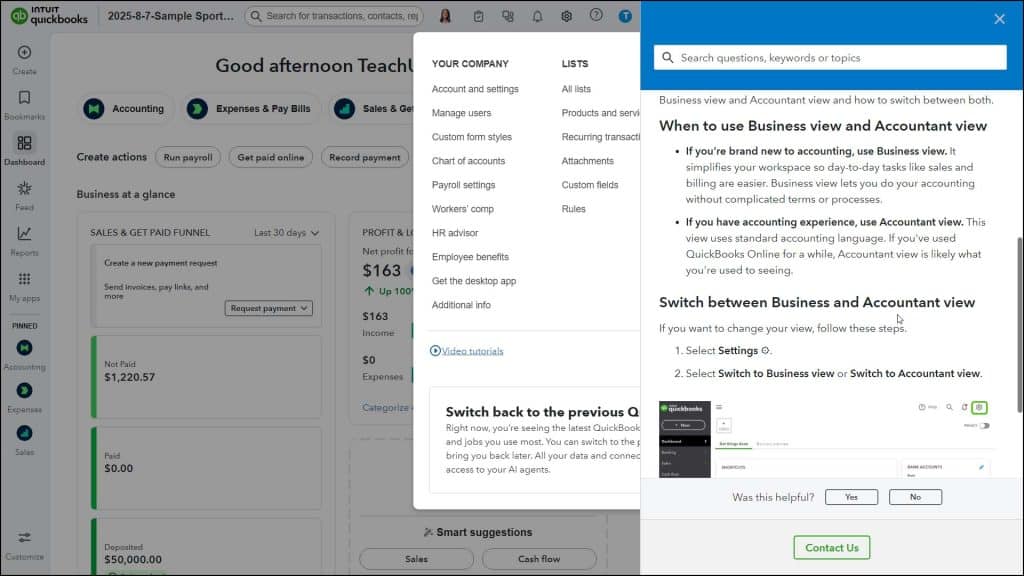
A picture showing how to switch between Accountant View and Business View in QuickBooks Online.



