MY CART
How to Change the Term Estimate in QuickBooks Online
How to Change the Term Estimate in QuickBooks Online: Video
This video lesson, titled “How to Change the Term Estimate in QuickBooks Online,” shows you how to change the term “Estimate” in PDFs you send to customers by using a custom form style in QuickBooks Online. This video lesson is from our complete QuickBooks Online tutorial, titled “Mastering QuickBooks Online Made Easy.”
Overview:
To change the term “estimate” shown in the versions of the sales forms you send to customers into to another term, like quote or projection, you must apply a custom form style. To change the term estimate in your sales forms, click the “Settings” button in the QuickBooks Online toolbar and then click the “Custom form styles” link in the menu to open the “Custom form styles” page.
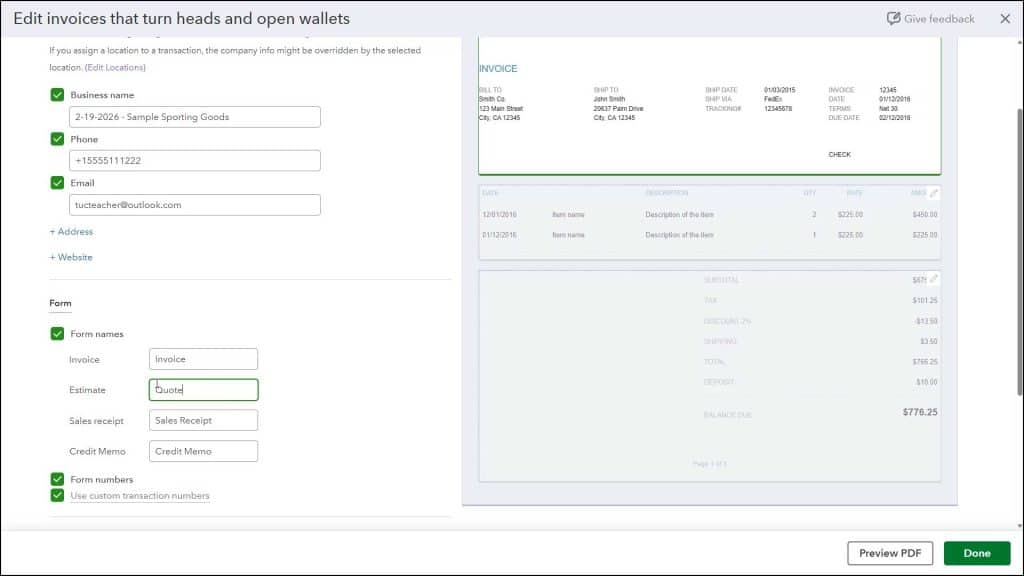
To apply this change to the “Standard” custom form style, click the “Edit” link under the “Action” column in the “Standard” custom form style’s row. Then click the “Content” tab at the top of the form customization window. Then click the upper section at the right side of the page to edit the form’s header.
In the “Form” section to the left, change the term shown for the “Estimate” field under the “Form names” setting. When finished, click the “Done” button in the lower-right corner of the form customization window to save the changes and close it. If you created additional custom form styles for estimates, make sure to also change the “Estimate” field’s value for the “Form names” setting within the header content section of those custom form styles, too.