
 MY CART
How to Copy an Estimate to a Purchase Order in QuickBooks Online
How to Copy an Estimate to a Purchase Order in QuickBooks Online: Video
This video lesson, titled “How to Copy an Estimate to a Purchase Order in QuickBooks Online,” shows you how to copy items from an estimate to a purchase order in QuickBooks Online. This video lesson is from our complete QuickBooks Online tutorial, titled “Mastering QuickBooks Online Made Easy.”
Overview:
To copy an estimate to a purchase order in QuickBooks Online, the estimate’s status must be either “Accepted” or “Pending,” but not “Closed.” You must also have enabled purchase orders within the “Expenses” category in the “Settings” window in your company file. Additionally, you can only copy items which you purchase from a vendor from an estimate to a purchase order. These include inventory items as well as services and non-inventory items for which you checked the “I purchase this from a vendor” checkbox when you created the items. Individual components from a bundle item will appear separately, if possible, according to this same rule.
How to Transfer Items from an Estimate to a Purchase Order:
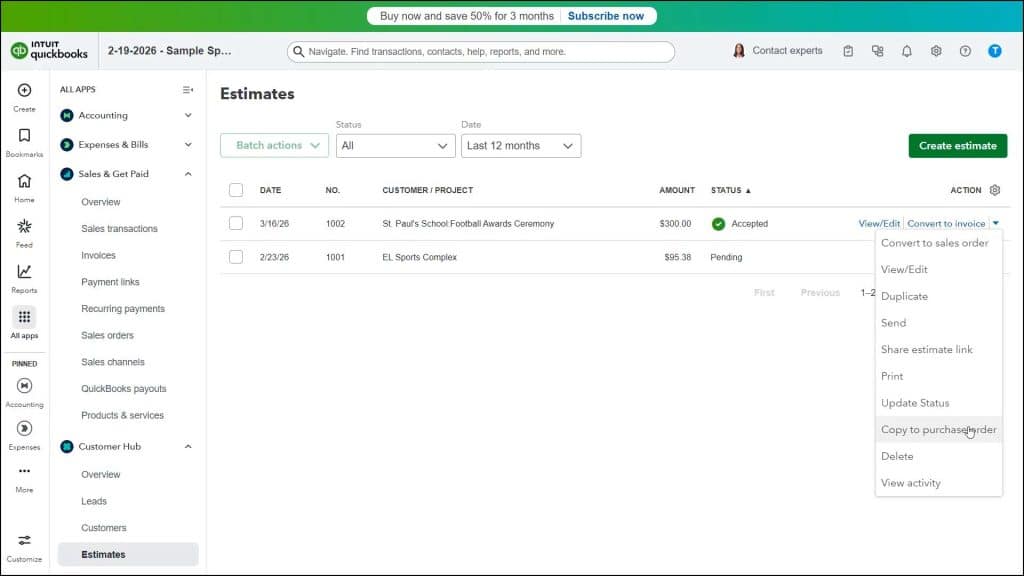
To copy the items from an accepted or pending estimate to a new purchase order in QuickBooks Online, click the “Estimates” link under the “Customer Hub” app in the “All apps” bar to open the “Estimates” page. Then click the drop-down under the desired estimate’s “Action” column and select the “Copy to purchase order” command. QuickBooks Online then immediately copies all the qualifying items from the estimate to a new purchase order.
To delete any line items you don’t need from the line items area in this new purchase order, click the trashcan icon at the right end of the desired line items. Then double-check each remaining line item’s costing information to ensure its accuracy.
To assign the costs for line item amounts to a customer or project, select the desired customer or project from the “Customer/Project” column’s drop-down menu. Then select the desired vendor from the “Vendor” drop-down at the top of the form and fill out the remaining fields in the purchase order, as needed. Then save and send it, as usual. You can repeat this process to create as many purchase orders as you need to send to the different vendors associated with the estimate and edit each one, as needed.



