
 MY CART
How to Create an Estimate in QuickBooks Online
How to Create an Estimate in QuickBooks Online: Video
This video lesson, titled “How to Create Estimates in QuickBooks Online,” shows you how to create an estimate in QuickBooks Online. This video lesson is from our complete QuickBooks Online tutorial, titled “Mastering QuickBooks Online Made Easy.”
Overview:
An estimate in QuickBooks Online is a proposal or quote for work you want to do for a customer. Estimates let you easily transfer their information to an invoice when you are ready to bill the customer, without re-entering all the information from the estimate. If you enable progress invoicing in your company file, you can also send partial invoices from the estimate’s totals, as needed, if invoicing from a project’s estimate in phases. To transfer information from an estimate to an invoice, the estimate’s status must be either “Accepted” or “Pending,” but not “Closed.” It must also be saved and cannot have been fully invoiced.
Three Ways to Create an Estimate in QuickBooks Online:
To create an estimate in QuickBooks Online, hover over the “+ Create” button in the Navigation Bar and then click the “Estimate” link under the “Customer” heading in the menu to open the “Estimate” window. Alternatively, click the “Estimates” link under the “Customer Hub” app in the “All apps” bar to open the “Estimates” page to the right. Then either click the “Create an estimate” button in the page to create your first estimate or click the “Create estimate” button in the page’s upper-right corner to create all future estimates. If creating an estimate using either of these methods, then first select the customer or project from the “Customer” drop-down in the “Estimate” window.
Alternatively, to create an estimate from a project’s details page if using QuickBooks Online Plus with projects enabled, click the “Add to project” button in the upper-right corner of the project details page and then select “Estimate” from the drop-down to create a new estimate and automatically select the project from the “Customer” drop-down.
How to Change the Estimate Template, if Needed:
If needed, to change the estimate template, click the “Manage” button in the toolbar at the top of the window to show the pane at the right side of the window. Then click the “Design” section in the pane to expand it, if needed. Then select the desired template to apply in this section of the pane.
How to Manually Change an Estimate’s Status:
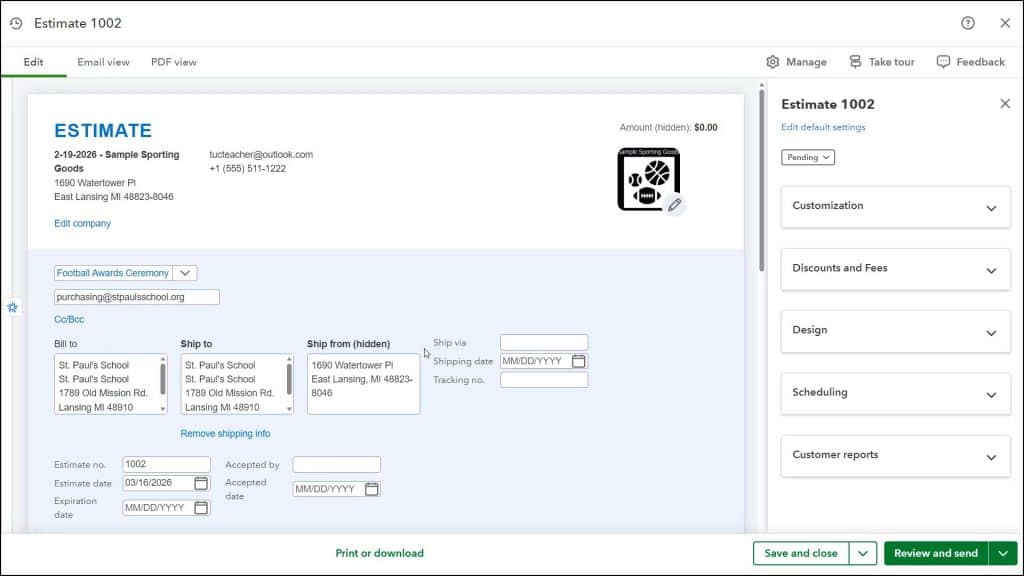
The estimate’s status appears at the top of the pane at the right side of the “Estimate” window. The default estimate status is “Pending.” To change the estimate’s status, click the “Manage” button in the toolbar to show the pane at the right side of the window, if needed, and then select the estimate status from the drop-down towards the top of the pane. If needed, to confirm who accepted the estimate and on which date, enter values into the “Accepted by” and “Accepted date” fields within the customer information fields at the top of the estimate form.
Enter or Confirm the Customer and Estimate Information:
The selected customer and/or project information appears in the fields at the top of the form. You can edit this information the same way as when editing it within an invoice. The “Estimate date” field contains the current date, and you can change it, if needed. To set an expiration date for the estimate, select it from the calendar date selector for the “Expiration date” field or click into the field and type a date.
If shipping is enabled, then “Ship to,” “Ship from (hidden),” “Ship via,” “Shipping date” and “Tracking no.” fields also appear here. The “Ship from (hidden)” field shows your company’s default sales address. You can change this, if needed. The “Estimate no” field shows the next highest available estimate number. If you enabled custom transaction numbers in sales forms, then you can change this, if needed.
If you enabled payments in QuickBooks Online, you can click the “Discounts and Fees” button in the pane at the right side of the estimate to set which payment fields appear in the estimate. If a customer to whom you send an estimate accepts the estimate and/or makes a deposit in QuickBooks Online using this estimate, then the estimate is marked as accepted and converted into an invoice.
If you enabled location tracking, a “Location” drop-down then appears. If you enabled class tracking on a transaction level, then a “Class” drop-down appears here.
Enter the Estimate’s Line Items:
The next area is the line items area where you enter the estimate’s products and/or services. If you enabled services dates in sales forms, select the service date for services to provide from the “Service date” column. To select an existing item from the “Products & services” list, click into the “Product/Service” column and then select the item from the drop-down menu. If SKUs are enabled, the item’s SKU appears in the “SKU” column. Its description appears in the “Description” column. You can also type a description here, if desired.
Enter the quantity of the product to buy or service to provide by typing it into the quantity field, labelled “Qty.” The rate for the product or service, per quantity unit, appears in the “Rate” field. You can change it, if needed. The “Qty” field is multiplied by the “Rate” field to show the total amount for the line item in the “Amount” field. If entering a product or service without a rate or quantity, you can simply enter the total amount into the “Amount” field, if needed. If the product or service is taxable, ensure the “Sales Tax” field shows the correct sales tax status. You can click this, if needed, to mark the line item as taxable or non-taxable.
How to Manage the Estimate’s Line Items:
At the left end of each line item row is a selection handle. To change the order of the line items, click and drag the line item up or down by this handle and then release it. To delete a line item, click the “trash can” icon at its right end. To clear all lines from the line items area, click the “Clear all lines” button below the line items area.
To add a new line item row, click into the bottom line item row to automatically add a new row. Alternatively, to add a new blank line item row, click the “Add product or service” button under the line items area. To add a subtotal line item to an estimate in QuickBooks Online, select the line item row above the row where you want to insert the subtotal row. Then click the drop-down part of the button below the line items area and select the “Add Subtotal” command to add a subtotal line below the currently selected line. You can add as many subtotal lines as the estimate requires.
Note that when you click into a line item row to make it the active row in the line items area, a plus button appears at its left end. You can click this button to show a drop-down menu of commands. To add a new line item row below the current row, select the “Add product or service” command. To add a subtotal below the current row, select the “Add subtotal” command. To add a blank line item row or a line item row that contains text you then type, select the “Add text” command. You can then add text to the blank line item row that appears. To duplicate a selected text line item row, select the “Duplicate” command from this drop-down menu, which only appears for text line item rows.
Enter Messages for the Estimate, if Needed:
To enter a message to show on the estimate, type it into the “Note to customer” field. To enter a message that appears for this estimate in the customer’s statement, type it into the “Memo on statement (hidden)” field. To attach a file to the estimate, either drag and drop a file onto the “Attachments” field or click the field to open a “File Upload” dialog box you can use to browse for, and then select, the file to attach. Note the 20MB file attachment size limit.
Check the Estimate Totals:
In the lower-right corner of the estimate is the subtotal, taxable subtotal, sales tax, discount, shipping and tax on shipping, and total field information, depending on which sales form features you enabled.
Check and/or Confirm the Sales Tax in the Estimate:
To select either the default automatic sales tax calculation or a custom sales tax rate, if you created any, use the “Tax rate” drop-down. From your selection, QuickBooks Online shows the sales tax to collect. If using the automatic sales tax calculation, then you can click the “See the math” link by the sales tax amount to see the sales tax information and calculations and correct it, if needed, in the pane that then opens at the right side of the window.
If you need to override the automatic sales tax calculation, you can click the “Override this amount” link in this pane’s lower-right corner to show a new section at the bottom of the pane. Then click the “Edit” link in this section. Then enter either a new “Rate” or “Amount” to charge for sales tax and then select a “Reason for override” from the drop-down. Then click the adjacent “Apply override” button to confirm the override. After editing the sales tax, if needed, you can then close the pane by clicking the “Close” button in its lower-right corner.
Apply a Discount to the Estimate, if Needed:
To apply a discount to the estimate if you enabled a “Discount” field in your sales forms, click the “%” or “$” toggle switch, as needed. Then enter the discount percentage or discount amount into the adjacent field. If needed, to change whether to apply the discount before or after calculating sales tax in QuickBooks Online, click the arrow buttons to the left of the sales tax rate and discount fields to switch the order of the two fields in the estimate each time you click it. Doing this changes whether the discount is applied before or after calculating sales tax, based on the order the fields appear in the estimate.
Check the Estimate’s Shipping Amounts:
If shipping is enabled, enter the amount of shipping into the “Shipping” field. The tax on shipping, if needed, appears to the left of this field. The “Estimate total” field shows the total estimate amount.
Choose a Save, Send, or Print Option for the Estimate:
The toolbar at the bottom of the estimate lists the actions you can perform. Different options appear when creating a new estimate versus opening an existing estimate. To print or download the estimate, click the “Print or download” link in this toolbar to show a pop-up menu. To save and print it, then select the “Print” command in the pop-up menu to open the estimate as a PDF in a new browser tab and then use the buttons in the toolbar at the top of the PDF preview to print or download it as a PDF to send to the customer, if needed. You can then close the window. Alternatively, to directly save and download it, select the “Download” command in the pop-up menu to download a copy directly to your computer.
After creating the estimate, to save it, or save it and open a new estimate window, or save it and close the estimate window, click the button or select the desired button choice from the “Save / Save and new / Save and close” drop-down button towards the right end of the toolbar. This button’s face shows the command last selected.
To save and send the estimate by text or email, click the “Review and send” button at the right end of the toolbar. To save the estimate and send a link to the online estimate to the customer, click the drop-down on the “Review and send” button at the right end of the toolbar and then select the “Share link” command. The link appears in a window onscreen, so you can then copy the link to send to it via other channels, if desired. You can then close the link window.
How to Perform Actions on a Saved Estimate:
To perform an action on an estimate after saving it, click it within the “Estimates” page to show information about it in a pane at the right side of the window. To reopen the estimate in the “Estimate” window, click the “Edit” button at the bottom of the pane. Alternatively, to select from all possible actions, like “Send,” “Mark accepted,” “Duplicate,” or “Delete,” among others, click the “More actions” button and then select the desired action to perform.
Also, note that if you reopen the estimate for editing within the “Estimate” window, then a new “More actions” button appears in the center of the toolbar at the bottom of the “Estimate” window. Clicking this button shows commands for “Make a copy,” “Delete,” “Audit history,” and “Copy to purchase order.” You can select these commands to perform the associated action, if needed.



