MY CART
How to Create Terms for Early Bill Payment Discounts in QuickBooks Online
How to Create Terms for Early Bill Payment Discounts in QuickBooks Online: Video
This video lesson, titled “How to Create Terms for Early Bill Payment Discounts in QuickBooks Online,” shows you how to create terms to help remind you of vendors who provide early bill payment discounts in QuickBooks Online. This video lesson is from our complete QuickBooks Online tutorial, titled “Mastering QuickBooks Online Made Easy.”
Overview:
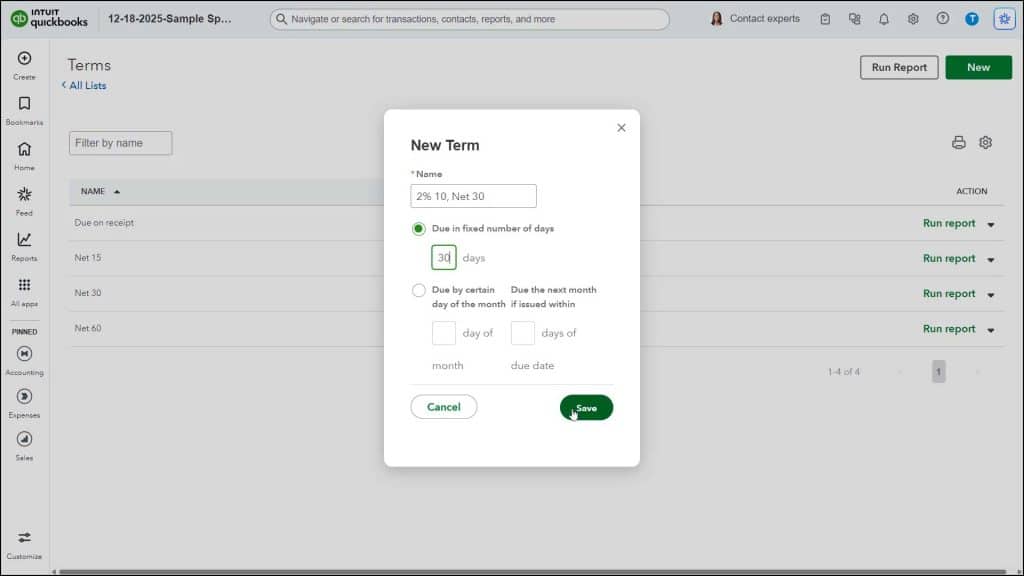
Sometimes vendors offer discounts if you pay a bill early. QuickBooks Online cannot automatically calculate early bill payment terms when paying bills. However, you can create terms that show the early bill payment discount in the name of the terms, so you can remember to manually apply the discount as a vendor credit if you pay the bill early, according to the specified terms. For example, you can create a “Net 30” based set of terms and then name it something like “2% 10, Net 30” so you know you can take a 2% discount if you pay it within 10 days or else pay it in full within 30 days.
How to Create New Terms in QuickBooks Online:
To create terms, click the “Settings” button in the QuickBooks Online toolbar. Then click the “All lists” link under the “Lists” heading to open the “Lists” page. Then click the “Terms” link in the page to open the “Terms” page and show any terms you have created.
Click the “New” button in the upper-right corner of the page to open the “New Term” window. Type a name for the new term into the “Name” field and then select the desired option button for when it is due and enter the required number of days or enter the day, as needed. When finished, click the “Save” button to save the new payment term and close the window.