MY CART
How to Duplicate an Estimate in QuickBooks Online
How to Duplicate an Estimate in QuickBooks Online: Video
This video lesson, titled “How to Duplicate an Estimate in QuickBooks Online,” shows you how to duplicate an estimate in QuickBooks Online. This video lesson is from our complete QuickBooks Online tutorial, titled “Mastering QuickBooks Online Made Easy.”
Overview:
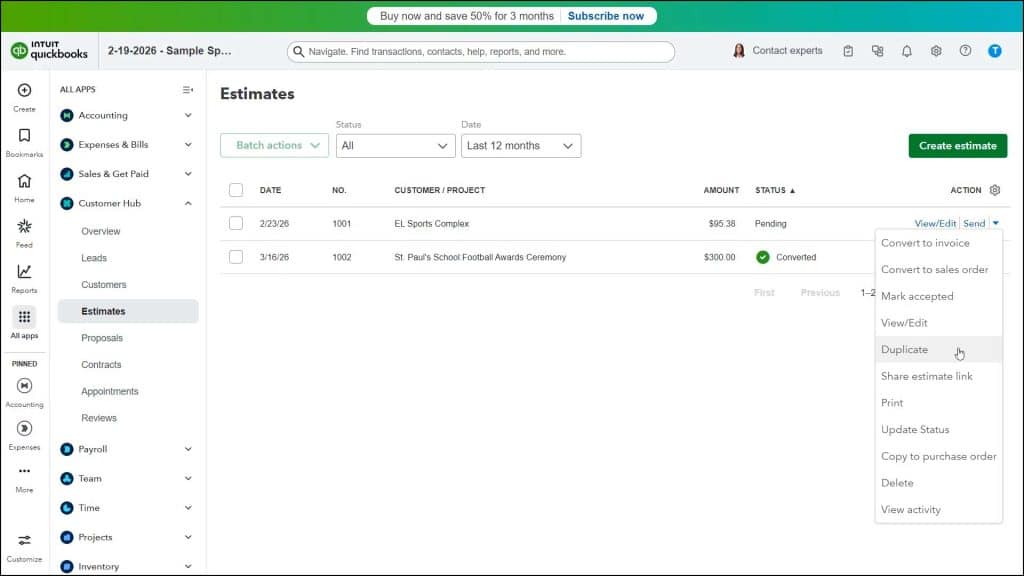
To duplicate an estimate in QuickBooks Online Plus, click the “Estimates” link under the “Customer Hub” app in the “All apps” bar to open the “Estimates” page. Then find the estimate to duplicate in the “Estimates” list. Then click the drop-down under its “Action” column and select the “Duplicate” command to open a copy of that estimate within a new “Estimate” window.
The new estimate shows the next available estimate number. Also, text appears at the top of the new estimate that states “This is a copy of an estimate.” Edit and save this new copy of the estimate, as usual.