MY CART
How to Edit Employee Information in QuickBooks Online
How to Edit Employee Information in QuickBooks Online: Video
This video lesson, titled “How to Edit Employee Information in QuickBooks Online,” shows you how to edit the information for existing employees in QuickBooks Online if you subscribe to a QuickBooks Online Payroll service. This video lesson is from our complete QuickBooks Online tutorial, titled “Mastering QuickBooks Online Made Easy.”
Overview:
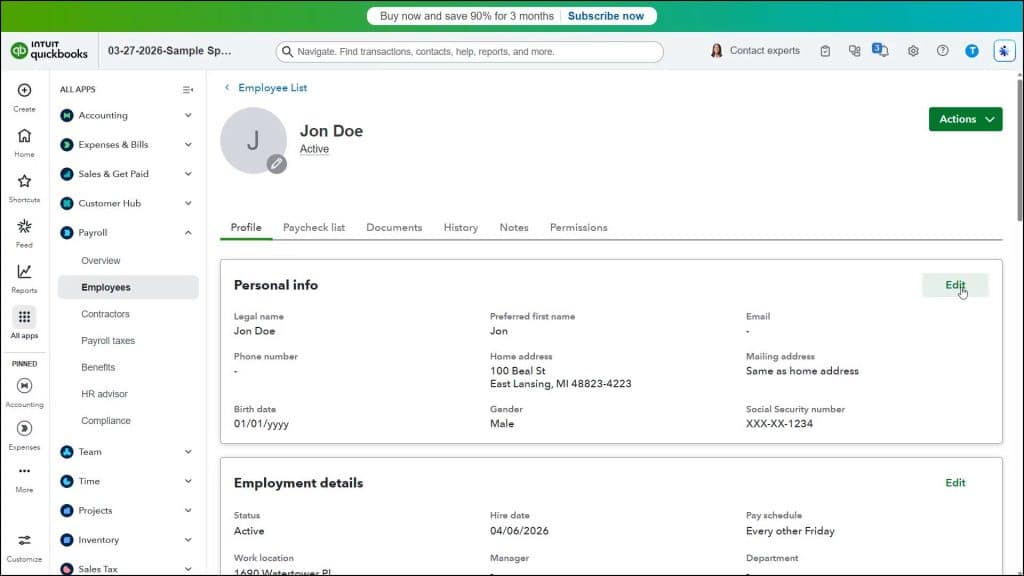
If you subscribe to a QuickBooks Online Payroll service, QuickBooks Online prompts you to add employees as part of the payroll setup process. You can also add employees after that, as shown in the earlier lesson titled “Adding Employees to the Employees List” from the “Using Pages and Lists” chapter. To edit the employee information after that, click the “Employees” link under the “Payroll” app in the “All apps” bar to open the “Employees” page.
Then click the name of the employee to edit within the Employees list in the “Employees” page. This then shows their employee information on the “Profile” tab. Click the “Edit” link in the upper-right corner of the “Personal info,” “Employment details,” “Tax withholdings,” “Payment method,” “Base pay,” “Additional pay types,” “Time off,” “Deductions and contributions” or “Emergency contact” sections to open a window that shows that information. Then make your changes to the employee data and click the “Save” button to save it.