MY CART
How to Export Report and List Data in QuickBooks Online
How to Export Report and List Data in QuickBooks Online: Video
This video lesson, titled “How to Export Report and List Data in QuickBooks Online,” shows you how to export report data and export list data to Excel in QuickBooks Online. This video lesson is from our complete QuickBooks Online tutorial, titled “Mastering QuickBooks Online Made Easy.”
Overview:
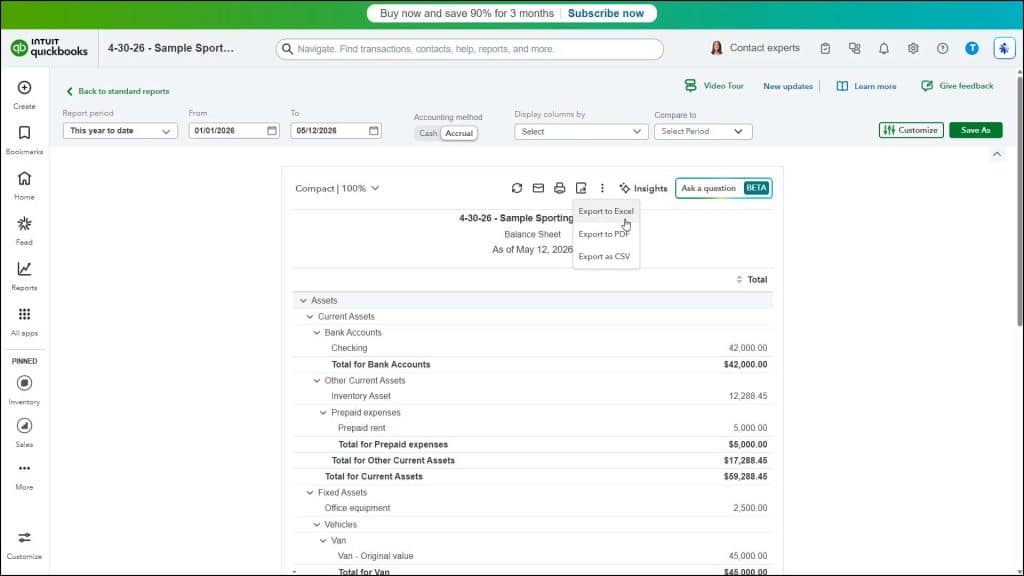
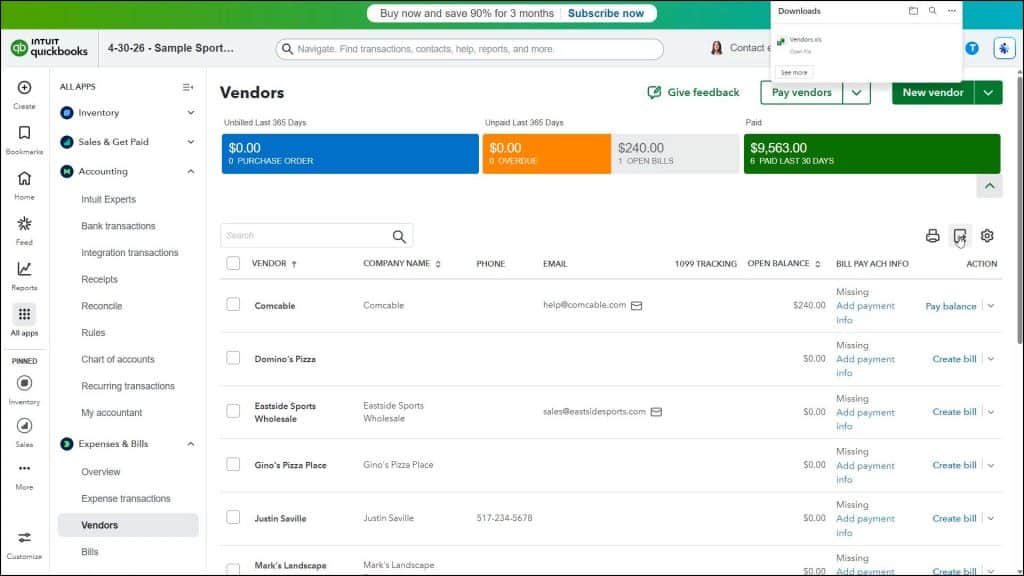
You can export most reports and lists in QuickBooks Online to an Excel file. To export list data from QuickBooks Online Plus to a Microsoft Excel file, click the “Export to Excel” button, which appears towards the upper-right corner of the list in the page.
Separately, to export reports in QuickBooks Online to Excel, run the report, click the “Export” button towards the upper-right corner of the report header, and then click the “Export to Excel” command.