
 MY CART
How to Manually Record External Payroll in QuickBooks Online
How to Manually Record External Payroll in QuickBooks Online: Video
This video lesson, titled “How to Manually Record External Payroll in QuickBooks Online,” shows you how to manually record external payroll in QuickBooks Online by creating a journal entry. This video lesson is from our complete QuickBooks Online tutorial titled “Mastering QuickBooks Online Made Easy.”
Overview:
If you process payroll using a third-party software or payroll service, you can enter the payroll information into QuickBooks Online Plus using a journal entry. The payroll summary report you receive from the payroll service contains all the information you need to enter.
Create a Journal Entry to Record External Payroll:
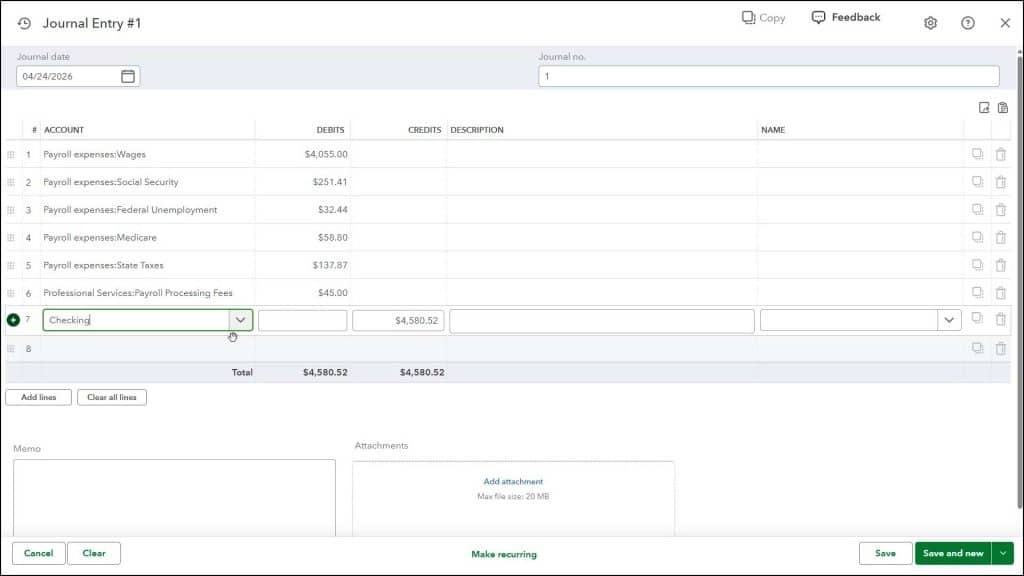
If using a third-party payroll service to process your payroll, you can enter a journal entry like the one in the following example. In this case, you do not track the liabilities in the journal entry, as the payroll service reports and pays the payroll liabilities for you. You will, however, still need to make entries for the gross pay for employees and for the taxes withheld.
To make this journal entry, hover over the “+ Create” button and then click the “Journal Entry” link under the “Other” heading to open the journal entry window. Enter the paycheck date into the “Journal date” field. You can enter a journal entry number into the “Journal no.” field, if you would like. You then need to create the entries within the “Debits” and “Credits” columns.
Example Journal Entry Credits and Debits if Using a Third-Party Payroll Service:
The first entry is a debit to the expense account used to track gross wages. This is where you enter the total for the pay period. Next, debit the expense account used to track Social Security payments. This is where you enter the total of all withheld Social Security. The next entry is a debit to the expense account used to track Federal Unemployment payments. This is where you enter the total of Federal Unemployment tax withheld. Next, debit the expense account used to track Medicare payments. This is where you enter the total Medicare payments withheld. Then debit the expense account used to track State taxes, where applicable. This is where you enter the total State taxes withheld. Then debit the expense account used to track the third-party payroll processing fees. This is where you enter the total processing fees charged by your payroll company, where applicable.
The final entry is a credit to the bank account from which the payroll is deducted. This is where you enter the total amount of your payroll run. This includes gross pay, deductions, and the processing fees from your payroll company.
If Desired, Make the Journal Entry a Recurring Journal Entry:
To make this a recurring journal entry to make the data entry easier in the future, click the “Make Recurring” link at the bottom of the page. Enter a name that is easily remembered into the “Template Name” field. Set the “Template Type” to “Unscheduled.” This saves the template but doesn’t set a specific recurrence schedule. That way, you can select the template, when needed, and then edit the amounts. Click the “Save Template” button to save this template when finished.
Changes to the Preceding Example Journal Entry Credits and Debits if You Need to Manually Record Liability Payments:
The preceding example does not show any accrual of employer liabilities, as the payroll company is responsible for that. However, if you do not use a third-party payroll company or you are responsible for making the liability payments, then you must slightly adjust the preceding journal entry format to note the liabilities you are holding for payment. In this scenario, you need to enter three credit lines within the journal entry, instead of the single, final credit line currently shown.
First, credit the bank account used to process payroll by the amount of the processing fee. Then credit the liability account used to track payroll liabilities by the amount of the payroll liabilities you need to record for the payroll. Finally, credit the bank account used for processing your payroll by the net amount of the paychecks. This is where you enter the net pay, which is the total amount of the payroll minus any payroll liabilities (deductions). The payroll liabilities should be entered into the line above, instead. That lets you track those amounts in a liability account until the time comes to pay the liabilities.
If Manually Recording Liability Payments, Then Later Write a Check to Pay the Payroll Liabilities:
When it comes time to pay the recorded liabilities, you can write a check to pay the liabilities and attribute the amount to the liability account you use to track payroll liabilities within the “Category details” section of the check. After writing the check, the amount in the payroll liability account should either be zero, or the current outstanding payroll liability amount.
Notes on the Preceding Manual Payroll Journal Entry Examples:
Also note that federal and state employee withholding taxes are not shown within the journal entries because these withholdings are paid to the tax agencies directly from the employees’ gross pay. These are not an expense to the employer, as the employer only acts as an intermediary between the employee and the tax agencies. For the correct withholding information and forms, be sure to consult with your payroll service or investigate the options within your third-party software, if used.
Finally, note that these examples are simple examples of the journal entries that must be made to manually account for payroll. If you need to create a more complex payroll journal entry to account for insurance premiums or retirement contributions, for example, consult with your accountant or payroll service. Most payroll services will gladly provide you with the required information you need to record for your company. Your accountant should also double-check these entries for accuracy, as well.



