MY CART
How to Mark Taxable and Non-taxable Customers and Items in QuickBooks Online
How to Add, Edit, and Inactivate Custom Sales Tax Rates in QuickBooks Online: Video Lesson
This video lesson, titled “How to Indicate Taxable and Non-taxable Customers and Items in QuickBooks Online,” shows you how to mark taxable and non-taxable customers and items in QuickBooks Online. This video lesson is from our complete QuickBooks Online tutorial, titled “Mastering QuickBooks Online Made Easy.”
Mark Taxable and Non-taxable Customers and Items in QuickBooks Online: Overview
To correctly use QuickBooks Online to automatically calculate sales taxes, you must first set up the required sales tax agencies and any custom sales tax rates you may need. You must then also accurately enter your customer’s addresses and indicate if they are non-taxable. You must also accurately indicate the taxable status of your products and services, collectively called your “items” in QuickBooks Online.
How to Enter Sales Tax Information for Customers in QuickBooks Online:
To enter sales tax information for a customer, open the Customers list by clicking the “Customers” link under the “Customer Hub” app in the “My apps” bar. To edit a customer’s information, click the name of the customer to edit in the Customers list to open the customer’s details page. Then click the “Edit” button at the top of the page to open the “Customer” pane at the right side of the window.
Enter Billing and Shipping Addresses:
To enter the customer’s billing and shipping addresses, which are used for automatic sales tax calculations, enter the customer’s “Billing address” and “Shipping Address” into the fields provided in the “Addresses” section of the “Customer” pane. If the “Shipping address” is the same as the “Billing address,” you can enter the “Billing address” and then check the “Same as billing address” checkbox next to the “Shipping address” label. If not, uncheck this checkbox and enter the “Shipping address” into the fields provided.
Set the Customer’s Tax Status:
To mark a customer as not taxable, check the “This customer is tax exempt” checkbox in the “Additional info” section of the “Customer” pane. Customers are considered taxable unless this checkbox is checked. Then select why they are tax exempt from the “Reason for exemption” drop-down. You can enter the details for their tax exemption into the “Exemption details” field.
Alternatively, to set a custom sales tax rate for taxable customers, select a choice from the “Select tax rate” drop-down in the “Additional info” section. For automatic sales tax calculations, this is most often left at the “Automated based on location” choice. Then click the “Save” button at the bottom of the “Customer” pane to save your changes.
How to Enter Sales Tax Information for a Product or Service:
To mark a product or service as taxable or non-taxable, click the “Settings” button in the QuickBooks Online toolbar. Then click the “Products and services” link under the “Lists” heading in the drop-down menu to open the “Products & services” list. Find the product to edit and then click its “Edit” link in the “Action” column for that product’s row to open a product or service information pane at the right side of the window.
To edit the item’s sales tax setting in this pane, select a choice from the “Sales tax category” drop-down in the “Sales” section of the pane. To apply a specific sales tax category to the item, select the “View all sales tax categories” link in the drop-down menu that appears to show the “Select a sales tax category” pane. Then click to expand the category for the specialized product and then select its specialized product sales tax category option button. Then click the “Select” button at the bottom of the pane to return to the product or service information pane again.
To save any editing changes to your products and services, click the “Save” button in the lower-right corner of the product or service information pane to save your changes and close the pane.
Assigning Sales Tax Categories to Multiple Products and Services at Once in QuickBooks Online:
Alternatively, you can also assign sales tax categories to your products and services in the “Manage tax categories” window in QuickBooks Online to assign sales tax categories for multiple products and services without editing them one at a time. However, you will need to ensure the other information for the product or service is accurate to best use this feature.
This works well if you import several products and services and then wish to refine their sales tax category in QuickBooks Online. This feature uses AI to guess the best sales tax category for an item, so it may guess incorrectly. You will need to double-check any suggestions it makes for accuracy.
How to Assign Sales Tax Categories to Multiple Products and Services:
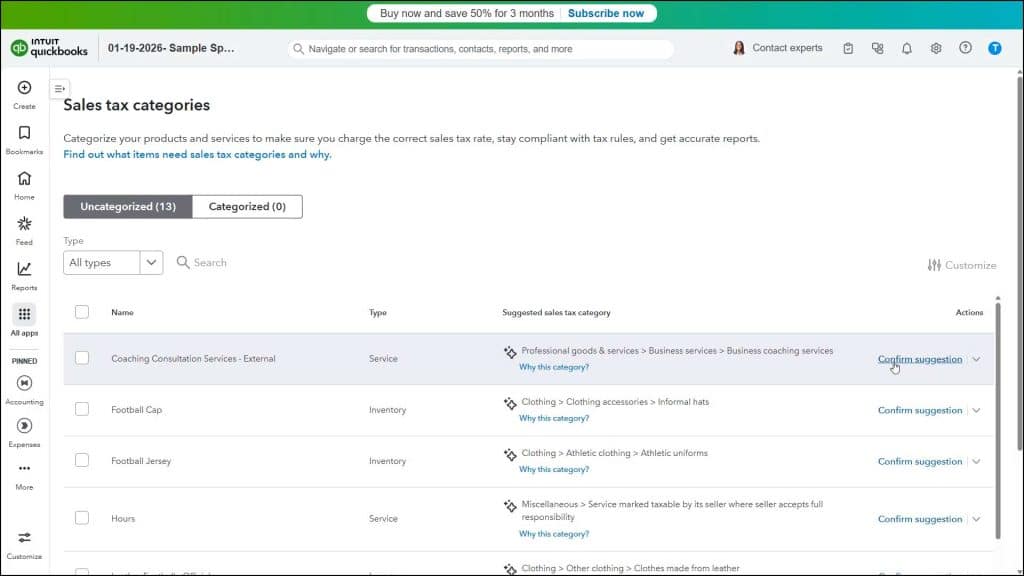
To assign sales tax categories to multiple products and services in QuickBooks Online Plus, click the “Sales tax categories” link under the “Sales Tax” app in the “All apps” bar. This window shows your existing products and services on an “Uncategorized” and “Categorized” tab within it. You can click the “Uncategorized” and “Categorized” buttons to switch the tabs, if needed.
On the “Uncategorized” tab, QuickBooks Online shows uncategorized items. If QuickBooks Online has a sales tax category suggestion for a product or service, it appears in the “Suggested sales tax category” column. To approve the suggestion, click the “Confirm” link at the right end of the item’s row. Alternatively, to manually apply a sales tax category if none is selected or to change the suggested category if it is incorrect, click the “Select category” link at the right end of the item’s row or select it from the “Confirm” link’s drop-down if an incorrect suggestion appears, and then assign the category in the “Select a sales tax category” pane, as usual.
To view the list of products to which you have assigned a sales tax category, click the “Categorized” tab button in this window.