MY CART
How to Remove Value from an Other Current Assets Account in QuickBooks Online
How to Remove Value from an Other Current Assets Account in QuickBooks Online: Video
This video lesson, titled “How to Remove Value from an Other Current Assets Account in QuickBooks Online,” shows you how to remove value from an Other Current Assets account in QuickBooks Online to record an expense which “uses up” the Other Current Asset in the period for which the expense is incurred for accurate Accrual accounting method bookkeeping. This video lesson is from our complete QuickBooks Online tutorial, titled “Mastering QuickBooks Online Made Easy.”
Overview:
This lesson shows how to make a journal entry to decrease the value of an Other Current Assets account by using the example from the last lesson of the “Prepaid rent” Other Current Assets account into which five months’ worth of prepaid rent was placed. As you later incur your monthly rent expense of $1,000 per month over the next five months, you will use up part of the Other Current Assets account named “Prepaid rent,” and enter each change to the value of that account into the “Journal Entry” window. So, for each of the following five months, decrease the amount of the monthly rent from the “Prepaid Rent” Other Current Assets account in the period it is actually incurred and attribute that amount to the “Building & property rent” expense account.
How to Create a Journal Entry to Remove Value from an Other Current Assets Account:
To create a journal entry in QuickBooks Online, hover over the “+ Create” button in the Navigation Bar and then click the “Journal entry” link under the “Other” heading in the menu that appears to open the “Journal Entry” window. In this window, enter the date of the entry into the “Journal date” field. Optionally, enter a reference number for the entry into the “Journal no.” field, if needed.
Then click into the first row under the “Account” column and select the “Building & property rent” expense account. Enter $1,000 into the adjacent “Debits” column in that row to show the increase to the rent expense account. Then click into the “Account” column in the next blank row and select the “Prepaid rent” Other Current Assets account. QuickBooks should automatically attribute $1,000 to its “Credits” column, decreasing its value. If not, click into the “Credits” column and enter $1,000.
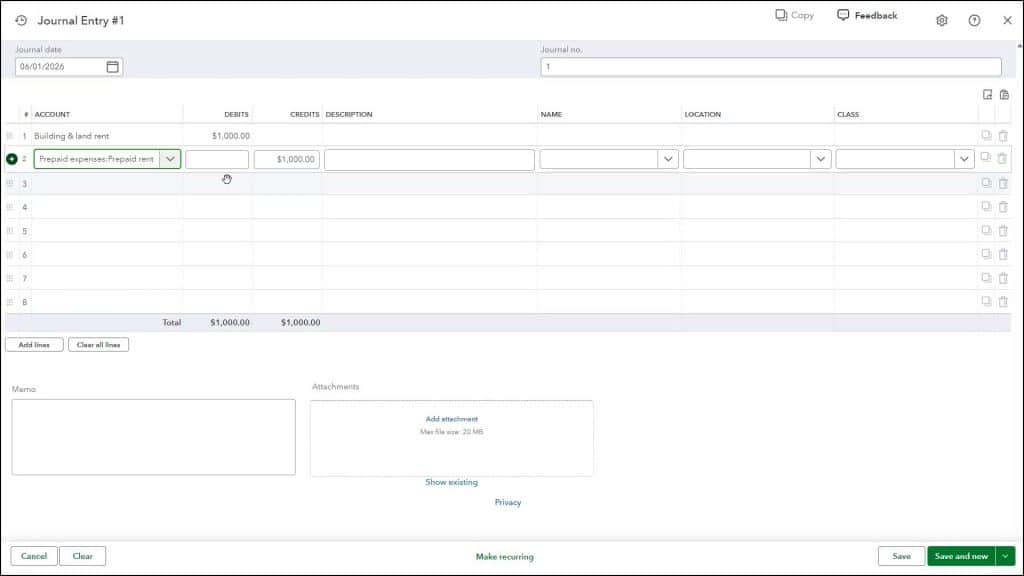
If desired, you can make this a monthly, recurring journal entry for the next four months. After making the entry, click the “Save and close” button in the lower-right corner of the window to save your work and close the window.