MY CART
How to Run Management Reports in QuickBooks Online
How to Run Management Reports in QuickBooks Online: Video
This video lesson, titled “How to Run Management Reports in QuickBooks Online,” shows you how to run management reports in QuickBooks Online. This video lesson is from our complete QuickBooks Online tutorial, titled “Mastering QuickBooks Online Made Easy.”
Overview:
What is a Management Report in QuickBooks Online?
Management reports in QuickBooks Online let you quickly create reports that provide an overview of your company’s finances. Management reports include a cover page, a table of contents, and other, specific reports you can select, like the profit and loss statement and balance sheet found by default in the “Company Overview” management report.
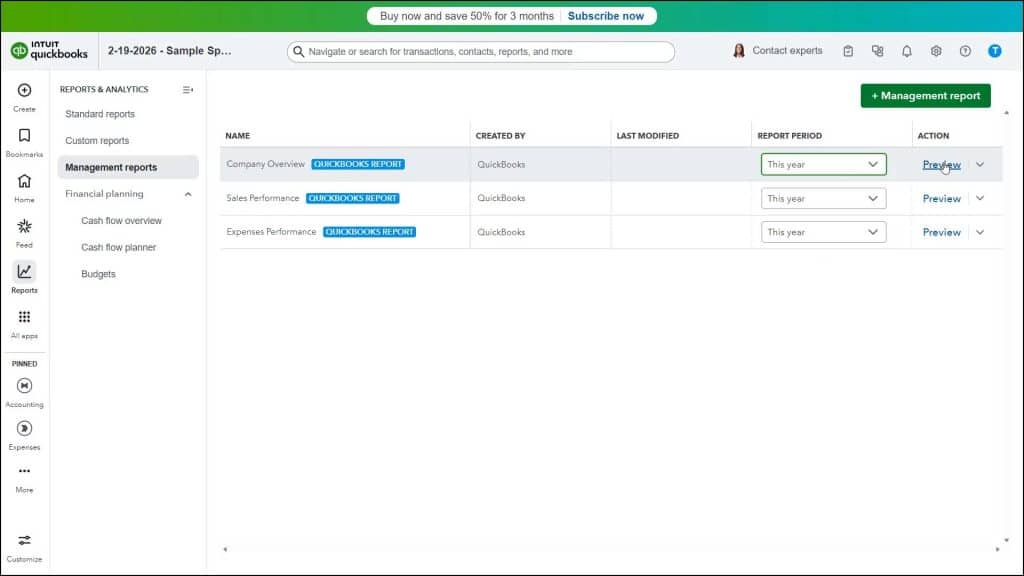
There are three management report templates available in QuickBooks Online Plus. These are the “Company Overview,” “Sales Performance” and “Expenses Performance” templates. Each report shows information about your company with a professional layout.
How to View Management Reports in QuickBooks Online:
To view the “Management reports” page in QuickBooks Online, hover over the “Reports” button in the Navigation Bar and then click the “Management reports” link in the menu that appears. Alternatively, click the “Management reports” link in the “Reports & analytics” bar if that bar already appears onscreen.
How to Run, Print, or Download a Management Report:
To quickly view a management report in QuickBooks Online, click its “Report Period” drop-down to select a report date range. Then click the “Preview” link under its “Action” column to open the management report as a PDF within the “Print or save as PDF” window that opens. To print the management report, click the “Print” button in the toolbar at the top of the PDF preview. Alternatively, to download the management report as a PDF, click the “Save as PDF” button at the bottom of the window. To close the window, click the “Close” button within it.