MY CART
How to Set the Original Cost of a Fixed Asset in QuickBooks Online
How to Set the Original Cost of a Fixed Asset in QuickBooks Online: Video
This video lesson, titled “How to Set the Original Cost of a Fixed Asset in QuickBooks Online,” shows you how to set the original cost value for a Fixed Assets account in QuickBooks Online. This video lesson is from our complete QuickBooks Online tutorial, titled “Mastering QuickBooks Online Made Easy.”
Overview:
When purchasing a fixed asset, attribute any amounts spent or borrowed to buy the fixed asset either directly to the fixed asset account or to its “Original Cost” subaccount, if you use subaccounts for asset value tracking. For example, if you took out a loan to buy a fixed asset and use an “original cost” subaccount, then assign the value of the loan to the “Original Cost” subaccount for the fixed asset when entering the original amount of the loan into the associated long-term liability account register.
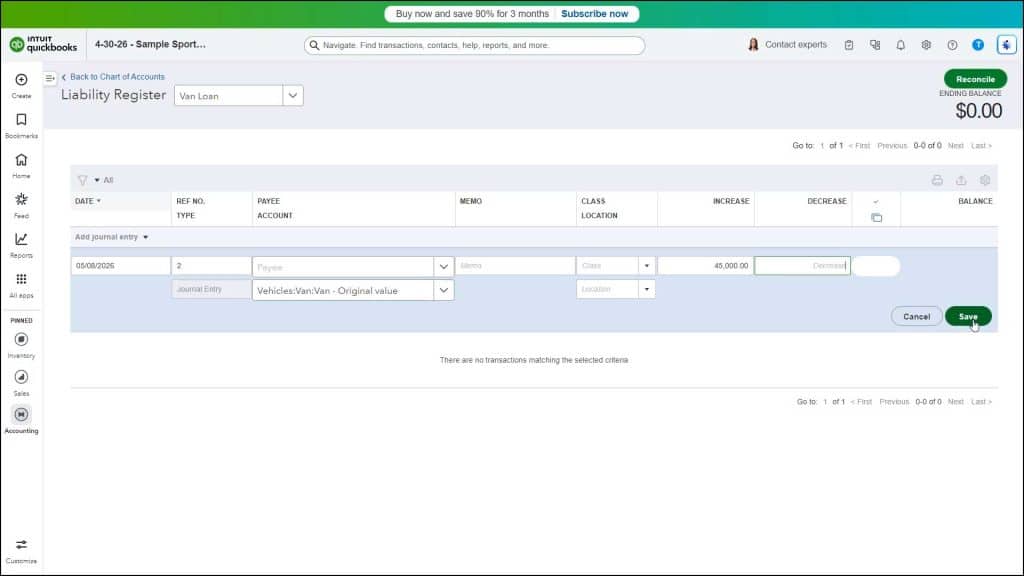
Alternatively, you could also create a Journal Entry to set the initial balance for both the accounts. This works well to record funds given directly to a vendor by a lender on your behalf, as the money never actually enters your checking account.
However, if you actually received money from a loan that you later used to purchase a fixed asset, you can record the deposit of the funds into the checking account from the loan and attribute the funds received to the correct long term liability account at that time to set the value of the long term liability account and the deposit into the checking account. Later, when you write the check from your checking account to purchase the fixed asset, attribute the check’s amount to the correct primary fixed asset or “original cost” subaccount for the fixed asset account, as needed, within the check’s “Category details” section. Doing that then sets the original cost for the fixed asset.