
 MY CART
How to Set Up Payroll in QuickBooks Online
How to Set Up Payroll in QuickBooks Online: Video
This video lesson, titled “How to Set Up Payroll in QuickBooks Online and Change Payroll Settings,” shows you how to complete the initial payroll setup and change payroll settings in QuickBooks Online if you subscribe to a QuickBooks Online Payroll service. This video lesson is from our complete QuickBooks Online tutorial, titled “Mastering QuickBooks Online Made Easy.”
Overview:
How to Set Up Payroll in QuickBooks Online:
If you subscribe to a QuickBooks Online Payroll service, like QuickBooks Online Payroll Premium, you are prompted to enter all the necessary information needed to create your payroll through a setup wizard.
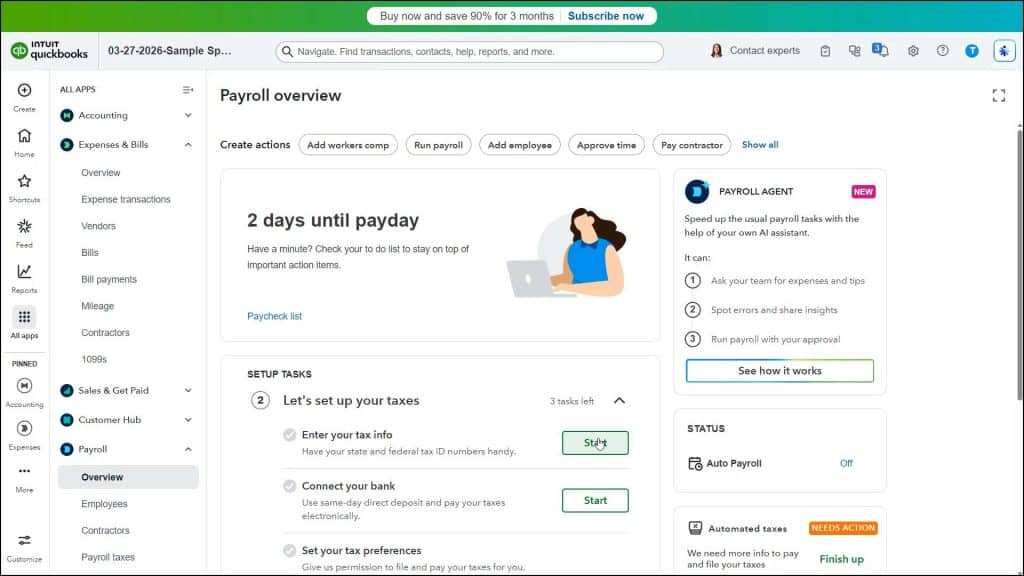
To start the payroll setup wizard if you have a QuickBooks Online Payroll subscription, click the “Overview” link under the “Payroll” app in the “All apps” bar to open the “Overview” page to the right. Then click the “Get started” link in the “Overview” page to perform the initial payroll setup in the “Getting started” window that opens. Answer the questions posed to you on each screen and click the “Next” button to continue through the screens. This will let you enter the required payroll information and settings.
If you exit the wizard early, you can perform these same tasks by clicking the “Start” or “pencil icon” for the payroll setup tasks that appear in the “Setup Tasks” list on the “Overview” payroll page. This allows you to do the setup when it is convenient and edit any information, as needed.
How to Change Payroll Settings in QuickBooks Online:
After finishing the initial payroll setup, you can review your payroll settings to change them, if needed. To access the payroll settings if you have a QuickBooks Online Payroll subscription, click the “Settings” button in the QuickBooks Online toolbar. Then click the “Payroll settings” link under the “Your Company” heading in the menu that appears to open the “Payroll Settings” window.
To edit the settings in the sections of the “Payroll Settings” window, click the pencil icon at the right end of the section. Doing this then either shows the settings in the “Payroll Settings” window or it opens a new window where you can change the related settings. To save your changes to the settings, click the “OK” or “Save” button in the window and, if needed, return to the “Payroll Settings” window. Alternatively, click the “Cancel” button to discard the changes and, if needed, return to the “Payroll Settings” window. To close the “Payroll Settings” window, click the “Done” button in its lower-right corner.



