MY CART
How to Shut Down Windows 11: Video Lesson
This video lesson, titled “How to Shut Down, Restart, Sleep, and Sign Out of Windows 11: A Windows 11 Training Tutorial,” shows you how to use the “Power” button to lock, sleep, restart, sign out, or shut down Windows 11. This video lesson is from our complete Windows tutorial, titled “Mastering Windows Online Made Easy.”
Overview:
When you need to turn off your computer, it is important to shut it down properly. Do not unplug the computer or interrupt its power source, as doing so could damage files or corrupt data.
How to Use the Power Button in the Start Menu to Lock, Sleep, Shut Down, or Restart Windows 11:
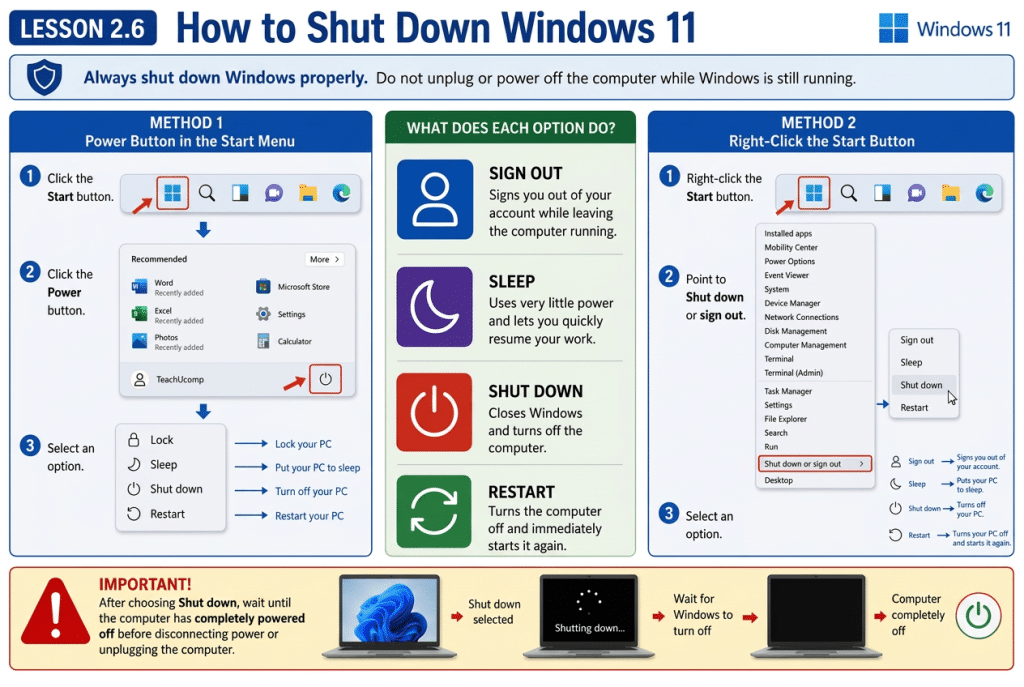
To shut down the computer in Windows 11, click the Start button in the taskbar to display the Start menu. Then click the Power button in the lower-right corner of the Start menu to display a menu of power options. In this menu, you may see commands such as Lock, Sleep, Shut down, and Restart. To turn off the computer, select the “Shut down” command.
How to Use the Start Button Context Menu to Sign Out, Shut Down, or Restart Windows 11:
Alternatively, you can right-click the Start button in the taskbar to display a menu of system commands. Then position the mouse pointer over the “Shut down or sign out” command to display a side menu. From this menu, you may see commands such as “Sign out,” “Sleep,” “Shut down,” and “Restart.”
Selecting the “Sign out” command signs you out of your account while leaving the computer running. Selecting the “Sleep” command places the computer into a low-power state so you can quickly resume your work. Selecting the “Shut down” command turns off the computer. Selecting the “Restart” command turns off the computer and then immediately turns it back on.
After selecting the “Shut down” command, Windows may take a few moments to close all programs and turn off the computer. Wait until the computer has completely powered off before turning off the power supply or unplugging it, if necessary.