MY CART
How to Submit Feedback in QuickBooks Online
How to Submit Feedback in QuickBooks Online: Video
This video lesson, titled “How to Submit Feedback in QuickBooks Online,” shows you how to submit feedback in QuickBooks Online to suggest product improvements or report software bugs. This video lesson is from our complete QuickBooks Online tutorial, titled “Mastering QuickBooks Online Made Easy.”
Overview:
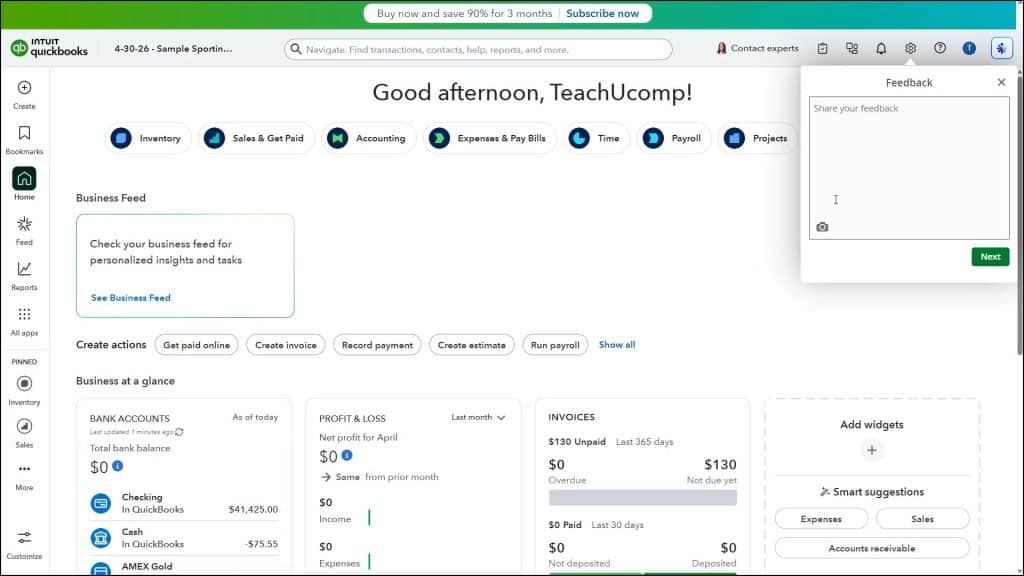
QuickBooks Online lets you submit feedback on features or report software bugs. To submit feedback in QuickBooks Online, click the “Settings” button in the QuickBooks Online toolbar and then click the “Feedback” link under the “Profile” heading in the menu that then appears. A small “Feedback” box then appears from the “Settings” button and shows a “Share your feedback” text field. Enter your feedback or report the bug in this text field. Alternatively, to close it, click the “X” button in its upper-right corner.
To attach a file or include a screenshot of the current page with the feedback, click the “camera” icon in the lower-left corner of the text field. This is helpful when reporting problems. After clicking the button, then click either the “Snap screenshot” button to take a screenshot of the current screen or click the “Choose a file…” button to open a dialog box that lets you select the file to upload. Alternatively, click the “Cancel” button to cancel adding either. After taking a screenshot or uploading an attachment, it appears in the lower-left corner of the feedback text field. You can click the “X” button on its name to remove it, if needed. To then send the feedback, click the “Next” button.