MY CART
How to Use Snap Layouts in Windows 11: Video Lesson
This video lesson, titled “How to Use Snap Layouts in Windows 11 to Organize Your Screen Like a Pro: A Training Tutorial,” shows you how to use snap layouts in Windows 11. This video lesson is from our complete Windows tutorial, titled “Mastering Windows Online Made Easy.”
Overview:
What is a Snap Layout in Windows 11?
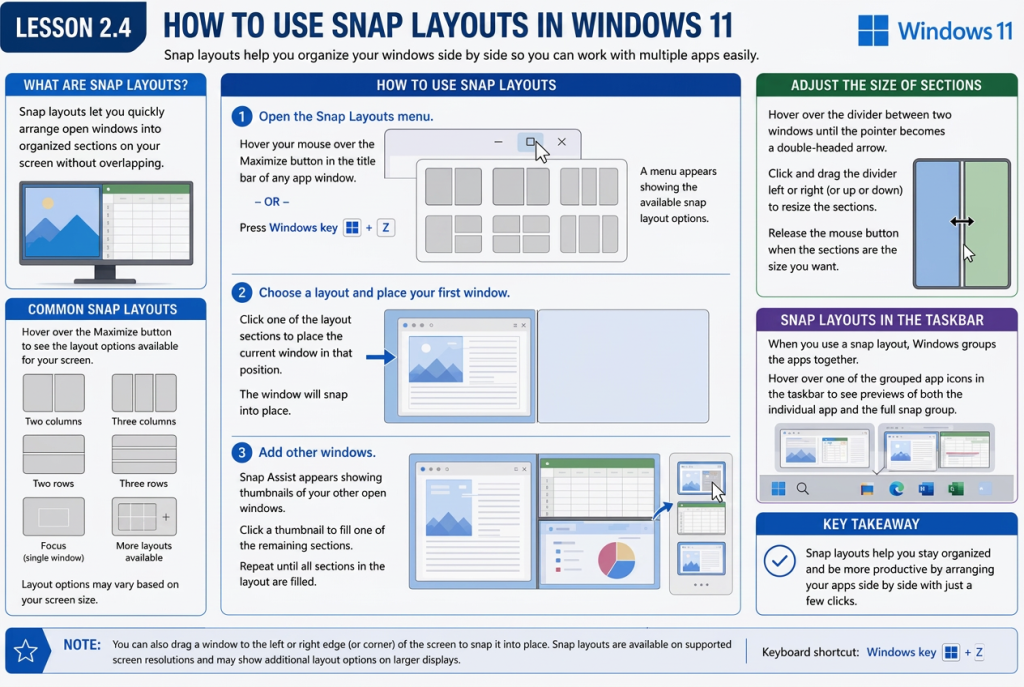
Snap layouts in Windows 11 make it easier to organize multiple app windows on your screen. This feature lets you arrange several app windows so they appear side by side without overlapping, which helps you work more efficiently with multiple apps at the same time.
How to Apply a Snap Layout in Windows 11:
To show the snap layouts, position the mouse pointer over the Maximize button in the title bar of an app window. Alternatively, press the Windows + Z keyboard shortcut. A menu then appears that shows the available snap layout options for your screen.
Each snap layout shows how the screen can be divided into sections. To place the current app window into one of these sections, click the desired section within the selected layout. The app window then snaps into that position.
After placing the first app window, Snap Assist appears and shows thumbnails of your other open app windows. To place another app into one of the remaining sections, click the desired app thumbnail. Repeat this process until you have filled all the sections in the selected layout.
How to Adjust the Size of Sections in a Snap Layout:
After arranging app windows in a snap layout, you can adjust the size of the sections. To do this, position the mouse pointer over the divider between two app windows until the pointer changes to a double-pointed arrow. Then click and drag the divider to adjust the size of the adjacent app windows. Release the mouse button when the sections are the size you want.
How to Select a Window in a Snap Layout from the Taskbar:
When you use a snap layout, Windows groups the arranged apps together. To view these groups, position the mouse pointer over one of the grouped apps in the taskbar. A preview appears that shows both the individual app window and the full snap group. You can then click either preview to bring it to the foreground.