MY CART
How to Use the Microsoft Store in Windows 11: Video Lesson
This video lesson, titled “How to Use the Microsoft Store in Windows 11 to Download Apps: A Windows 11 Training Tutorial,” shows you how to use the Microsoft Store in Windows 11. This video lesson is from our complete Windows tutorial, titled “Mastering Windows Online Made Easy.”
Overview:
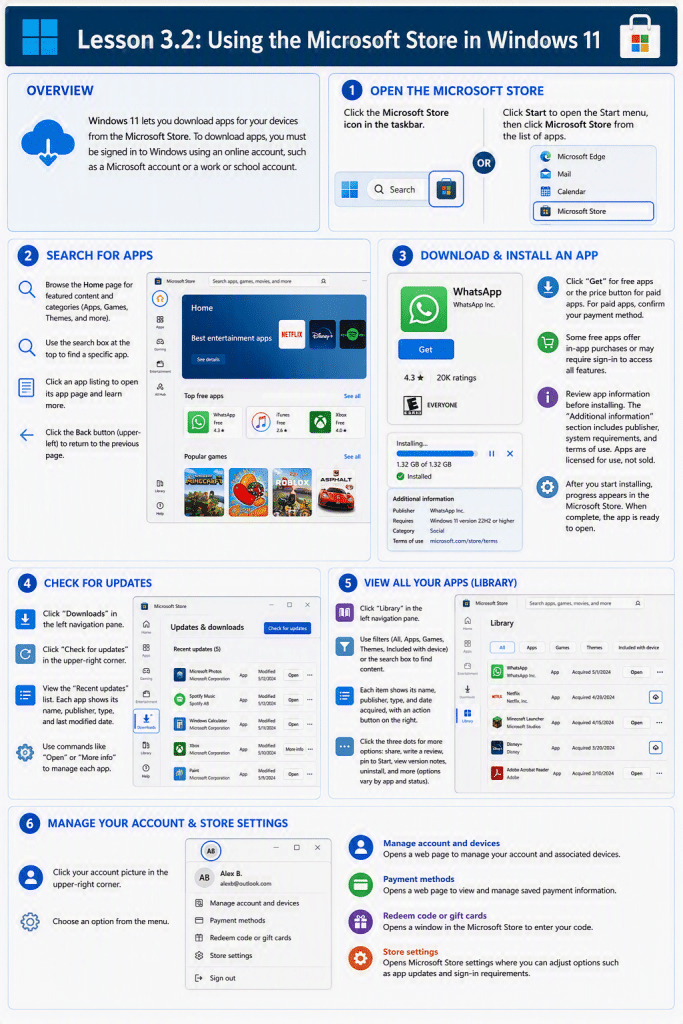
Windows 11 lets you download apps for your devices from the Microsoft Store. To download apps, you must be signed in to Windows using an online account, such as a Microsoft account or a work or school account.
How to Open the Microsoft Store App:
To open the Microsoft Store, click the Microsoft Store icon in the taskbar. Alternatively, click the Start button to display the Start menu, then click the Microsoft Store app from the list of apps.
How to Search for Apps in the Microsoft Store:
In the Microsoft Store app, you can browse available apps and other content. The “Home” page shows featured content and categories such as apps, games, and themes. You can also use the search box at the top of the window to search for a specific app. To learn more about an app, click its listing to open its app page. To return to the previous page, click the Back button in the upper-left corner of the window.
How to Download and Install an App in the Microsoft Store:
To download an app from its app page, click the “Get” button for free apps or click the button that shows the app’s price. For paid apps, you must confirm a payment method before the app is purchased and installed. Free apps begin downloading and installing after you click the “Get” button.
Some free apps offer in-app purchases. In these cases, the app can be installed without charge, but you may need to make purchases within the app or sign in to an account associated with prior purchases to access all features.
Before installing or purchasing an app, review the information shown on its app page. The “Additional information” section provides details about the app’s publisher, system requirements, and terms of use. Apps obtained through the Microsoft Store are licensed for use, not sold, and the terms may vary by provider.
After you begin installing an app, its download and installation progress appears within the Microsoft Store window. When the installation is complete, the app is available to open.
How to Check for Updates to Installed Apps in the Microsoft Store:
To check for updates to installed apps, click “Downloads” in the navigation pane at the left side of the window. This opens the “Updates & downloads” page. To check for available updates, click the “Check for updates” button in the upper-right corner of the window. A list of updates appears in the “Recent updates” section. Each app in the list shows its name, publisher, type, and last modified date. You can use the available commands, such as “Open” or “More info,” to manage each app.
How to View All Your Microsoft Store Apps:
The navigation pane also contains a “Library” option, which lets you view all apps and content associated with your account. Click “Library” to display a list of apps you have acquired using your Microsoft account. This list includes both apps that are installed on your device and apps that are available to install.
At the top of the “Library” page are filter options such as “All,” “Apps,” “Games,” “Themes,” and “Included with device.” You can click these options to filter the list and display only specific types of content. You can also use the search box in this area to locate a specific app.
Each app in the list shows its name, publisher, type, and the date it was acquired. At the right side of each app listing, you will see an action button. If the app is installed on your computer, the button may display “Open.” Click this button to open the app. If the app is not currently installed, the button may display a download icon, which you can click to install the app.
To see additional options for an app, click the button that appears as three dots at the right end of the app’s listing. A menu then appears with additional commands you can select. These options may include actions such as sharing the app, writing a review, pinning the app to the Start menu, viewing version notes, or uninstalling the app, depending on the app and its current installation status. You can use the “Library” page to manage your installed apps and easily reinstall apps that are associated with your account.
How to Manage Your Account and Microsoft Store Settings:
To manage your account and Microsoft Store settings, click your account picture in the upper-right corner of the window. A menu appears that shows options such as managing your account, viewing payment methods, redeeming codes, or opening the app settings.
If you select the “Manage account and devices” command, you open a web page where you can manage your account and associated devices. Alternatively, selecting the “Payment methods” command opens a web page where you can view and manage saved payment information. Selecting the “Redeem code or gift cards” command opens a window within the Microsoft Store app so you can enter a code. Finally, selecting the “Store settings” command displays settings for the Microsoft Store, where you can adjust options such as app updates and sign-in requirements.