MY CART
How to Use the Settings App in Windows 11: Video Lesson
This video lesson, titled “How to Open the Settings App in Windows 11 to Find and Change Settings: A Training Tutorial,” shows you how to use the Settings app to find and change settings in Windows 11. This video lesson is from our complete Windows tutorial, titled “Mastering Windows Online Made Easy.”
Overview:
How to Open the Settings App in Windows 11:
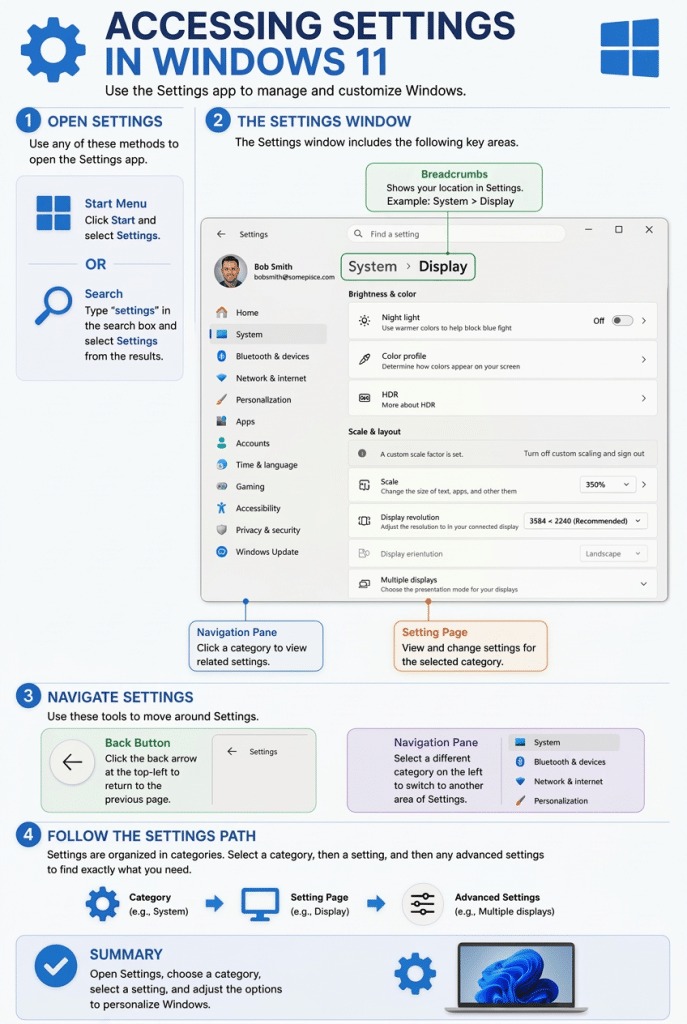
The “Settings” app in Windows 11 lets you view and change the settings that control how Windows and your device operate. To open the “Settings” app, click the “Start” button in the taskbar and then click the “Settings” app icon in the Start menu. Alternatively, click the “Settings” app in the list of installed apps. You can also right-click the “Start” button and then click the “Settings” command in the menu that appears.
The “Home” Page in the Settings App:
When the “Settings” app opens, the “Home” page may appear. The “Home” page can display information about your device, suggested settings, cloud storage information, Windows Update status, personalization options, and other commonly used settings. The available content may vary depending on how Windows is configured and whether you are signed in with a Microsoft account.
How to Navigate in the Settings App:
The navigation pane at the left side of the “Settings” window contains the primary settings categories. These categories include “System,” “Bluetooth & devices,” “Network & internet,” “Personalization,” “Apps,” “Accounts,” “Time & language,” “Gaming,” “Accessibility,” “Privacy & security,” and “Windows Update.” Click a category in the navigation pane to display its available settings in the pane to the right.
Many settings categories contain additional pages of settings. To open one of these pages, click the setting you want to view. As you navigate through the settings, a breadcrumb navigation path appears near the top of the window to show your current location within the “Settings” app. You can click a category name within the breadcrumb path to return to a previous settings page.
To return to the previous page, click the “Back” button in the upper-left corner of the “Settings” window. You can continue using the “Back” button to retrace your navigation path through the settings pages.
Most settings are applied immediately after they are changed. However, some settings may require additional selections or confirmation before the changes take effect. Some settings pages may also contain links that open related configuration pages and advanced settings.
How to Find a Windows Setting in the Settings App:
To quickly locate a setting, click into the “Find a setting” search box at the top of the “Settings” window and then type part of the setting name. Matching settings appear as you type. Click a search result to open the associated settings page. To close the “Settings” app when finished, click the “Close” button in the upper-right corner of the window.