
 MY CART
How to Use Widgets in Windows 11: Video Lesson
This video lesson, titled “How to Use Widgets in Windows 11 to See News, Weather, and More: A Windows 11 Training Tutorial,” shows you how to use widgets in Windows 11. This video lesson is from our complete Windows tutorial, titled “Mastering Windows Online Made Easy.”
Overview:
Windows 11 provides widgets that display quick summaries of information from apps and online services. Widgets can show information such as weather forecasts, sports scores, news headlines, stock market activity, traffic updates, and other personalized content. Using widgets lets you quickly view important information without opening multiple apps.
The Widgets Button in the Windows Taskbar:
The “Widgets” button appears at the left end of the Windows taskbar. By default, this button shows the current weather. However, this button cycles through the other active widget data in your Widgets board, like sports scores or financial information, to show your widget information directly in the taskbar, even when the Widgets pane is closed. So, its appearance does change.
How to Open the Widgets Pane:
To open the Widgets pane, click the “Widgets” button in the taskbar. However, depending on your “Widgets” settings, note that you may also be able to open the Widgets pane by hovering your mouse pointer over the button. The Widgets pane opens at the left side of the screen and provides access to your widgets, personalized feed content, and your “Widgets” pane’s settings. To close the Widgets pane, click the “Widgets” button in the Windows taskbar again or click outside the Widgets pane.
How to Navigate the Widgets Pane in Windows 11:
The Widgets pane contains a navigation bar at its left side. The top of the navigation bar contains buttons which provide access to different sections of data, which Microsoft calls “boards” or “dashboards.” These are the “Widgets” and “Discover” boards, by default. The selected section is highlighted in the navigation bar, and its content appears to the right. At the bottom of the navigation bar is the “Settings” button, which you can click to access the settings for the entire Widgets pane.
How to Use Widgets in Windows 11:
Click the “Widgets” button in the navigation bar to view your widget board to the right. This board shows the widgets currently installed on your computer. Common widgets include Weather, Sports, Stocks, and local events. Each widget shows its current information, and you can often click them to view more details.
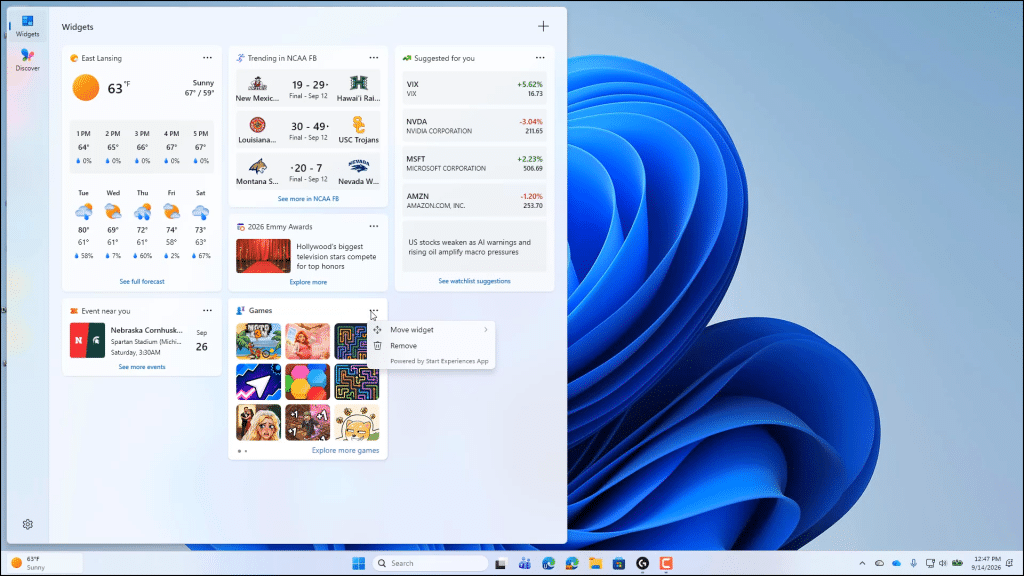
To add a new widget to the “Widgets” board, click the “Add widgets” button, which looks like a plus sign (+) in the upper-right corner of the board. Then select the desired widget to add in the “Add widget” pane that opens and click its “+ Add widget” button.
To change settings for an individual widget in your “Widgets” board, click the “More options” button in the widget’s upper-right corner. This button appears as three dots. Depending on the widget, you may then be able to select a command to customize its content, change its size, adjust its displayed information, or remove the widget from the dashboard.
How to Use the Discover Feed in the Widgets Pane:
To view personalized content from the Microsoft Start feed, click the “Discover” button in the Widgets pane’s navigation bar. The “Discover” dashboard shows news stories, sports updates, entertainment articles, and other online content based on your interests. You can browse the available content, select articles to read, and use feedback options to help personalize future recommendations.
To update the feed, click the “Refresh stories” button at the top of the “Discover” board. A “New look” toggle switch may also appear here. If enabled, this setting shows the updated feed look. If desired, you can turn this setting off to return to the previous look.
How to Change the Settings for the Widgets Pane:
To change the settings for the “Widgets” pane, click the “Settings” button in the Widgets pane’s navigation bar to show the settings to the right. Depending on your version of Windows, the available settings may change over time.
To enable or disable the “Discover” board, click to turn the “Discover” setting toggle switch on or off. To browse for more dashboard feeds, like the “Discover” feed, to add to the “Widgets” pane, click the “Browse dashboards” button to open that section of the Microsoft Store, where you can add dashboards as they become available.
You can click the “Notifications” setting to show toggle switch options that control the notifications generated by your widgets and dashboards. These toggle switches let you choose whether notification badges appear on the taskbar and navigation bar. You can also enable or disable notifications for your dashboards, like the “Discover” (Microsoft Start) feed. To return to the main settings, click the “Settings” breadcrumb link at the top of the “Notifications” settings.
Back in the main “Settings” page, the “Open on hover” setting determines whether the Widgets pane opens automatically when you hover your mouse pointer over the “Widgets” button in the taskbar. Turn this setting on to open the Widgets pane by hovering over the taskbar button or turn it off to require clicking the button instead.
How to Remove the Widgets Button from the Windows Taskbar:
To remove the “Widgets” button from the Windows taskbar, right-click an empty area of the Windows taskbar and then click the “Taskbar settings” command in the pop-up contextual menu that appears. In the “Settings” app window that then opens, find the “Widgets” setting in the “Taskbar items” section and click its toggle switch to turn it off. If you want to see the Widgets pane again in the future, simply toggle the switch back on. You can close the “Settings” app window when you are finished.
