
 MY CART
How to View the Sales Tax Payable Registers in QuickBooks Online
How to View the Sales Tax Payable Registers in QuickBooks Online: Video
This video lesson, titled “How to View the Sales Tax Payable Registers in QuickBooks Online,” shows you how to view the sales tax payable registers in QuickBooks Online. This video lesson is from our complete QuickBooks Online tutorial, titled “Mastering QuickBooks Online Made Easy.”
Overview:
When creating sales tax agencies in QuickBooks Online if using the automatic sales tax feature, you enter the “Agency name” of the agency for whom you are collecting sales tax. When you save the agency, QuickBooks Online automatically creates an associated sales tax payable register for the agency in the chart of accounts.
All the agency’s sales taxes collected appear in the associated “Sales Tax Agency Name Payable” register in the chart of accounts, where “Sales Tax Agency Name” is the name given to the sales tax agency.
Find the Name of the Sales Tax Agency for Whom to View the Collected Sales Tax:
So, to view the sales tax transactions in the sales tax payable account for a sales tax agency, you must know the name of the sales tax agency. To find the name of your taxing agencies, click the “Sales tax settings” link under the “Sales Tax” app in the “All apps” bar to open “Sales tax settings” page, which contains the list of “Tax agencies,” where you can then find that information.
Then Find and View the Sales Tax Agency’s Sales Tax Payable Register in the Chart of Accounts:
To then view a register for an agency, click the “Settings” button in the QuickBooks Online toolbar and select the “Chart of accounts” link to open the “Chart of accounts” window. Then look within the “Other Current Liabilities” accounts for the account named “Sales Tax Agency Name Payable,” where “Sales Tax Agency Name” is the name of the sales tax agency.
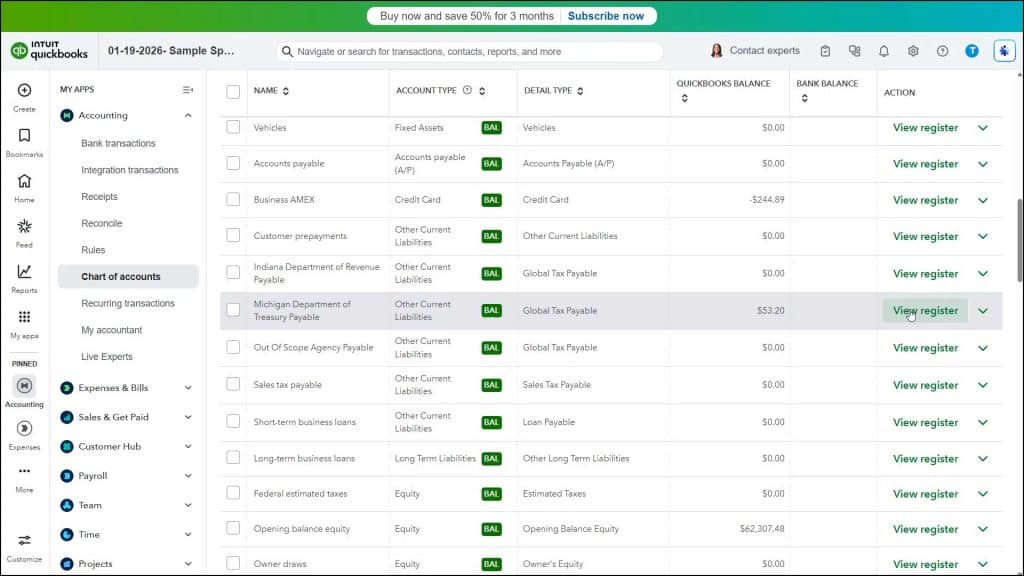
After finding this account, click the “View register” link under its “Action” column to open its register and view its transactions. DO NOT directly edit the transactions in this register, as that can interrupt sales tax tracking in QuickBooks Online. However, you can view the transactions.
To view or edit the original form associated with a transaction in this register, if needed, click the transaction line and then click the “Edit” button that appears below the line to open the original form. You can then edit the original transaction in the form, if needed, to correct any mistakes with sales tax tracking for the current sales tax period.



