MY CART
Learn about the Sign-in Options in Windows 11: Video Lesson
This video lesson, titled “Learn about Sign in Options in Windows 11: A Training Tutorial,” shows you the different passwordless sign-in options in Windows 11. This video lesson is from our complete Windows tutorial, titled “Mastering Windows Online Made Easy.”
Overview:
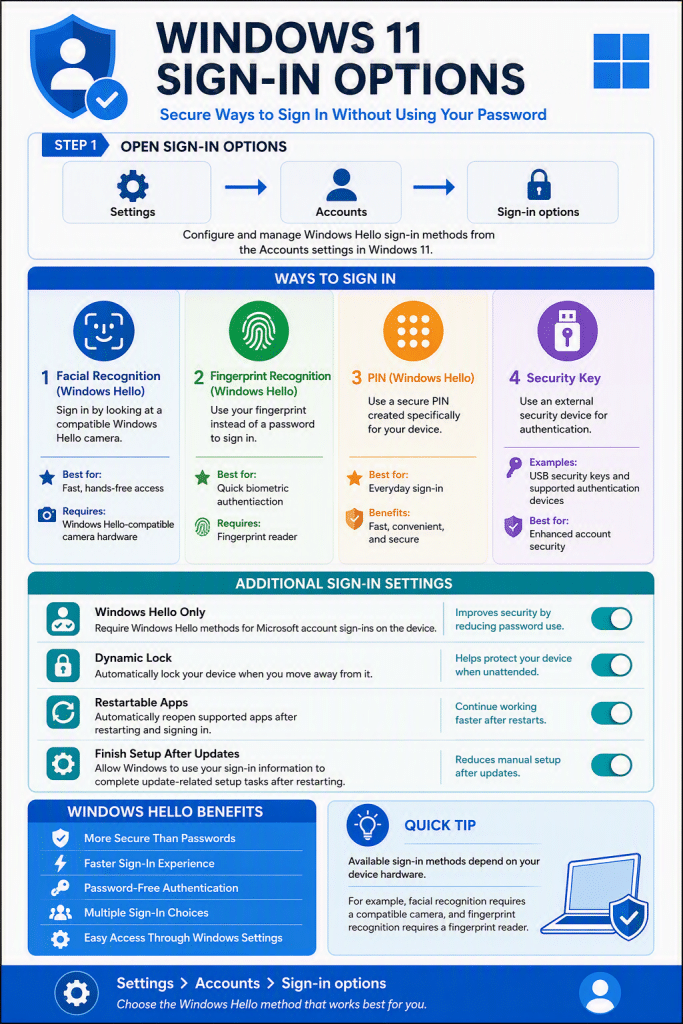
Windows 11 provides several Windows Hello sign-in options that let you securely sign in to your device without using your account password. After you sign in to Windows for the first time, you can set up additional sign-in methods and use them instead of your password. The available options depend on your device’s hardware configuration.
Common sign-in options include “Facial recognition (Windows Hello),” “Fingerprint recognition (Windows Hello),” “PIN (Windows Hello),” and “Security key.” For example, a device without a compatible camera cannot use facial recognition.
How to Access Your Account’s Sign-in Options in Windows 11:
To configure additional sign-in options, open the Settings app by either clicking its icon in the Start menu or by right-clicking the Start button and then clicking the “Settings” command in the menu that appears. In the Settings app window, click “Accounts” at the left side of the window. Then click “Sign-in options” in the list of settings to display the available sign-in methods.
The available sign-in options appear under the “Ways to sign in” section. To configure a sign-in option, click it to expand its settings. Then click the “Set up” or “Manage” button to begin configuring the selected sign-in method. Follow the instructions that appear to complete the setup.
Additional Settings for Windows 11 Sign-in Options:
Below the “Ways to sign in” section is the “Additional settings” section, which contains other sign-in related options. To change a setting, click its toggle switch to turn the setting on or off.
The “For improved security, only allow Windows Hello sign-in for Microsoft accounts on this device (Recommended)” setting restricts sign-in for Microsoft accounts to Windows Hello methods only. When this setting is turned on, you must use a Windows Hello sign-in option, such as a PIN, instead of your password.
The “Dynamic lock” setting lets Windows automatically lock your device when you are away from it. To enable this feature, turn on the “Allow Windows to automatically lock your device when you’re away” option. The “Automatically save my restartable apps and restart them when I sign back in” setting lets Windows reopen supported apps after you restart and sign back in.
The “Show account details such as my email address on the sign-in screen” setting controls whether your account information appears on the sign-in screen. Finally, the “Use my sign-in info to automatically finish setting up after an update” setting lets Windows use your credentials to finish installing updates and then return you to the desktop after restarting. After you configure your preferred sign-in options and settings, you can use them the next time you sign in to your device.