
 MY CART
The Pay Down Credit Card Window in QuickBooks Online
How to Use the Pay Down Credit Card Window in QuickBooks Online: Video
This video lesson, titled “How to Use the Pay Down Credit Card Window in QuickBooks Online,” shows you how to record a credit card payment using the Pay down credit card window in QuickBooks Online. This video lesson is from our complete QuickBooks Online tutorial, titled “Mastering QuickBooks Online Made Easy.”
Overview:
The “Pay down credit card” transaction window in QuickBooks Online provides a simplified transaction window specifically for making payments on credit card account balances. It provides the same basic function as entering an expense, check, or bill when recording a payment on a credit card account balance.
However, it is a bit more streamlined than entering a credit card bill and then paying the bill. It can also be a convenient way to record an extra credit card payment when you haven’t yet received a credit card bill or if you are making an electronic payment on a credit card that doesn’t involve a check number, per se.
How to Use the Pay Down Credit Card Window to Record a Credit Card Payment:
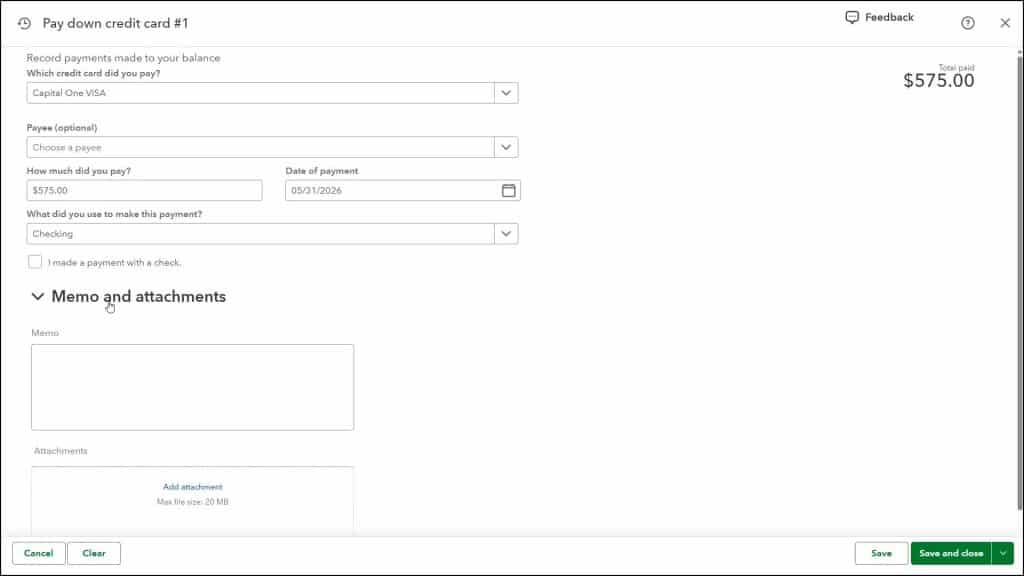
To create a “Pay down credit card” transaction in QuickBooks Online, hover over the “+ Create” button in the Navigation Bar. Then select the “Pay down credit card” link under the “Other” heading in the menu that appears to open the “Pay down credit card” window. Select the name of the credit card account from the “Which credit card did you pay?” drop-down. Optionally, select the name of the vendor for the credit card account from the “Payee” drop-down.
Record the Credit Card Payment Information:
Type the amount paid into the “How much did you pay?” field. Then select the payment date from the “Date of payment” calendar date selector. Select the name of the bank account from which you made the payment from the “What did you use to make this payment?” drop-down. To record a check payment if you select a “Checking” account from the previous drop-down, check the “I made a payment with a check” checkbox. To record a check number for existing checks, then type it into the “Check no.” field. Alternatively, to mark the check as a check to print later, check the “Print later” checkbox.”
To add notes or attachments, click the “Memo and attachments” section title to expand it. To add notes for the credit card payment, type them into the “Memo” field. To add attachments, use the “Attachments” field.
Cancel, Clear, or Save the Payment:
If needed, to cancel entering the credit card payment transaction and close the window, click the “Cancel” button in the toolbar at the bottom of the window. Then click “Yes” in the message window that appears to confirm it. Alternatively, to clear the information but leave the window open, click the “Clear” button in the toolbar at the bottom of the window. Then click “Yes” in the message window that appears to confirm it.
To save the credit card payment transaction, click the “Save” button in the toolbar at the bottom of the window. Alternatively, to save the transaction and either close the window or enter a new credit card payment transaction, click a choice or click to select a choice from the adjacent “Save and close / Save and new” drop-down button.
How to Manage Saved Pay Down Credit Card Transactions:
To open a recently saved credit card payment transaction, click the “Recent Transactions” button in the upper-left corner of the window and then select the transaction to open from the menu that appears. After opening a previously-saved transaction, the “More” link appears in the middle of toolbar at the bottom of the window.
To void or delete the transaction or open its transaction journal or audit history reports, click the “More” link in the toolbar. Then select either “Void,” “Delete,” Transaction journal,” or “Audit history” from the pop-up menu that appears, as needed. If you select “Void” or “Delete,” then select your desired “Yes” or “No” choices in the confirmation dialog box that opens to confirm your choices.



