
 MY CART
The Payment Methods List in QuickBooks Online
How to Use the Payment Methods List in QuickBooks Online: Video
This video lesson, titled “How to Use the Payment Methods List in QuickBooks Online,” shows you how to create and manage payment methods using the Payment Methods list in QuickBooks Online. This video lesson is from our complete QuickBooks Online tutorial, titled “Mastering QuickBooks Online Made Easy.”
Overview:
How to Open the Payment Methods List:
You can view, add, delete, or edit your company’s payment methods in QuickBooks Online in the “Payment Methods” list. To view the “Payment Methods” list in QuickBooks Online, click the “Settings” button in the QuickBooks Online toolbar and then click the “All lists” link under the “Lists” heading in the menu that appears to open the “Lists” page. Click the “Payment Methods” link in the “Lists” page to open the “Payment Methods” list page.
How to Create a New Payment Method:
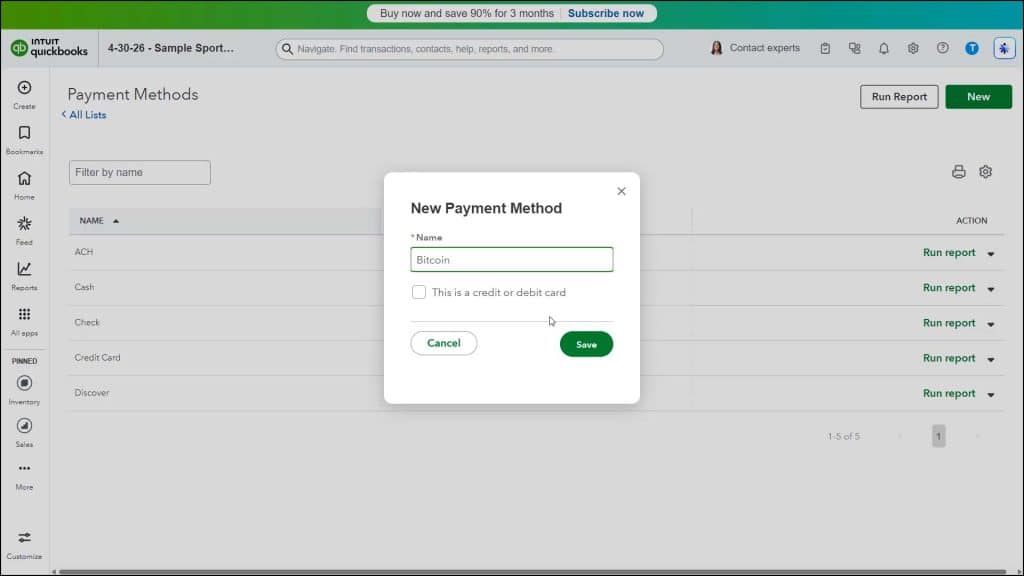
This list contains all the payment methods your company accepts. To create a new payment method, click the “New” button in the upper-right corner of the “Payment Methods” page. In the “New Payment Method” window that opens, type a name for the payment method into the “Name” field. If the payment method is a credit card or debit card, check the “This is a credit or debit card” checkbox. To save it, when finished, click the “Save” button.
How to Run a Report on a Payment Method or Edit a Payment Method:
To run a “Payment Methods QuickReport” on a payment method in the payment methods list, click the “Run report” link under the “Action” column in the desired payment method’s row. To edit an existing payment method, click the drop-down under the “Action” column for the payment method’s row and then click the “Edit” link to open the “Edit Payment Information” window. Then change any payment method information and click the “Save” button to save the changes. If you edit a payment method, it changes in every transaction in which you used it. You also cannot edit the “Cash” payment method.
How to Inactivate a Payment Method:
To inactivate a payment method, click the drop-down under the “Action” column for the payment method’s row and then click the “Make inactive” link. To continue and deactivate the payment method, then click “Yes” in the confirmation window that appears to confirm your choice.
If you inactivate a payment method, any form in which you used it shows “Name (deleted),” where “Name” is the name of the inactivated payment method. For example, if you deleted a “Discover” card payment method, the form reads “Discover (deleted).” It also appears like this within the “Payment Methods” list if you choose to show inactive list items.
How to Reactivate a Payment Method:
To reactivate a deleted payment method, if needed, click the “Settings” button in the upper-right corner of the “Payment Methods” list and then check the “Include inactive” checkbox in the drop-down menu that appears. Doing this then shows the inactive payment methods in your list. Then click the “Make active” link that appears under the “Action” column in the inactivated payment method’s row.



