MY CART
Time Reports in QuickBooks Online
How to Run Time Reports in QuickBooks Online: Video
This video lesson, titled “How to Run Time Reports in QuickBooks Online,” shows you how to run time reports in QuickBooks Online Plus when you have a subscription to QuickBooks Time or QuickBooks Payroll Premium. This video lesson is from our complete QuickBooks Online tutorial, titled “Mastering QuickBooks Online Made Easy.”
Overview:
Time reports let you see information about the time data in QuickBooks Online. Like all standard reports, you can customize these reports. You can also print, email, or export them.
To view the time reports in QuickBooks Online, hover over the “Reports” link in the Navigation Bar and then click the “Standard reports” link or click the “Standard reports” link in the “Reports & analytics” bar to open the “Standard reports” page to the right. To search for the time reports, click into the “Type report name here” field and type the search term “time.” Then select the name of the desired report from the drop-down menu of report choices that appears.
Alternatively, you can find the first two reports under either the “Employees” or “Payroll” report categories when you scroll down the “Standard reports” page. They are “Time Activities by Employee Detail” and the “Recent/Edited Time Activities” reports. The “Time Activities by Employee Detail” report shows the time activities entered for each employee and includes the activity’s rate and the duration. The “Recent/Edited Time Activities” report shows the 25 time activities most recently entered or edited within the company file in the last 30 days.
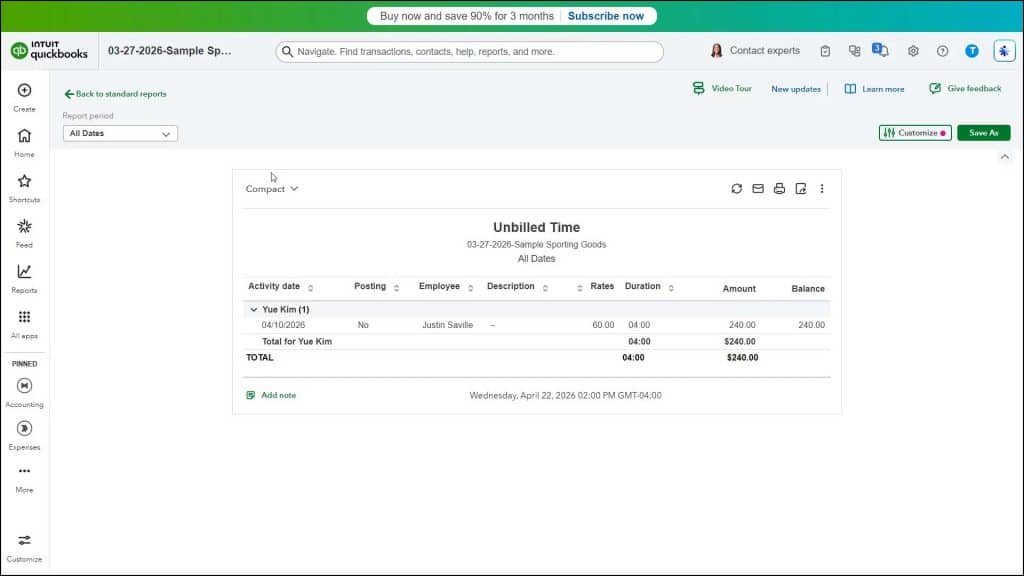
The final two time reports are the “Time Activities by Customer Detail” and the “Unbilled Time” reports. They appear, respectively, within the “Sales and customers” and “Who owes you” report categories on the “Standard reports” page. The “Time Activities by Customer Detail” report shows each customer and the time activities for that customer. The description of the time activity, its rate, and duration all appear in the report. The “Unbilled Time” report shows all billable time activities not billed to a customer. It breaks down the unbilled time per customer. It contains the activity’s description, rate, duration, and amount.