MY CART
Microsoft Publisher Tutorial Course 

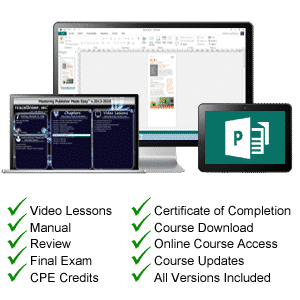
| Course Title: | Mastering Publisher Made Easy |
|---|---|
| Versions Covered: | Microsoft 365 & 2021 through 2007 |
| Hours of Content: | 3.5 |
| Video Lessons: | 64 |
| Manual: | 128 Pages |
| This Course: | $ |
| All Courses: | Every course. One price. | |
| Multi-User: | Group discounts |  |
Course Description
Learn Microsoft Publisher with this comprehensive course from TeachUcomp, Inc. Mastering Publisher Made Easy features 64 video lessons with over 3.5 hours of introductory through advanced instruction. Watch, listen and learn as your expert instructor guides you through each lesson step-by-step. During this media-rich learning experience, you will see each function performed just as if your instructor were there with you. Reinforce your learning with the text of our printable classroom instruction manual, additional images and practice exercises. You will learn how to create dynamic fliers, postcards & business cards, perform mail merges, preparing your projects for printing and much more.
Whether you are completely new to Publisher or upgrading from an older version, this course will empower you with the knowledge and skills necessary to be a proficient user. We have incorporated years of classroom training experience and teaching techniques to develop an easy-to-use course that you can customize to meet your personal learning needs. Simply launch the easy-to-use interface, click to start a video lesson or open the manual and you’re on your way to mastering Publisher.
Course Syllabus & Sample Lessons
Select any of the video lessons marked to view them in a new window.
To view a sample of the instruction manual in PDF, click here: Sample Publisher Manual
| CHAPTER 1- | Getting Acquainted with Publisher | |
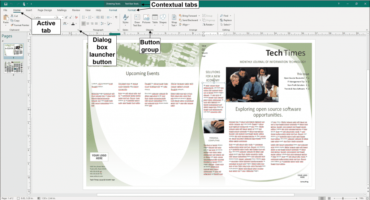
| Lesson 1.1- | The Publisher Environment | |
| Lesson 1.2- | The Title Bar | |
| Lesson 1.3- | The Ribbon | |
| Lesson 1.4- | The File Tab and Backstage View | |
| Lesson 1.5- | The Quick Access Toolbar | |
| Lesson 1.6- | Touch Mode | |
| Lesson 1.7- | The Scroll Bars | |
| Lesson 1.8- | The Page Layout View Buttons | |
| Lesson 1.9- | The Zoom Slider and Zoom Button | |
| Lesson 1.10- | The Status Bar | |
| Lesson 1.11- | The Mini Toolbar | |
| Lesson 1.12- | Keyboard Shortcuts | |
| CHAPTER 2- | Creating Basic Publications | |
| Lesson 2.1- | Creating New Publications | |
| Lesson 2.2- | Changing the Publication Template | |
| Lesson 2.3- | Using Business Information | |
| Lesson 2.4- | Saving Publications | |
| Lesson 2.5- | Closing Publications | |
| Lesson 2.6- | Opening Publications | |
| Lesson 2.7- | Inserting New Pages | |
| Lesson 2.8- | Deleting Pages | |
| Lesson 2.9- | Moving Pages | |
| CHAPTER 3- | Basic Skills | |
| Lesson 3.1- | Inserting Text Boxes | |
| Lesson 3.2- | Inserting Shapes | |
| Lesson 3.3- | Adding Text to Shapes | |
| Lesson 3.4- | Inserting Pictures Saved Locally | |
| Lesson 3.5- | Inserting Online Pictures | |
| Lesson 3.6- | Inserting Picture Placeholders | |
| Lesson 3.7- | Using the Scratch Area | |
| Lesson 3.8- | Moving, Resizing, and Rotating Objects | |
| Lesson 3.9- | Deleting Objects | |
| Lesson 3.10- | Using Find and Replace | |
| Lesson 3.11- | Using AutoCorrect | |
| Lesson 3.12- | Inserting WordArt | |
| CHAPTER 4- | Formatting Objects | |
| Lesson 4.1- | Formatting Text | |
| Lesson 4.2- | Formatting Shapes | |
| Lesson 4.3- | Formatting Clip Art and Pictures | |
| CHAPTER 5- | Using Building Blocks | |
| Lesson 5.1- | Creating Basic Building Blocks | |
| Lesson 5.2- | Using Building Blocks | |
| CHAPTER 6- | Master Pages | |
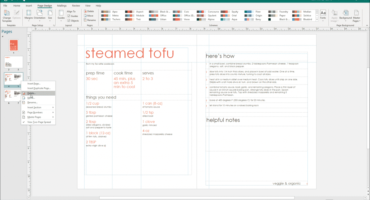
| Lesson 6.1- | Using Master Pages | |
| CHAPTER 7- | Customizing Schemes | |
| Lesson 7.1- | Creating a Custom Color Scheme | |
| Lesson 7.2- | Creating a Custom Font Scheme | |
| Lesson 7.3- | Customizing Page Backgrounds | |
| CHAPTER 8- | Using Tables | |
| Lesson 8.1- | Creating and Deleting Tables | |
| Lesson 8.2- | Selecting Table Elements | |
| Lesson 8.3- | Inserting and Deleting Columns and Rows | |
| Lesson 8.4- | Merging Text in Table Cells | |
| Lesson 8.5- | Modifying Text in Table Cells | |
| Lesson 8.6- | Formatting Tables | |
| CHAPTER 9- | Page Setup and Layouts | |
| Lesson 9.1- | Using Page Setup | |
| Lesson 9.2- | Using Layout Guides | |
| Lesson 9.3- | Using the Rulers | |
| CHAPTER 10- | Mailings | |
| Lesson 10.1- | Mail Merge | |
| Lesson 10.2- | The Step by Step Mail Merge Wizard | |
| Lesson 10.3- | Creating a Data Source | |
| Lesson 10.4- | Selecting Recipients | |
| Lesson 10.5- | Inserting and Deleting Merge Fields | |
| Lesson 10.6- | Previewing a Merge | |
| Lesson 10.7- | Detaching the Data Source | |
| Lesson 10.8- | Finishing a Mail Merge | |
| Lesson 10.9- | Merging a Catalog | |
| CHAPTER 11- | Printing | |
| Lesson 11.1- | Previewing and Printing | |
| Lesson 11.2- | Using the Pack and Go Feature | |
| Lesson 11.3- | Sharing and Exporting Publications | |
| CHAPTER 12- | Helping Yourself | |
| Lesson 12.1- | Using Publisher Help |
Microsoft Publisher Training Course Overview
Publisher is Microsoft‘s popular desktop publishing application. During this 3.5 hour Publisher video training course, our expert instructor will teach you how to create dynamic fliers, postcards & business cards, perform mail merges, preparing your projects for printing and much more. This Publisher tutorial covers the same material as our classroom training and was designed to provide a solid foundation in Publisher.
Course includes video lessons, printable instruction manual, a practice exam with evaluative feedback (find out why your answers are right or wrong), your final exam submission, and a course certificate of completion.
At TeachUcomp, Inc., you choose how you want your Publisher training delivered.
Online subscriptions offer the most flexibility and value. With online training, you can access your courses anytime and anywhere you have an internet connection (including all new releases and updates). Your subscription grants you instant access to ALL of our courses for one low price. There are no contracts and you can cancel at any time. You may choose between a monthly or annual plan.
Courses are also available individually via digital download and online for a one-time charge.