MY CART
Adobe Photoshop Tutorial Course
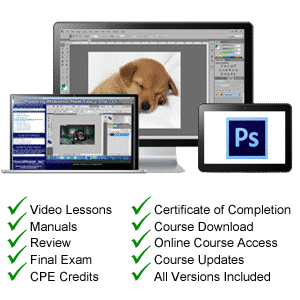 |
Photoshop Tutorial Includes: Video Lessons, Instruction Manual, Sample Files, Exam & Certificate of Completion.


| Course Title: | Mastering Photoshop Made Easy |
|---|---|
| Hours of Content: | 18 |
| Video Lessons: | 215 |
| Manual: | 488 Pages |
| This Course: | $ |
| All Courses: | Every course. One price. | |
| Multi-User: | Need to train multiple people? |  |
Course Description
Learn Adobe Photoshop with this comprehensive Photoshop tutorial from TeachUcomp, Inc. Mastering Photoshop Made Easy features 215 video lessons with over 18 hours of introductory through advanced instruction. Watch, listen, and learn as your expert instructor guides you through each lesson step-by-step. During this media-rich learning experience, you see each function performed as if your instructor were there with you. Reinforce your learning with the text of our printable classroom instruction manual, which contains additional images, activities, and exercises that use our included sample files. You will learn how to use all the various Photoshop tools, how to use layers, how to edit images, and so much more!
Whether you are completely new to Photoshop or upgrading from an older version, this course empowers you with the knowledge and skills necessary to be a proficient user. We have incorporated years of classroom training experience and teaching techniques to develop an easy-to-use course you can customize to meet your personal learning needs. Simply launch the easy-to-use interface, click to start a video lesson or open one of the manuals, and you’re on your way to mastering Photoshop!
Photoshop Tutorial: Course Syllabus & Sample Lessons
Click any hyperlinked video lesson in the course syllabus table below to open a new window containing a YouTube ad-supported, watermarked free version of the video lesson.
To view a sample of the instruction manuals in PDF, click here: Photoshop Sample Manual
| CHAPTER 1- | Getting Acquainted with Photoshop |
| Lesson 1.1- | Introduction to Photoshop This Photoshop tutorial video introduces you to the Photoshop application. It introduces you to Photoshop and describes common ways people use the Photoshop application. |
| Lesson 1.2- | The Photoshop Home Screen This video shows you how to use the Home Screen in Photoshop. The Home Screen in Photoshop lets you open files in Photoshop, create new Photoshop files, and access Photoshop help and content. |
| Lesson 1.3- | How to Create a New Document in Photoshop This video shows you how to create a new document in Photoshop. It shows you how to create new Photoshop documents, document presets, and change the new documents settings. |
| Lesson 1.4- | Photoshop Workspace Overview This video shows you an overview of the Photoshop workspace. It shows the names and locations of workspace tools like the Menu Bar, Options bar, Tools panel, the document windows, and the panels. |
| Lesson 1.5- | How to Open a File in Photoshop This video shows you how to open a file in Photoshop. It shows you how to open locally-saved files, open files saved in Creative Cloud, open files from Adobe Bridge, and open recent files in Photoshop. |
| Lesson 1.6- | How to Close a File in Photoshop This video shows you how to close a file in Photoshop. It shows you how to close a single file, close all open files in Photoshop, close all files except the current file, and close a file and then open Adobe Bridge. |
| Lesson 1.7- | How to Use Panels in Photoshop This video shows you how to use panels in Photoshop. It shows you how to arrange panels, group panels, expand and collapse panels, switch between panels, and view panel options in Photoshop. |
| Lesson 1.8- | How to Use the Document Windows in Photoshop This video shows you how to use the document windows in Photoshop. It shows you how to arrange windows, group floating windows, dock windows, tile and cascade windows, and open copies of windows in Photoshop. |
| Lesson 1.9- | How to Create and Change Workspaces in Photoshop This video shows you how to create workspaces and change workspaces in Photoshop. It shows you how to select a workspace, change a workspace, reset changes to a workspace, save a workspace, and delete custom workspaces in Photoshop. |
| Lesson 1.10- | How to Use the Tools Panel in Photoshop This video shows you how to use the Tools panel in Photoshop. It shows you how to select tools using the Tools panel in Photoshop and change the Tool panel’s appearance in Photoshop. |
| Lesson 1.11- | How to Use the Contextual Task Bar in Photoshop This video shows you how to use the contextual task bar in Photoshop. It also shows you how to turn off the contextual task bar in Photoshop. |
| CHAPTER 2- | Camera Raw |
| Lesson 2.1- | About JPEG and Camera Raw Files This Photoshop tutorial video shows you the difference between JPEG and camera raw files in Photoshop. |
| Lesson 2.2- | About Processing Camera Raw Files This video discusses the way you process a camera raw file in Photoshop. It talks why you save the camera raw adjustments separately from the camera raw image data. |
| Lesson 2.3- | How to Open a Camera Raw Image in Photoshop This video shows you how to open a camera raw file in Photoshop. |
| Lesson 2.4- | The Camera Raw Dialog Box in Photoshop This video shows you an overview of the names and locations of the tools within the Camera Raw dialog box in Photoshop. |
| Lesson 2.5- | The Zoom Tool and Hand Tool in Camera Raw This video shows you how to use the Zoom Tool and the Hand Tool within the Camera Raw dialog box in Photoshop. |
| Lesson 2.6- | Toggle Sampler and Grid Overlays in Camera Raw This video shows you how to toggle the sampler overlay and the grid overlay on and off within the Camera Raw dialog box in Photoshop. |
| Lesson 2.7- | Process Versions and the Calibration Panel in Camera Raw This video shows you how to select a process version and edit process colors, if needed, in the Calibration panel within the Camera Raw dialog box in Photoshop. |
| Lesson 2.8- | How to Adjust the White Balance in Camera Raw This video shows you how to adjust the white balance of camera raw photos within the Camera Raw dialog box in Photoshop in different ways. |
| Lesson 2.9- | How to Make Basic Tonal Adjustments in Camera Raw This video shows you how to apply basic tone corrections to camera raw photos within the Camera Raw dialog box in Photoshop using the sliders on the Basic panel. |
| Lesson 2.10- | How to Use the Tone Curve in Camera Raw This video shows you how to edit the tone curve for camera raw photos within the Camera Raw dialog box in Photoshop using the Curve panel. |
| Lesson 2.11- | How to Make Detail Adjustments in Camera Raw This video shows you how to apply detail corrections to camera raw photos within the Camera Raw dialog box in Photoshop using the sliders on the Detail panel. |
| Lesson 2.12- | How to Use the Color Mixer in Camera Raw This video shows you how to adjust the hue, saturation, and luminance of specific color ranges in camera raw photos within the Camera Raw dialog box in Photoshop using the sliders on the Color Mixer panel or B&W Mixer panel. |
| Lesson 2.13- | How to Use Color Grading in Camera Raw This video shows you how to apply color either globally or to only selected tonal ranges in camera raw photos within the Camera Raw dialog box in Photoshop using the Color Grading panel. |
| Lesson 2.14- | How to Use Optics in Camera Raw This video shows you how to correct image defects caused by lens distortions in camera raw photos within the Camera Raw dialog box in Photoshop using the Optics panel. |
| Lesson 2.15- | How to Use Geometry in Camera Raw This video shows you how to correct perspective flaws in camera raw photos within the Camera Raw dialog box in Photoshop using the Geometry panel. |
| Lesson 2.16- | How to Use Effects in Camera Raw This video shows you how to apply artistic effects in camera raw photos within the Camera Raw dialog box in Photoshop using the Effects panel. |
| Lesson 2.17- | How to Apply Camera Raw Profiles This video shows you how to change the camera raw profile in the Edit panel of the Camera Raw dialog box in Photoshop to change the rendering of color and tonality in a camera raw photo. |
| Lesson 2.18- | How to Reset Camera Raw Adjustments This video shows you how to reset camera raw adjustments in the Camera Raw dialog box in Photoshop to their default values. |
| Lesson 2.19- | How to Use Crop and Rotate Tools in Camera Raw This video shows you how to crop and rotate camera raw photos in the Camera Raw dialog box in Photoshop using the Crop panel and Rotate & Flip panel. |
| Lesson 2.20- | How to Use Healing in Camera Raw This video shows you how to use the Healing Tool to fix flaws in camera raw photos in the Camera Raw dialog box in Photoshop using the Healing panel. |
| Lesson 2.21- | How to Use Masking in Camera Raw This video shows you how to apply masks and adjustments to camera raw photos in the Camera Raw dialog box in Photoshop using the Masking panel. |
| Lesson 2.22- | How to Remove Red Eye or Pet Eye in Camera Raw This video shows you how to correct red eye or pet eye in camera raw photos in the Camera Raw dialog box in Photoshop using the Red Eye panel. |
| Lesson 2.23- | How to Use Snapshots in Camera Raw This video shows you how to create snapshots in the Snapshots panel that let you save a camera raw photo’s image state and all its camera raw adjustments in the Camera Raw dialog box in Photoshop. |
| Lesson 2.24- | How to Use Presets in Camera Raw This video shows you how to save a set of camera raw edits and adjustments as a preset using the Presets panel in the Camera Raw dialog box in Photoshop. |
| Lesson 2.25- | How to Use the Filmstrip in Camera Raw This video shows you how to use the Filmstrip in the Camera Raw dialog box in Photoshop to process multiple camera raw photos at once. |
| Lesson 2.26- | How to Update and Apply Camera Raw Adjustments in Photoshop This video shows you different options for updating metadata and applying camera raw adjustments in the Camera Raw dialog box in Photoshop. |
| Lesson 2.27- | How to Convert and Save a Camera Raw File in Photoshop This video shows you how to use the “Convert and save image” button in the Camera Raw dialog box in Photoshop to convert and save camera raw images. |
| Lesson 2.28- | How to Change Camera Raw Preferences This video shows you how to set the camera raw preferences in the Camera Raw dialog box in Photoshop. |
| CHAPTER 3- | Basic Image Manipulation |
| Lesson 3.1- | Raster and Vector Image Data This Photoshop tutorial video discusses and shows you differences between pixel data (also called raster data or bitmap data) and vector data in Photoshop image files. |
| Lesson 3.2- | How to Change the Image Size and Resolution This video shows you how to change the image size and image resolution in Photoshop. |
| Lesson 3.3- | How to Place Embedded and Place Linked Files This video shows you how to place files in Photoshop as embedded or linked files in Smart Object layers. |
| Lesson 3.4- | How to Use the Rulers and Grid in Photoshop This video shows you how to use the rulers in Photoshop and the grid in Photoshop. |
| Lesson 3.5- | How to Use Guides in Photoshop This video shows you how to use guides in Photoshop documents. |
| Lesson 3.6- | How to Use Guide Layouts in Photoshop This video shows you how to use guide layouts in Photoshop documents. |
| Lesson 3.7- | The Undo Command and History Panel This video shows you how to use the Undo command in Photoshop and the History panel in Photoshop. |
| Lesson 3.8- | How to View Document Information in Photoshop This video shows you how to view document info in Photoshop. |
| Lesson 3.9- | How to Use the Zoom Tool This video shows you how to use the Zoom Tool in Photoshop. |
| Lesson 3.10- | How to Use the Hand Tool and Navigator Panel This video shows you how to use the Hand Tool in Photoshop and the Navigator panel in Photoshop. |
| CHAPTER 4- | Color Basics |
| Lesson 4.1- | Color Modes and Models in Photoshop This Photoshop tutorial video discusses color models and shows you the different color modes available in Photoshop. |
| Lesson 4.2- | How to Convert Color Modes in Photoshop This video shows you how to convert a file to a different color mode in Photoshop. |
| Lesson 4.3- | How to Change Color Settings in Photoshop This video shows you how to change the color settings in Photoshop. |
| Lesson 4.4- | Foreground and Background Colors in Photoshop This video discusses the use of the foreground color and background color in Photoshop and shows you how to switch the colors and set them back to their defaults, if needed. |
| Lesson 4.5- | How to Select a Color Using the Color Picker Dialog Box This video shows you how to select a color using the Color Picker dialog box in Photoshop. |
| Lesson 4.6- | How to Select a Color Using the Eyedropper Tool This video shows you how to use the Eyedropper Tool in Photoshop. |
| Lesson 4.7- | How to Select a Color Using the Swatches Panel This video shows you how to use the Swatches panel in Photoshop. |
| Lesson 4.8- | How to Select a Color Using the Color Panel This video shows you how to use the Color panel in Photoshop. |
| CHAPTER 5- | Painting Tools |
| Lesson 5.1- | How to Use the Brush Tool in Photoshop This Photoshop tutorial video shows you how to use the Brush Tool in Photoshop. |
| Lesson 5.2- | Blending Modes in Photoshop This video shows you the effects of different blending modes in Photoshop. |
| Lesson 5.3- | How to Use the History Brush in Photoshop This video shows you how to use the History Brush Tool in Photoshop. |
| Lesson 5.4- | How to Use the Art History Brush in Photoshop This video shows you how to use the Art History Brush Tool in Photoshop. |
| Lesson 5.5- | How to Use the Pencil Tool in Photoshop This video shows you how to use the Pencil Tool in Photoshop. |
| Lesson 5.6- | How to Use the Color Replacement Tool in Photoshop This video shows you how to use the Color Replacement Tool in Photoshop. |
| Lesson 5.7- | How to Use the Mixer Brush Tool in Photoshop This video shows you how to use the Mixer Brush Tool in Photoshop. |
| Lesson 5.8- | How to Use the Eraser Tool in Photoshop This video shows you how to use the Eraser Tool in Photoshop. |
| Lesson 5.9- | How to Use the Magic Eraser Tool in Photoshop This video shows you how to use the Magic Eraser Tool in Photoshop. |
| Lesson 5.10- | How to Use the Background Eraser Tool in Photoshop This video shows you how to use the Background Eraser Tool in Photoshop. |
| CHAPTER 6- | Brush Settings |
| Lesson 6.1- | How to Use the Brush Preset Picker in Photoshop This Photoshop tutorial video shows you how to use the Brush Preset Picker panel in Photoshop to select brushes. |
| Lesson 6.2- | How to Import Brushes in Photoshop This video shows you how to import brushes in Photoshop. |
| Lesson 6.3- | How to Use the Brush Settings Panel in Photoshop This video shows you how to use the Brush Settings panel in Photoshop to set brush options. |
| Lesson 6.4- | Brush Tip Shape Settings in Photoshop This video shows you how to change the Brush Tip Shape settings in the Brush Settings panel in Photoshop. |
| Lesson 6.5- | Shape Dynamics Settings in Photoshop This video shows you how to change the Shape Dynamics settings in the Brush Settings panel in Photoshop. |
| Lesson 6.6- | Scattering Settings in Photoshop This video shows you how to change the Scattering settings in the Brush Settings panel in Photoshop. |
| Lesson 6.7- | Texture Settings in Photoshop This video shows you how to change the Texture settings in the Brush Settings panel in Photoshop. |
| Lesson 6.8- | Dual Brush Settings in Photoshop This video shows you how to change the Dual Brush settings in the Brush Settings panel in Photoshop. |
| Lesson 6.9- | Color Dynamics Settings in Photoshop This video shows you how to change the Color Dynamics settings in the Brush Settings panel in Photoshop. |
| Lesson 6.10- | Transfer Settings in Photoshop This video shows you how to change the Transfer settings in the Brush Settings panel in Photoshop. |
| Lesson 6.11- | Brush Pose Settings in Photoshop This video shows you how to change the Brush Pose settings in the Brush Settings panel in Photoshop. |
| Lesson 6.12- | How to Create Custom Brush Presets in Photoshop This video shows you how to create custom brush presets in Photoshop to save your favorite brush settings. |
| Lesson 6.13- | How to Create a Brush Tip from a Selection in Photoshop This video shows you how to create a new brush tip from a selection in Photoshop. |
| Lesson 6.14- | How to Reset Brush Presets and Tools and Clear Brush Settings in Photoshop This video shows you how to reset brush presets, reset tools, and clear brush settings in Photoshop |
| Lesson 6.15- | How to Create Tool Presets in Photoshop This video shows you how to create tool presets in Photoshop. |
| CHAPTER 7- | Making Selections |
| Lesson 7.1- | How to Make Basic Pixel Selections in Photoshop This Photoshop tutorial video discusses the concept of selections in Photoshop and also shows you how to make basic pixel selections in Photoshop. |
| Lesson 7.2- | How to Use the Marquee Tools in Photoshop This video shows you how to use the Marquee tools in Photoshop, including the Rectangular Marquee Tool, the Elliptical Marquee Tool, the Single Row Marquee Tool, and the Single Column Marquee Tool. |
| Lesson 7.3- | How to Use the Lasso Tool in Photoshop This video shows you how to use the Lasso Tool in Photoshop. |
| Lesson 7.4- | How to Use the Polygonal Lasso Tool in Photoshop This video shows you how to use the Polygonal Lasso Tool in Photoshop.</td |
| Lesson 7.5- | How to Use the Magnetic Lasso Tool in Photoshop This video shows you how to use the Magnetic Lasso Tool in Photoshop. |
| Lesson 7.6- | How to Use the Object Selection Tool in Photoshop This video shows you how to use the Object Selection Tool in Photoshop. |
| Lesson 7.7- | How to Use the Quick Selection Tool in Photoshop This video shows you how to use the Quick Selection Tool in Photoshop. |
| Lesson 7.8- | How to Use the Magic Wand Tool in Photoshop This video shows you how to use the Magic Wand Tool in Photoshop. |
| Lesson 7.9- | Select Subject in Photoshop This video shows you how to use the Select Subject command and Select Subject button in Photoshop. |
| Lesson 7.10- | How to Use the Select and Mask Workspace in Photoshop This video shows you how to use the tools in the Select and Mask workspace in Photoshop to make selections and masks. |
| Lesson 7.11- | How to Use Menu Bar Commands to Modify Pixel Selections in Photoshop This video shows you how to use commands in the Menu Bar to modify active selections in Photoshop. |
| Lesson 7.12- | How to Transform Selections in Photoshop This video shows you how to transform the active selection in Photoshop to move, resize, rotate, skew, and freely distort the selection. |
| Lesson 7.13- | How to Select a Color Range in Photoshop This video shows you how to make a selection from a color range in Photoshop. |
| Lesson 7.14- | How to Select a Focus Area in Photoshop This video shows you how to make a selection from a focus area in Photoshop. |
| Lesson 7.15- | How to Copy and Paste Pixel Selections in Photoshop This video shows you how to copy and paste pixel selections in Photoshop in different ways. |
| Lesson 7.16- | How to Save, Edit, and Load Selections in Photoshop This video shows you how to save, edit, and load selections in Photoshop. |
| CHAPTER 8- | Filling and Stroking |
| Lesson 8.1- | How to Apply Fills in Photoshop Using the Fill Dialog Box This Photoshop tutorial video shows you how to apply fills in Photoshop to pixels in selections and layers or along a path by using the “Fill” dialog box. |
| Lesson 8.2- | How to Apply a Stroke in Photoshop Using the Stroke Dialog Box This video shows you how to apply strokes to pixel selections in Photoshop. |
| Lesson 8.3- | How to Use the Gradient Tool in Photoshop This video shows you how to use the Gradient Tool in Photoshop to apply gradients. |
| Lesson 8.4- | How to Edit a Gradient Adjustment in Photoshop This video shows you how to edit a gradient adjustment created when using the new Gradient Tool in Photoshop. |
| Lesson 8.5- | How to Use the Gradient Editor in Photoshop This video shows you how to use the Gradient Editor to create and edit gradients if using the classic Gradient Tool in Photoshop. |
| Lesson 8.6- | How to Use the Paint Bucket Tool in Photoshop This video shows you how to use the Paint Bucket Tool in Photoshop. |
| CHAPTER 9- | Layers |
| Lesson 9.1- | About Layers and the Layers Panel in Photoshop This Photoshop tutorial video discusses layers in Photoshop and shows you how to use the Layers panel in Photoshop. |
| Lesson 9.2- | How to Create Different Layer Types in Photoshop This video shows you how to create different types of layers in Photoshop, including image layers, fill layers, adjustments layers, shape layers, type layers, and smart object layers. |
| Lesson 9.3- | How to Create a New Layer in Photoshop This video shows you how to create a new image layer in Photoshop. |
| Lesson 9.4- | How to Convert a Background Layer in Photoshop This video shows you how to convert an image layer into a background layer and convert a background layer into an image layer in Photoshop. |
| Lesson 9.5- | How to Select Layers in Photoshop This video shows you how to select layers in Photoshop. |
| Lesson 9.6- | How to Hide and Show Layers in Photoshop This video shows you how to change the visibility of layer content in Photoshop. |
| Lesson 9.7- | How to Duplicate Layers in Photoshop This video shows you how to duplicate layers in Photoshop. |
| Lesson 9.8- | How to Stack Layers and Order Layers in Photoshop This video shows you how to change the order of layers in the layers stack in the Layers panel in Photoshop. |
| Lesson 9.9- | How to Link Layers in Photoshop This video shows you how to link layers in the Layers panel in Photoshop. |
| Lesson 9.10- | How to Group Layers in Photoshop This video shows you how to create layer groups in Photoshop. |
| Lesson 9.11- | How to Color-Code Layers in Photoshop This video shows you how to apply color-coding to layers in the Layers panel in Photoshop to help you organize layers. |
| Lesson 9.12- | How to Use the Move Tool in Photoshop to Move, Transform, Align, and Distribute Layer Content This video shows you how to use the Move Tool in Photoshop to move, transform, align, and distribute layer content. |
| Lesson 9.13- | How to Lock Pixels in Layers in Photoshop This video shows you how to apply and remove different types of layer locks in Photoshop to help you protect layer content. |
| Lesson 9.14- | How to Rename Layers and Delete Layers in Photoshop This video shows you how to rename layers in Photoshop and delete layers in Photoshop. |
| Lesson 9.15- | How to Merge Layers and Flatten Layers in Photoshop This video shows you how to merge layers in Photoshop and flatten images in Photoshop, which merges all layers into the Background layer. |
| Lesson 9.16- | How to Apply a Layer Style in Photoshop This video shows you how to apply a layer style in Photoshop, which can contain many different layer style effects. It also shows you how to clear layer styles and manage layer styles. |
| Lesson 9.17- | How to Create Adjustment Layers and Fill Layers in Photoshop This video shows you how to create a new fill layer in Photoshop or create a new adjustment layer in Photoshop. It also shows the different types of fill and adjustment layers available in Photoshop. |
| Lesson 9.18- | How to Create Clipping Masks in Photoshop This video shows you how to create a clipping mask in Photoshop. It also shows how to undo a clipping mask by releasing its layers. |
| Lesson 9.19- | How to Create Layer Masks in Photoshop This video shows you how to create layer masks in Photoshop in different ways. It also shows how to refine, delete, and manage layers masks. |
| Lesson 9.20- | How to Filter Layers in Photoshop This video shows you how to filter which layers appear in the layer stack in the Layers panel in Photoshop. |
| CHAPTER 10- | Text |
| Lesson 10.1- | How to Create Vector Text and Raster Text Using the Type Tools in Photoshop This Photoshop tutorial video shows you how to create vector text using the Horizontal Type Tool or Vertical Type Tool in Photoshop or create raster text using the Horizontal Type Mask Tool or Vertical Type Mask Tool in Photoshop. |
| Lesson 10.2- | How to Create Point Text Using the Type Tools in Photoshop This video shows you how to create point text using the Type tools in Photoshop. It also shows you how to format the text while creating it. |
| Lesson 10.3- | How to Create Paragraph Text Using the Type Tools in Photoshop This video shows you how to create paragraph text using the Type tools in Photoshop. It also shows you how to format the text while creating it. |
| Lesson 10.4- | How to Select Text in Photoshop This video shows you how to select text in Photoshop. |
| Lesson 10.5- | How to Use the Character and Paragraph Panels in Photoshop This video shows you how to use the Character panel in Photoshop and how to use the Paragraph panel in Photoshop. |
| Lesson 10.6- | How to Edit Text in Photoshop This video shows you how to edit text in Photoshop. |
| Lesson 10.7- | How to Warp Text and Raster Content in Photoshop This video shows you how to warp text in type layers in Photoshop and also warp selected pixel content in layers in Photoshop. |
| Lesson 10.8- | How to Rasterize Type Layers in Photoshop This video shows you how to rasterize type layers in Photoshop. |
| Lesson 10.9- | How to Add Text to the Border of an Open Path or Shape in Photoshop This video shows you how to add text along the border of an open path or a shape in Photoshop. |
| Lesson 10.10- | How to Add Text Inside a Closed Path or Shape in Photoshop This video shows you how to add text inside a closed path or shape in Photoshop. |
| CHAPTER 11- | Drawing |
| Lesson 11.1- | Paths and Shapes in Photoshop This Photoshop tutorial video discusses the similarities and differences between paths and shapes in Photoshop. |
| Lesson 11.2- | How to Use the Pen Tool in Photoshop This video shows you how to use the Pen Tool in Photoshop. |
| Lesson 11.3- | How to Use the Freeform Pen Tool in Photoshop This video shows you how to use the Freeform Pen Tool in Photoshop. |
| Lesson 11.4- | How to Use the Curvature Pen Tool in Photoshop This video shows you how to use the Curvature Pen Tool in Photoshop. |
| Lesson 11.5- | How to Use the Paths Panel in Photoshop This video shows you how to use the Paths panel in Photoshop. |
| Lesson 11.6- | How to Use the Path Selection Tool in Photoshop This video shows you how to use the Path Selection Tool in Photoshop. |
| Lesson 11.7- | How to Use the Direct Selection Tool in Photoshop This video shows you how to use the Direct Selection Tool in Photoshop. |
| Lesson 11.8- | How to Use the Add Anchor Point Tool in Photoshop This video shows you how to use the Add Anchor Point Tool in Photoshop. |
| Lesson 11.9- | How to Use the Delete Anchor Point Tool in Photoshop This video shows you how to use the Delete Anchor Point Tool in Photoshop. |
| Lesson 11.10- | How to Use the Convert Point Tool in Photoshop This video shows you how to use the Convert Point Tool in Photoshop. |
| Lesson 11.11- | How to Use the Shape Tools in Photoshop This video shows you how to use the Shape tools in Photoshop, including the Rectangle Tool, the Ellipse Tool, the Triangle Tool, the Polygon Tool, the Line Tool, and the Custom Shape Tool. |
| Lesson 11.12- | How to Set Path Operations in Photoshop This video shows you how to use path operations in Photoshop to determine how multiple paths components from path components and shapes you draw in a single path or layer in Photoshop interact with one another. |
| Lesson 11.13- | How to Align and Distribute Paths in Photoshop This video shows you how to align and distribute paths in Photoshop. |
| Lesson 11.14- | How to Arrange Paths in Photoshop This video shows you how to arrange paths and shapes in Photoshop, which changes how paths and shapes overlap each other. |
| Lesson 11.15- | How to Convert Paths to Selections in Photoshop This video shows you how to convert paths into selections in Photoshop in different ways. |
| Lesson 11.16- | How to Convert a Selection into a Path in Photoshop This video shows you how to convert a selection into a path in Photoshop. |
| Lesson 11.17- | How to Convert a Path into a Shape in Photoshop This video shows you how to convert a path into a shape in Photoshop. |
| Lesson 11.18- | How to Define a Custom Shape in Photoshop This video shows you how to define a custom shape in Photoshop as a live shape, which lets you save a custom path or custom shape into the custom shape presets in Photoshop so you can easily recreate it in other documents and also easily resize it. |
| Lesson 11.19- | How to Use Vector Masks in Photoshop This video shows you how to create vector masks in Photoshop and use vector masks in Photoshop. |
| CHAPTER 12- | Manipulating Images |
| Lesson 12.1- | How to Change the Canvas Size in Photoshop This Photoshop tutorial video shows you how to change the size of the canvas in Photoshop. |
| Lesson 12.2- | How to Rotate and Flip the Canvas or Use the Rotate View Tool in Photoshop This video shows you how to rotate and flip the canvas in Photoshop and also how to use the Rotate View Tool in Photoshop. |
| Lesson 12.3- | How to Crop in Photoshop This video shows you how to crop in Photoshop. |
| Lesson 12.4- | How to Straighten an Image in Photoshop This video shows you how to use the Straighten Tool in Photoshop to straighten a photo. |
| Lesson 12.5- | How to Transform Content in Photoshop This video shows you how to apply individual transforms to selected content in Photoshop or apply multiple transforms at once using the Free Transform command. |
| Lesson 12.6- | How to Use the Smudge Tool in Photoshop This video shows you how to use the Smudge Tool in Photoshop. |
| Lesson 12.7- | How to Use the Blur Tool in Photoshop This video shows you how to use the Blur Tool in Photoshop to blur part of a photo. |
| Lesson 12.8- | How to Use the Sharpen Tool in Photoshop This video shows you how to use the Sharpen Tool in Photoshop to sharpen pixels in part of a photo. |
| Lesson 12.9- | How to Use the Dodge Tool in Photoshop This video shows you how to use the Dodge Tool in Photoshop to lighten pixels in part of a photo. |
| Lesson 12.10- | How to Use the Burn Tool in Photoshop This video shows you how to use the Burn Tool in Photoshop to darken pixels in part of a photo. |
| Lesson 12.11- | How to Use the Sponge Tool in Photoshop This video shows you how to use the Sponge Tool in Photoshop to change the color saturation in part of a photo. |
| Lesson 12.12- | How to Use the Clone Stamp Tool in Photoshop This video shows you how to use the Clone Stamp Tool in Photoshop to clone pixels in part of a photo. |
| Lesson 12.13- | How to Use the Pattern Stamp Tool in Photoshop This video shows you how to use the Pattern Stamp Tool in Photoshop to add a pattern to part of a photo. |
| Lesson 12.14- | How to Use the Spot Healing Brush Tool in Photoshop This video shows you how to use the Spot Healing Brush Tool in Photoshop to fix small blemishes in a photo. |
| Lesson 12.15- | How to Use the Remove Tool in Photoshop This video shows you how to use the Remove Tool in Photoshop to remove content and then fill-in the selected area based on surrounding content. |
| Lesson 12.16- | How to Use the Healing Brush Tool in Photoshop This video shows you how to use the Healing Brush Tool in Photoshop to fix blemishes in a photo by cloning and blending sampled pixels. |
| Lesson 12.17- | How to Use the Patch Tool in Photoshop This video shows you how to use the Patch Tool in Photoshop to remove pixels in a photo and replace them with adjacent pixels. |
| Lesson 12.18- | How to Use the Content-Aware Move Tool in Photoshop This video shows you how to use the Content-Aware Move Tool in Photoshop to extend or move photo content and fill-in the area with surrounding content. |
| Lesson 12.19- | How to Use the Red Eye Tool in Photoshop This video shows you how to use the Red Eye Tool in Photoshop to fix red eye in photos. |
| Lesson 12.20- | How to Use Photomerge in Photoshop This video shows you how to use Photomerge in Photoshop to merge multiple photos into a single photo. |
| Lesson 12.21- | How to Create a Knockout in Photoshop This video shows you how to create a knockout in Photoshop to show content of a layer beneath selected layers in a Photoshop document. |
| Lesson 12.22- | How to Use Sky Replacement in Photoshop This video shows you how to use the Sky Replacement command in Photoshop. |
| CHAPTER 13- | Filtering and Adjusting Photos |
| Lesson 13.1- | Methods of Applying Filters and Adjustments in Photoshop This Photoshop tutorial video shows you how to apply filters and apply adjustments in Photoshop using different methods, emphasizing how the different methods can apply the filters and adjustments either destructively or non-destructively. |
| Lesson 13.2- | How to Apply Filters in Photoshop and Use the Filter Gallery This video shows you how to apply filters in Photoshop to layers or Smart Object layers and also use the Filter Gallery. |
| Lesson 13.3- | How to Use the Liquify Command in Photoshop This video shows you how to use the Liquify command in Photoshop to distort pixels or change facial features in a photo in Photoshop. |
| Lesson 13.4- | How to Apply Lens Correction in Photoshop This video shows you how to use the Lens Correction filters in Photoshop to correct many different lens distortions that can happen when taking photos, straighten photos, and correct chromatic aberration and vignetting issues. |
| Lesson 13.5- | How to Apply Auto Adjustments in Photoshop This video shows you how to apply auto adjustments in Photoshop and other types of adjustments in Photoshop by using commands in the Menu Bar. |
| Lesson 13.6- | How to Adjust Shadows/Highlights in Photoshop This video shows you how to apply a shadows and highlights adjustment in Photoshop. |
| Lesson 13.7- | How to Adjust the Brightness/Contrast in Photoshop This video shows you how to apply a brightness and contrast adjustment in Photoshop. |
| Lesson 13.8- | How to Adjust the Levels in Photoshop This video shows you how to apply a levels adjustment in Photoshop to adjust tonal range levels and color balance. |
| Lesson 13.9- | How to Adjust the Hue/Saturation in Photoshop This video shows you how to apply a hue and saturation adjustment in Photoshop. |
| Lesson 13.10- | How to Desaturate in Photoshop This video shows you how to fully desaturate an image layer in Photoshop either destructively by using the Desaturate adjustment or non-destructively by using a Hue/Saturation adjustment layer. |
| Lesson 13.11- | How to Replace Color in Photoshop This video shows you how to replace color in an image layer in Photoshop either destructively by using the Replace Color adjustment or non-destructively by using the Select Color Range command and then applying a Hue/Saturation adjustment layer. |
| Lesson 13.12- | How to Adjust Curves in Photoshop This video shows you how to apply a curves adjustment in Photoshop to improve the overall tonal range in color images by adjusting the highlights, shadows, and midtones in each color channel. |
| Lesson 13.13- | How to Adjust Exposure in Photoshop This video shows you how to apply an exposure adjustment in Photoshop to an image layer or Smart Object layer. |
| Lesson 13.14- | How to Adjust Vibrance in Photoshop This video shows you how to apply a vibrance adjustment in Photoshop to adjust color saturation to reduce clipping as colors approach full saturation. |
| Lesson 13.15- | How to Apply a Black and White Adjustment in Photoshop This video shows you how to apply a black and white adjustment in Photoshop to convert a color photo to black and white and adjust the grayscale results. |
| Lesson 13.16- | How to Apply a Color Balance Adjustment in Photoshop This video shows you how to apply a color balance adjustment in Photoshop to adjust the overall mix of colors in a photo to correct color imbalances or create artistic effects. |
| Lesson 13.17- | How to Apply a Photo Filter Adjustment in Photoshop This video shows you how to apply a photo filter adjustment in Photoshop, which mimics the effect of placing a filter in front of a camera lens to change the color balance and temperature of the light captured by the camera lens. |
| Lesson 13.18- | How to Apply a Channel Mixer Adjustment in Photoshop This video shows you how to apply a channel mixer adjustment in Photoshop to adjust the hue and brightness of colors within a specific color channel by mixing grayscale channel data from the existing color channels, which are called the source channels, into a selected color channel, which is called the output channel. |
| Lesson 13.19- | How to Apply a Color Lookup Adjustment in Photoshop This video shows you how to apply a color lookup adjustment in Photoshop to apply a preset color lookup table to a selected layer to add different types of overall color changes to the layer. |
| Lesson 13.20- | How to Invert Colors in Photoshop This video shows you how to invert colors in a layer in Photoshop. |
| Lesson 13.21- | How to Apply a Threshold Adjustment in Photoshop This video shows you how to apply a threshold adjustment in Photoshop, which helps show the lightest and darkest areas in a photo. |
| Lesson 13.22- | How to Apply a Gradient Map Adjustment in Photoshop This video shows you how to apply a gradient map adjustment in Photoshop, which lets you map colors in a layer to a selected gradient to produce different artistic effects. |
| Lesson 13.23- | How to Apply a Selective Color Adjustment in Photoshop This video shows you how to apply a selective color adjustment in Photoshop, which lets you select a process color in a layer and then mix other colors into the selected color, as desired. |
| Lesson 13.24- | Photo Repair Filters in Photoshop This video shows you how to apply noise filters in Photoshop to help improve photo clarity in damaged or scanned photos. |
| Lesson 13.25- | How to Use the Smart Sharpen Filter in Photoshop This video shows you how to apply the Smart Sharpen filter in Photoshop for precise control over the overall sharpness of an image. |
| Lesson 13.26- | How to Use the Unsharp Mask Filter in Photoshop This video shows you how to apply the unsharp mask filter in Photoshop, which applies sharpening by increasing contrast on edges in a photo layer or Smart Object layer. |
| CHAPTER 14- | Artboards |
| Lesson 14.1- | Learn about Artboards in Photoshop This Photoshop tutorial video discusses using artboards in Photoshop, which are separate, editable sections of different sizes within a single, larger canvas in a Photoshop document. |
| Lesson 14.2- | How to Create Artboards in Photoshop This video shows you how to create artboards in Photoshop and move artboards in Photoshop. |
| Lesson 14.3- | How to Manage Artboards in Photoshop This video shows you how to manage existing artboards in Photoshop, including changing artboard visibility, reordering artboard layers, changing artboard properties, rotating artboards, moving artboards, renaming artboards, deleting artboards, and ungrouping artboards. |
| Lesson 14.4- | How to Export Artboards to Files in Photoshop This video shows you how to export artboards to files in Photoshop, which lets you export artboards as BMP, JPEG, PDF, PSD, Targa, TIFF, PNG 24 or PNG 8 files. |
| Lesson 14.5- | How to Export Artboards to PDF in Photoshop This video shows you how to export artboards to PDF in Photoshop, which lets you export artboards as PDF files. |
| CHAPTER 15- | Saving, Printing, and Exporting Files |
| Lesson 15.1- | How to Save Files in Photoshop This video shows you how to save files in Photoshop. |
| Lesson 15.2- | How to Use Save for Web in Photoshop This video shows you how to use the legacy Save for Web feature in Photoshop. |
| Lesson 15.3- | How to Set Export Preferences in Photoshop This video shows you how to set export preferences in Photoshop. |
| Lesson 15.4- | How to Use Quick Export in Photoshop This video shows you how to use Quick Export in Photoshop. |
| Lesson 15.5- | How to Use Export As in Photoshop This video shows you how to use the Export As feature in Photoshop to export a copy of the current file as either a PNG, JPG, or GIF file. |
| Lesson 15.6- | How to Print in Photoshop This video shows you how to print files in Photoshop. |
| CHAPTER 16- | Help |
| Lesson 16.1- | How to Find Help in Photoshop This video shows you how to find help in Photoshop. |
| Lesson 16.2- | How to Show Your System Info in Photoshop This video shows you how to show your system info in Photoshop. |
| Lesson 16.3- | How to Download Updates to Photoshop This video shows you how to download updates in Photoshop. |
Adobe Photoshop Training Course Overview
Photoshop is Adobe’s popular commercial image editing program. During this 18 hour Photoshop tutorial video training course, our expert instructor will cover introductory through advanced material. This Photoshop tutorial covers the same material as our two-day classroom training and is designed to provide a solid foundation in using Photoshop.
This course includes video lessons, a printable instruction manual, sample exercise files, quizzes with evaluative feedback to find out why your answers are right or wrong, a final exam, and a course certificate of completion upon passing the exam.
At TeachUcomp, Inc., you choose how you want your Photoshop training delivered.
Online subscriptions offer the most flexibility and value. With online training, you can access your courses anytime and anywhere you have an internet connection (including all new releases and updates). Your subscription grants you instant access to ALL of our courses for one low price. There are no contracts and you can cancel at any time. You may choose between a monthly or annual plan.
Courses are also available individually via digital download and online for a one-time charge.