MY CART
Sort Lists in QuickBooks Online – Instructions
How to Sort Lists in QuickBooks Online: Video
This video lesson, titled “How to Sort Lists in QuickBooks Online,” shows you how to sort lists in QuickBooks Online. This video lesson on sorting lists in QuickBooks Online. This video lesson is from our complete QuickBooks Online tutorial, titled “Mastering QuickBooks Online Made Easy.”
How to Sort Lists in QuickBooks Online: Instructions
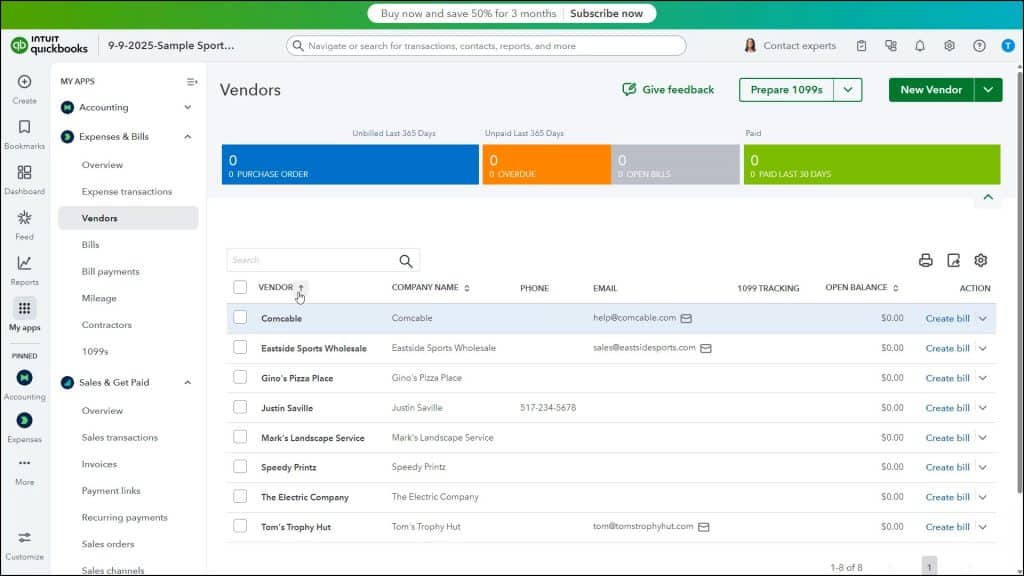
To sort lists in QuickBooks Online, click the sort button next to the column heading label for the column by which to sort the list’s data or directly click the column heading label itself, depending on the list. In the updated major lists, like the Customers list or Vendors list, you can click the sort button. In older lists, you click the column heading.
However, you often cannot sort by all columns in a list in QuickBooks Online. To find out if you can sort by a column heading, look for a sort button in the newer lists or hover your mouse pointer over a column heading label in the older lists. If the mouse pointer icon turns into a pointing hand icon when you hold it over the column heading label in an older list, then you can click it to sort by its values.
Click the sort button or column heading once to sort by its values in ascending order, meaning A to Z or 1 to 9. Click the same button again to sort by the column’s values in descending order, meaning Z to A or 9 to 1.