
 MY CART
How to Use the Filmstrip in Camera Raw in Photoshop:
This video lesson, titled “Learn How to Use the Filmstrip in Camera Raw in Adobe Photoshop: A Training Tutorial,” shows how to use the filmstrip in camera raw in Photoshop. This video lesson is from our complete Photoshop tutorial, titled “Mastering Photoshop Made Easy.”
Overview:
What is the Filmstrip in Camera Raw in Photoshop?
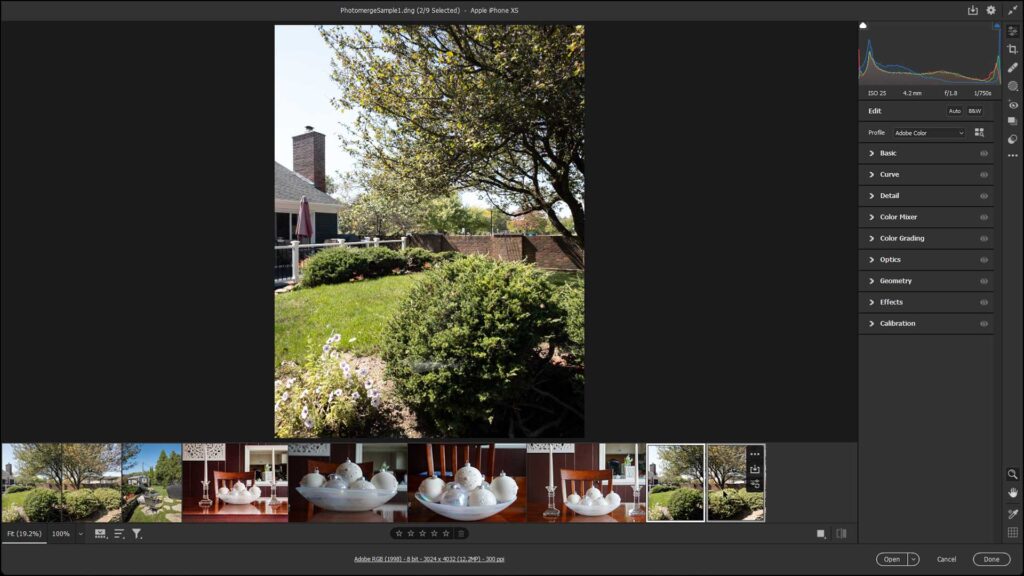
If you open multiple camera raw images in Photoshop at the same time using the “Open” dialog box, Adobe Bridge, or imported Lightroom photos, the images appear in a Filmstrip in the “Camera Raw” dialog box. By default, the Filmstrip appears at the bottom of the image preview area in the dialog box, but you can change its placement.
How to Show or Hide the Filmstrip
The “Filmstrip” button that controls the visibility of the Filmstrip and its other settings appears in the lower-left corner of the “Camera Raw” dialog box, by the “Select zoom level” drop-down. To show or hide the Filmstrip, click the “Filmstrip” button. To show a pop-up menu of Filmstrip commands from which you can select, either click and hold down on the “Filmstrip” button or right-click the “Filmstrip” button.
How to Select Pictures in the Filmstrip
Within the Filmstrip, you click to select an image to process in the “Camera Raw” dialog box. You can then make your usual camera raw adjustments to the selected image. You can also select multiple images in the Filmstrip to apply camera raw editing adjustments, ratings, color labels, rejection status, and deletion marks to multiple camera raw images at once, if desired. Separately, you can also merge multiple selected camera raw images to an HDR, Panorama, or HDR Panorama image.
You can hold down either the “Shift” or “Ctrl” keys on your keyboard after clicking to select an image to then click to select multiple adjacent or non-adjacent images in the Filmstrip, as usual. To select all the images in the Filmstrip, choose the “Select All” command from the “Filmstrip” button’s pop-up menu.
How to Set Ratings, Set Labels, Set as Rejects, or Mark for Deletion in the Filmstrip
To assign the same rating to the selected images, roll over the “Set Rating” command in the “Filmstrip” button’s pop-up menu and then select the rating to apply from the side menu of choices that appears. To assign the same color category to multiple selected images in the Filmstrip, roll over the “Set Label” command in the “Filmstrip” button’s pop-up menu and then select the color label to apply from the side menu of choices that appears.
If you want to toggle setting multiple selected images in the Filmstrip as rejects, select the “Set as Reject” command in the “Filmstrip” button’s pop-up menu. To toggle the marking of multiple selected images in the Filmstrip for deletion on or off, select the “Mark for Deletion” command in the “Filmstrip” button’s pop-up menu.
How to Merge to HDR, Merge to Panorama, or Merge to HDR Panorama in the Filmstrip
To merge the selected camera raw images to HDR, select the “Merge to HDR…” command in the “Filmstrip” button’s pop-up menu. Then set the desired merge options in the “HDR Merge Preview” dialog box and click the “Merge” button to finish.
To merge the selected camera raw images to a panorama, select the “Merge to Panorama…” command in the “Filmstrip” button’s pop-up menu. Then set the desired merge options in the “Panorama Merge Preview” dialog box and click the “Merge” button to finish.
To merge selected HDR camera raw images to an HDR panorama, select the “Merge to HDR Panorama…” command in the “Filmstrip” button’s pop-up menu. Then set the desired merge options in the “HDR Panorama Merge Preview” dialog box and click the “Merge…” button. Then choose the name and save location of the merged HRD panorama file in the “Merge Result” dialog box that appears and click the “Save” button to finish.
How to Copy Adjustments from One Photo to Another in the Filmstrip
After adjusting a camera raw photo, you can easily copy and paste its adjustments onto another camera raw photo by using the Filmstrip in the “Camera Raw” dialog box in Photoshop. To copy all the edit adjustments from a camera raw photo, select the photo whose edit adjustments you want to copy. Then select the “Copy Edit Settings” command from the “Filmstrip” button’s pop-up menu.
Alternatively, to copy only selected camera raw adjustments from the selected photo, instead choose the “Copy Selected Edit Settings…” command from the “Filmstrip” button’s pop-up menu. Then use the “Subset” drop-down and/or manually check or uncheck the camera raw adjustments to copy or not copy, respectively, in the “Copy Edit Settings” dialog box that appears and click the “Copy” button in the dialog box.
Finally, after copying either all adjustments or only selected adjustments, click to select the photos onto which to paste those copied edit adjustments in the Filmstrip. Then select the “Paste Edit Settings” command from the “Filmstrip” button’s pop-up menu.
How to Sync Camera Raw Adjustments in the Filmstrip
Likewise, to sync camera raw adjustment settings from one photo to others, click to select the photo with the camera raw adjustments to sync to other camera raw photos in the Filmstrip. Then hold down the “Ctrl” key on your keyboard and click to select the other camera raw photos to which to sync the settings from the first photo.
Then select the “Sync Settings…” command from the “Filmstrip” button’s pop-up menu to open the “Synchronize” dialog box. Finally, use the “Subset” drop-down and/or manually check or uncheck the camera raw adjustments to sync or not sync, respectively, from the initially selected photo to the other selected photos in the “Synchronize” dialog box that appears and click the “OK” button in the dialog box.
How to Enhance Camera Raw Photos in the Filmstrip
To enhance selected photos in the Filmstrip, which uses machine learning to enhance image quality, select the “Enhance…” command from the “Filmstrip” button’s pop-up menu to open the “Enhance” dialog box. If available, to improve the details and reduce the artifacts in compatible raw files, check the “Raw Details” checkbox. If needed, to double the image resolution for large displays and prints, check the “Super Resolution” checkbox. Then click the “Enhance” button in the dialog box to finish.
How to Change the Location of the Filmstrip in Camera Raw
The “Filmstrip” button’s pop-up menu also contains commands that change the appearance of the Filmstrip and its content, but not the selected image or images. To change the orientation of the Filmstrip between its default horizontal appearance or a vertical appearance, where it then appears at the far-left side of the “Camera Raw” dialog box, select either the “Horizontal” or “Vertical” command from the “Filmstrip” button’s pop-up menu.
How to Toggle Filenames and Ratings and Color Labels on Photos in the Filmstrip On or Off
To toggle the appearance of camera raw image filenames in the Filmstrip on or off, select the “Show Filenames” command from the “Filmstrip” button’s pop-up menu. To toggle the appearance of camera raw image color labels and ratings in the Filmstrip on or off, select the “Show Ratings & Color Labels” command from the “Filmstrip” button’s pop-up menu.
How to Sort Photos in the Filmstrip in Camera Raw
To sort the images in the filmstrip, roll over the “Sort By” command in the “Filmstrip” button’s pop-up menu to show a side menu of sorting criteria. Alternatively, click the “Sort By” button to the right of the “Filmstrip” button to view this same menu of sorting criteria. In either location, then click the name of the criteria by which to sort the filmstrip images. To reverse the sort, click the “Reverse Order” command in the menu of criteria choices. To remove the sorting, select the same sorting criteria in the menu again.
How to Filter Photos in the Filmstrip in Camera Raw
To filter the images in the filmstrip, roll over the “Filter By” command in the “Filmstrip” button’s pop-up menu to show a side menu of filtering criteria. Alternatively, click the “Filter By” button to the right of the “Filmstrip” button to view this same menu of filtering criteria. In either filtering criteria menu, then roll over the name of the filtering criteria by which to filter the filmstrip images to show its possible filtering values in a side menu. Then click to select the desired filtering values in the side menu to apply. To clear the filtering choices, click the “Clear Filters” command in the filtering criteria menu.
