
 MY CART
How to Add Transactions to a Project in QuickBooks Online
How to Add Transactions to a Project in QuickBooks Online: Video
This video lesson, titled “How to Add Transactions to a Project in QuickBooks Online Plus,” shows you how to add a transaction to a project in QuickBooks Online. This video lesson is from our complete QuickBooks Online tutorial, titled “Mastering QuickBooks Online Made Easy.”
Overview:
You can add transactions to a project in QuickBooks Online Plus or higher to record the associated income or expenses with the project. You can add new transactions directly from the project or you can classify existing transactions, as needed. However, you should add estimates from which to invoice the customer to the project before creating the invoice or invoices from them. It is also recommended to add invoices to projects before receiving payment on them to prevent reassociating the payment with the invoice, as any existing payment is removed when an invoice is added to a project, which just makes extra work.
How to Add a New Transaction to a Project within the Project Details Page:
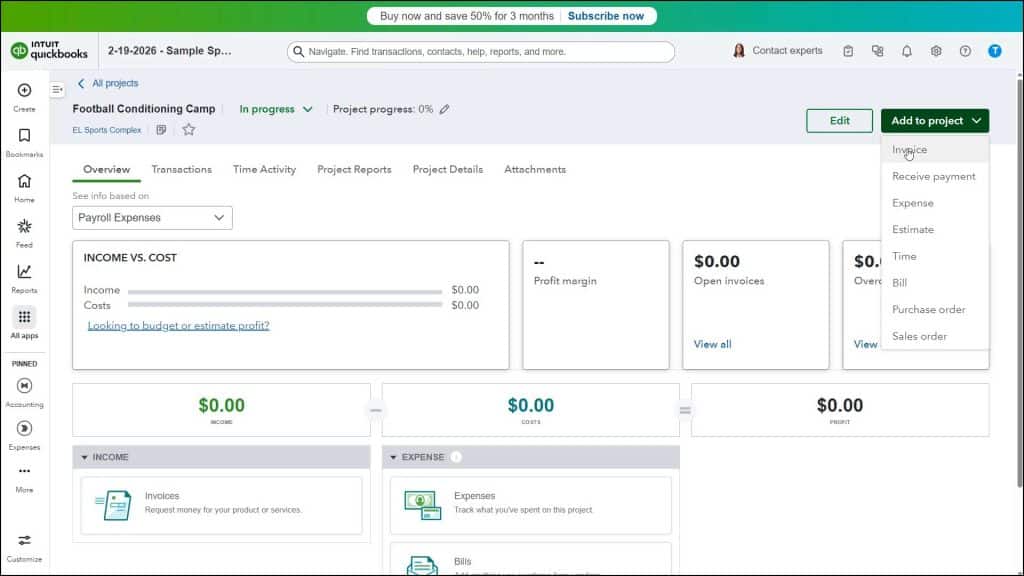
To create a new transaction from within a project, open its project details page by clicking its entry within the “Projects” page. Then click the “Add to project” drop-down button in the upper-right corner of the project details page. Then select the type of new transaction to add from the drop-down menu to open an associated window.
Then enter the details of the transaction, as usual. When making selections in this window, the “Customer” field or “Customer/Project” field should already contain the information from the associated project to help you easily classify it. Make sure this information is accurately entered and then save the transaction, as usual.
How to Add a Transaction to a Project Using the “Customer/Project” Field:
Alternatively, to classify existing transactions or new transactions you create through other means to an existing project, simply select the name of the project from the “Customer” or “Customer/Project” field when editing or entering the transaction’s data. Then make sure to save your changes.
As noted earlier, you can add existing estimates to a project if you haven’t converted them to an invoice yet. Additionally, if you add a paid invoice to a project, it disconnects the payment from the invoice, forcing you to reconnect them. So, it’s better to add invoices to a project before receiving payment. It’s also recommended to not add invoices linked to more than one other transaction, billable expenses, or timesheets. If you add a linked invoice to a project, only the invoice is added. You must then add the linked transactions to the project and reconnect them to the invoice.



