
 MY CART
Reconcile and Pay Credit Cards in QuickBooks Online
How to Reconcile and Pay Credit Cards in QuickBooks Online: Video
This video lesson, titled “How to Reconcile and Pay Credit Cards in QuickBooks Online,” shows you how to reconcile and pay credit cards in QuickBooks Online. This video lesson is from our complete QuickBooks Online tutorial, titled “Mastering QuickBooks Online Made Easy.”
Overview:
How to Reconcile and Pay a Credit Card:
When you receive your credit card statement and bill, you can reconcile your credit card account in QuickBooks Online to the bill. This ensures purchases and payments are properly tracked and helps prevent unauthorized use of the credit card. To reconcile a credit card account, please review the lesson titled “Reconciling Accounts” in Chapter 12 of this tutorial. Reconciling a credit card account is basically the same process as reconciling a bank account.
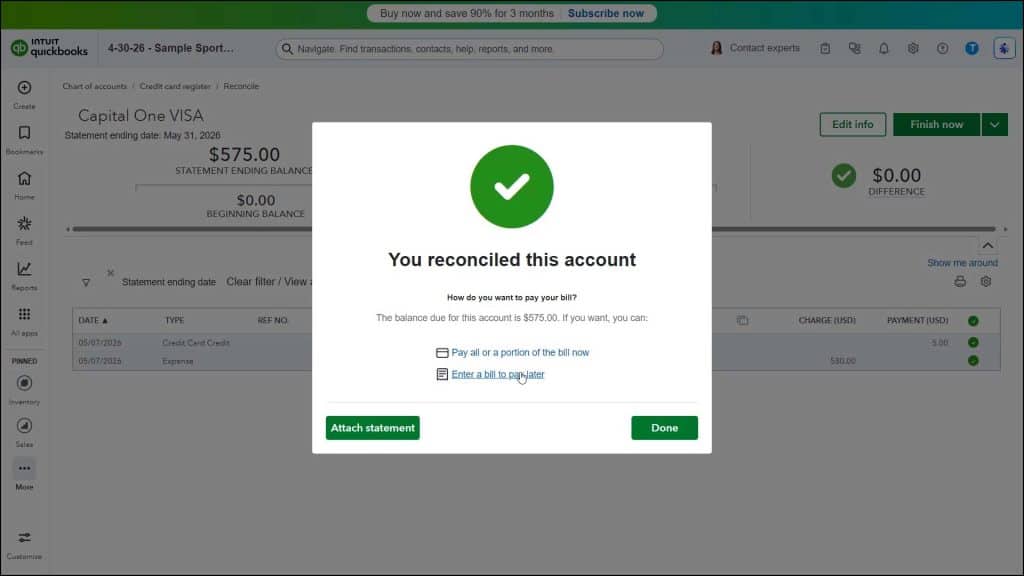
However, after completing a credit card account reconciliation, a “You reconciled this account” window then appears onscreen. If you have a credit card balance to pay, you then see two links here. To pay the credit card balance by check or by bill, click either the “Pay all or a portion of the bill now” or “Enter a bill to pay later” link. Alternatively, to not enter a bill or make a payment right now, click the “Done” button, instead.
How to Create a Check to Pay the Credit Card Balance:
If you click the “Pay all or a portion of the bill now” link, QuickBooks Online Plus creates a check to pay the credit card balance. Select the vendor to pay by using the “Payee” drop-down within the check and verify and/or change the other details of the check, like its “Bank Account” and “Payment date,” to ensure its accuracy. Then either choose one of the “Save” drop-down button options to save the check or click the “Print check” link to print the check.
How to Enter a Bill for the Credit Card Balance:
Alternatively, if you click the “Enter a bill to pay later” link, QuickBooks creates a bill to pay the balance of the credit card account. Select the correct vendor to pay by using the “Select a vendor” drop-down within the bill and verify and/or change the other details of the bill, like its “Bill date” and “Due date,” to ensure its accuracy. Then choose one of the “Save” drop-down button options within the “Bill” window to save the bill for payment later.
How to Keep the Credit Card Balance to Pay Later:
Alternatively, if you click the “Done” button in the “You reconciled this account” window without entering a check or a bill, QuickBooks does nothing to pay the credit card balance. It simply leaves the balance in the account. You will need to manually enter a bill, create a check, or create a “Pay down credit card” transaction later to pay the balance in the credit card account.



