MY CART
Asset and Liability Accounts in QuickBooks Online
Learn about Asset and Liability Accounts in QuickBooks Online: Video
This video lesson, titled “Learn about Assets and Liabilities in QuickBooks Online,” shows you the different general account types available when you create asset and liability accounts in QuickBooks Online. This video lesson is from our complete QuickBooks Online tutorial, titled “Mastering QuickBooks Online Made Easy.”
Overview:
Asset Account Types:
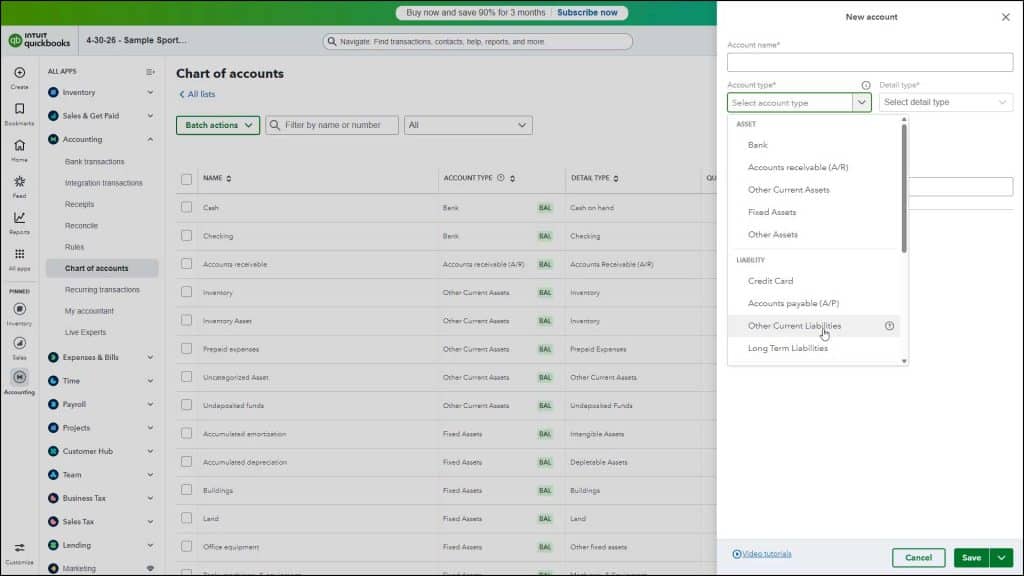
QuickBooks Online Plus has three account types that track the value of short-term and long-term assets. The “Other Current Assets” account type tracks assets likely to be converted into cash or used up within one year. Examples of “Other Current Assets” accounts include prepaid expenses and short-term notes receivable.
A “Fixed Assets” account tracks assets your business owns that are NOT likely to be converted into cash or used up within a year. “Fixed Assets” accounts track the value of long-lived assets with a larger value that assist you in performing your business. The value of these items is expensed over the “useful life” of the asset, which varies. Examples include furniture, some office equipment, computers, and vehicles.
An “Other Assets” account tracks an asset that is neither current nor fixed. Use this account for things like security deposits on leases or intangible assets, like goodwill.
Liability Account Types:
QuickBooks Online Plus also has two account types that track long-term and short-term liabilities. The “Other Current Liabilities” account tracks liabilities your company expects to pay within a year. An example is a short-term loan. A “Long Term Liabilities” account tracks debt your business is not likely to pay off within a year. For example, if buying a company vehicle, you often take out a long-term loan. The long-term loan received to purchase equipment is an example of a long-term liability.
How to Create an Asset or Liability Account:
To create asset and liability accounts in QuickBooks Online, click the “Settings” button in the QuickBooks Online toolbar. Then click the “Chart of accounts” link under the “Your Company” heading in the menu that appears to open the “Chart of accounts” page. Then click the “New account” button in the upper-right corner of the page to open a “New account” pane at the right side of the window.
Enter the account’s name into the “Account name” field. If account numbering is enabled, you can enter one into the “Account number” field. Select the account type from the “Account type” drop-down. Then select the account detail type from the adjacent “Detail type” drop-down. Optionally, to make the account a subaccount of another account, check the “Make this a subaccount” checkbox. Then select its parent account from the adjacent “Parent account” drop-down that appears.
To enter opening balances and starting dates for most balance sheet accounts (assets, liabilities, and equity), enter the opening balance into the “Opening balance” field and select the date of the opening balance amount from the “As of” field. Opening balances ensure you have correct account balances for financial reports. If desired, to learn more about opening balances, click the “More info on opening balances” link.
Optionally, to enter an account description, type it into the “Description” field. A “New Account Preview” section at the bottom of the pane shows how the asset or liability account will appear within its financial report, which is the “Balance sheet” for asset and liability accounts. To finish creating the account, click the “Save” button in the lower-right corner of the “New account” pane. Alternatively, to save the account and create another new account, click the drop-down to the right of this button and choose the “Save and new” command, instead.